![Asus b75m-plus — подключение аудио и питания на материнской плате [23/69]](/img/pdf.png)
Asus b75m-plus — подключение аудио и питания на материнской плате [23/69]
Превью страниц
Страница 23 /
69
![Asus b75m-plus [23/69] Front panel audio connector 10 1 pin aafp](/views2/1159674/page23/bg17.png)
ASUS B75M-PLUS
1-15
1.7.2 Internal connectors
1. Front panel audio connector (10-1 pin AAFP)
This connector is for a chassis-mounted front panel audio I/O module that supports
either HD Audio or legacy AC`97 audio standard. Connect one end of the front panel
audio I/O module cable to this connector.
• We recommend that you connect a high-denition front panel audio module to this
connector to avail of the motherboard’s high-denition audio capability.
• If you want to connect a high-denition front panel audio module to this connector,
set the Front Panel Type item in the BIOS setup to [HD]. If you want to connect an
AC’97 front panel audio module to this connector, set the item to [AC97]. By default,
this connector is set to [HD]. See section 2.5.7 Onboard Devices Conguration for
details.
2. ATX power connectors (24-pin EATXPWR, 4-pin ATX12V)
These connectors are for ATX power supply plugs. The power supply plugs are
designed to t these connectors in only one orientation. Find the proper orientation and
push down rmly until the connectors completely t.
B75M-PLUS
B75M-PLUS Front panel audio connector
AAFP
PIN 1
AGND
NC
SENSE1_RETUR
SENSE2_RETUR
PORT1 L
PORT1 R
PORT2 R
SENSE_SEND
PORT2 L
HD-audio-compliant
pin definition
PIN 1
AGND
NC
NC
NC
MIC2
MICPWR
Line out_R
NC
Line out_L
Legacy AC’97
compliant definition
B75M-PLUS
B75M-PLUS ATX power connectors
EATXPWR
PIN 1
GND
+5 Volts
+5 Volts
+5 Volts
-5 Volts
GND
GND
GND
PSON#
GND
-12 Volts
+3 Volts
+3 Volts
+12 Volts
+12 Volts
+5V Standby
Power OK
GND
+5 Volts
GND
+5 Volts
GND
+3 Volts
+3 Volts
ATX12V
PIN 1
+12V DC
+12V DC
GND
GND
Содержание
- E8250 first edition april 2013 p.2
- Chapter 1 product introduction p.3
- Appendices p.3
- Contents p.3
- Chapter 2 bios information p.3
- Operation safety p.4
- Electrical safety p.4
- About this guide p.4
- Safety information p.4
- How this guide is organized p.4
- Where to find more information p.5
- Typography p.5
- Conventions used in this guide p.5
- Package contents p.6
- B75m plus specifications summary p.6
- Check your motherboard package for the following items p.6
- B75m plus specifications summary p.7
- Asus ez diy p.7
- Asus digi vrm p.7
- Asus quiet thermal solution p.7
- Asus eclusive features p.7
- B75m plus specifications summary p.8
- Placement direction p.9
- Motherboard overview p.9
- Before you proceed p.9
- Screw holes p.9
- Product introduction p.9
- Chapter 1 product introduction p.9
- B75m plus p.10
- Motherboard layout p.10
- Chapter 1 product introduction p.10
- Asus b75m plus p.11
- This motherboard comes with a surface mount lga1155 socket designed for the intel 3rd 2nd generation core i7 core i5 core i3 pentiu p.11
- Processors p.11
- Layout contents p.11
- Central processing unit cpu p.11
- Celero p.11
- B75m plus cpu socket lga1155 p.11
- Installing the cpu p.12
- Chapter 1 product introduction p.12
- Cpu heatsink and fan assembly installation p.13
- Asus b75m plus p.13
- To install the cpu heatsink and fan assembly p.14
- To uninstall the cpu heatsink and fan assembly p.14
- Chapter 1 product introduction p.14
- Asus b75m plus p.15
- System memory p.15
- Memory configurations p.15
- You may install 1gb 2gb 4gb and 8gb unbuffered non ecc ddr3 dimms into the dimm sockets p.15
- This motherboard comes with two double data rate 3 ddr3 dual inline memory module dimm sockets a ddr3 module has the same physical dimensions as a ddr2 dimm but is notched differently to prevent installation on a ddr2 dimm socket ddr3 modules are developed for better performance with less power consumption the figure illustrates the location of the ddr3 dimm sockets p.15
- Overview p.15
- B75m plus 240 pin ddr3 dimm sockets p.15
- Installing a dimm p.16
- Chapter 1 product introduction p.16
- Asus b75m plus p.17
- To remove a dimm p.17
- Pci express 2 x1 slot p.18
- Expansion slots p.18
- Pci slot p.18
- Installing an expansion card p.18
- Configuring an expansion card p.18
- Pci express 3 2 x1 slot p.19
- Jumpers p.19
- Irq assignments for this motherboard p.19
- B75m plus clear rtc ram p.19
- B75m plus usb device wake up p.20
- B75m plus keyboard and usb device wake up p.20
- Rear panel connectors p.21
- Connectors p.21
- Hdmi port this port is for a high definition multimedia interface hdmi connector and is hdcp compliant allowing playback of hd dvd blu ray and other protected content p.22
- Audio 2 4 6 or 8 channel configuration p.22
- Usb 3 ports 1 and 2 these two 9 pin universal serial bus usb ports are for usb 3 devices p.22
- Usb 2 ports 3 and 4 these two 4 pin universal serial bus usb ports are for usb 2 1 devices p.22
- Usb 2 ports 1 and 2 these two 4 pin universal serial bus usb ports are for usb 2 1 devices p.22
- Ps 2 keyboard port this port is for a ps 2 keyboard p.22
- Dvi d port this port is for any dvi d compatible device dvi d can t be converted to output rgb signal to crt and is not compatible with dvi i p.22
- Chapter 1 product introduction p.22
- Front panel audio connector 10 1 pin aafp p.23
- B75m plus front panel audio connector p.23
- This connector is for a chassis mounted front panel audio i o module that supports either hd audio or legacy ac 97 audio standard connect one end of the front panel audio i o module cable to this connector p.23
- These connectors are for atx power supply plugs the power supply plugs are designed to fit these connectors in only one orientation find the proper orientation and push down firmly until the connectors completely fit p.23
- Internal connectors p.23
- B75m plus atx power connectors p.23
- Atx power connectors 24 pin eatxpwr 4 pin atx12v p.23
- Asus b75m plus p.23
- B75m plus fan connectors p.24
- Cpu and chassis fan connectors 4 pin cpu_fan 4 pin cha_fan p.24
- Connect the fan cables to the fan connectors on the motherboard ensuring that the black wire of each cable matches the ground pin of the connector p.24
- Chapter 1 product introduction p.24
- F_panel p.25
- B75m plus system panel connector p.25
- B75m plus speaker out connector p.25
- These connectors connect to serial ata 3 gb s hard disk drives and optical drives via serial ata 3 gb s signal cables p.26
- Sata3g_3 p.26
- Sata3g_2 p.26
- Sata3g_1 p.26
- Sata 6 gb s connectors p.26
- Sata 3 gb s connectors p.26
- Hard disk drives p.26
- You must install windows xp service pack 3 or later version before using serial ata p.26
- Chapter 1 product introduction p.26
- You must install windows x p.26
- B75m plus inte p.26
- When using hot plug and ncq set the sata mode selection item in the bios to ahci p.26
- B75 serial ata 6 gb s connector 7 pin sata6g_1 gray p.26
- This connector connects to serial ata 6 gb s hard disk drives via serial ata 6 gb s signal cables p.26
- B75 serial ata 3 gb s connectors 7 pin sata3g_1 5 blue p.26
- Service pack 3 or later version before using serial ata p.26
- See section 2 sata configuration for details p.26
- Sata6g_1 p.26
- Sata3g_5 p.26
- Sata3g_4 p.26
- B75m plus usb3 front panel connector p.27
- The usb 3 module is purchased separately p.27
- The usb 2 module is purchased separately p.27
- Never connect a 1394 cable to the usb connectors doing so will damage the motherboard p.27
- B75m plus usb2 connectors p.27
- Asus b75m plus p.27
- Usb3_34 p.27
- Usb 3 connector 20 1 pin usb3_34 p.27
- Usb 2 connectors 10 1 pin usb56 usb78 p.27
- This connector is for additional usb 3 ports connect the usb 3 bracket cable to this connector then install the usb 3 bracket to the rear side of the chassis if your chassis supports front panel ports you can use the asus usb 3 header to install additional front panel usb 3 ports p.27
- These connectors are for usb 2 ports connect the usb module cable to any of these connectors then install the module to a slot opening at the back of the system chassis these usb connectors comply with usb 2 specifications and supports up to 480mbps connection speed p.27
- B75m plus serial port com connector p.28
- B75m plus digital audio connector p.28
- The motherboard comes with a standby power led that lights up to indicate that the system is on in sleep mode or in soft off mode this is a reminder that you should shut down the system and unplug the power cable before removing or plugging in any motherboard component the illustration below shows the location of the onboard led p.29
- The lpt line printing terminal connector supports devices such as a printer lpt the lpt line printing terminal connector supports devices such as a printer lpt standardizes as ieee 1284 which is the parallel port interface on ibm pc compatible computers p.29
- Standby power led p.29
- Sb_pwr p.29
- Onboard leds p.29
- Lpt connector 26 1 pin lpt p.29
- B75m plus parallel port connector p.29
- B75m plus onboard led p.29
- Asus b75m plus p.29
- Xp vista 7 8 operating systems os always install the latest os version and corresponding updates to maximize the features of your hardware p.30
- To run the support dvd p.30
- This motherboard supports window p.30
- The support dvd that comes with the motherboard package contains the drivers software applications and utilities that you can install to avail all motherboard features p.30
- Support dvd information p.30
- Software support p.30
- Place the support dvd into the optical drive if autorun is enabled in your computer the dvd automatically displays the specials screen which contains the unique features of asus motherboard click drivers utilities make disk manual and contact tabs to display their respective menus p.30
- Installing an operating system p.30
- Chapter 1 product introduction p.30
- Managing and updating your bios p.31
- Ez update p.31
- Chapter 2 bios information p.31
- Bios information p.31
- Asus ez flash 2 p.32
- Asus crashfree bios 3 utility p.32
- Asus bios updater p.33
- Recovering the bios p.33
- Before updating bios p.33
- Updating the bios file p.34
- Booting the system in dos environment p.34
- To exit bios updater restart your computer p.35
- Bios updater checks the selected bios file and prompts you to confirm bios update p.35
- Asus b75m plus p.35
- Bios menu screen p.36
- Ez mode p.36
- Entering bios setup at startup p.36
- Entering bios setup after post p.36
- Bios setup program p.36
- The boot device options vary depending on the devices you installed to the system p.37
- The advanced mode provides advanced options for experienced end users to configure the bios settings the figure below shows an example of the advanced mode refer to the following sections for the detailed configurations p.37
- Asus b75m plus p.37
- Advanced mode p.37
- To access the ez mode click exit then select asus ez mode p.37
- The boot menu f8 button is available only when the boot device is installed to the system p.37
- Menu items p.38
- Menu bar p.38
- Back button p.38
- Submenu items p.39
- Scroll bar p.39
- Pop up window p.39
- Navigation keys p.39
- Main menu p.39
- General help p.39
- Configuration fields p.39
- System language english p.40
- System date day xx xx xxxx p.40
- Security p.40
- Administrator password p.40
- 한국어 p.40
- System time xx xx xx p.40
- User password p.41
- Ai tweaker menu p.41
- Target dram speed xxxxmhz p.42
- Cpu bus speed dram speed ratio mode auto p.42
- Ai overclock tuner auto p.42
- Cpu power management p.43
- Memory frequency auto p.43
- Igpu max frequency auto p.43
- Gpu boost auto p.43
- Epu setting auto p.43
- Epu power saving mode disabled p.43
- Dram timing control p.43
- Cpu load line calibration auto p.44
- Cpu fixed frequency xxx p.44
- Digi vrm p.44
- Cpu power phase control standard p.44
- Cpu power duty control t probe p.44
- Igpu load line calibration auto p.45
- Igpu current capability 100 p.45
- Cpu voltage offset mode p.45
- Cpu offset mode sign p.45
- Cpu manual voltage auto p.45
- Cpu current capability 100 p.45
- Vccio voltage auto p.46
- Pch voltage auto p.46
- Igpu voltage offset mode p.46
- Igpu offset mode sign p.46
- Dram voltage auto p.46
- Advanced menu p.47
- Active processor cores all p.47
- Intel adaptive thermal monitor enabled p.47
- Hyper threading enabled p.47
- Cpu configuration p.47
- Limit cpuid maximum disabled p.48
- Intel virtualization technology disabled p.48
- Hardware prefetcher enabled p.48
- Execute disable bit enabled p.48
- Cpu power management configuration p.48
- Adjacent cache line prefetch enabled p.48
- Pch configuration p.49
- Intel smart connect technology p.49
- Intel rapid start technology disabled p.49
- High precision timer enabled p.49
- Memory remap feature enabled p.50
- Hot plug disabled p.50
- Graphics configuration p.50
- System agent configuration p.50
- Sata mode selection ahci p.50
- Sata configuration p.50
- S m a r t status check enabled p.50
- Usb configuration p.51
- Nb pcie configuration p.51
- Legacy usb3 support enabled p.51
- Legacy usb support enabled p.51
- Intel xhci mode smart auto p.51
- Intel usb2 ehci controller enabled p.51
- Usb single port control p.52
- Realtek pxe oprom disabled p.52
- Realtek lan controller enabled p.52
- Onboard devices configuration p.52
- Hd audio controller enabled p.52
- Ehci hand off disabled p.52
- Serial port configuration p.53
- Restore ac power loss power off p.53
- Power on by ps 2 keyboard disabled p.53
- Parallel port configuration p.53
- Power on by rtc disabled p.54
- Power on by ring disabled p.54
- Power on by pcie pci disabled p.54
- Network stack disabled p.54
- Network stack p.54
- Monitor menu p.54
- Cpu temperature mb temperature xxxºc xxxºf p.55
- Cpu q fan control enabled p.55
- Cpu fan speed xxxx rpm or ignore n a chassis fan 1 2 speed xxxx rpm or ignore n a p.55
- Cpu fan speed low limit 200 rpm p.55
- Chassis fan speed low limit 600 rpm p.56
- Anti surge support enabled p.56
- Cpu voltage 3 v voltage 5v voltage 12v voltage p.56
- Chassis q fan control enabled p.56
- Usb support partial initialization p.57
- Fast boot enabled p.57
- Boot menu p.57
- Wait for f1 if error enabled p.58
- Ps 2 keyboard and mouse support auto p.58
- Post report 5 sec p.58
- Post delay time 3 sec p.58
- Next boot after ac power loss normal boot p.58
- Network stack driver support disabled p.58
- Bootup numlock state on p.58
- Boot logo size control auto p.58
- Boot logo display enabled p.58
- Boot from network devices legacy oprom first p.59
- Boot devices control uefi and legacy oprom p.59
- Setup mode ez mode p.59
- Option rom messages force bios p.59
- Launch csm enabled p.59
- Interrupt 19 capture disabled p.59
- Csm compatibility support module p.59
- Boot from storage devices legacy oprom first p.59
- Security boot p.60
- Os type windows uefi mode p.60
- Key management p.60
- Boot from pcie pci expansion devices legacy oprom first p.60
- Boot override p.62
- Boot option priorities p.62
- Dimm slot dimm a1 p.63
- Asus spd information p.63
- Asus o c profile p.63
- Asus ez flash 2 utility p.63
- Tools menu p.63
- Save to profile p.63
- Load from profile p.63
- Save changes reset p.64
- Load optimized defaults p.64
- Launch efi shell from filesystem device p.64
- Exit menu p.64
- Discard changes exit p.64
- Asus ez mode p.64
- Notices p.65
- Federal communications commission statement p.65
- Appendices p.65
- Vcci class b statement p.66
- Kc korea warning statement p.66
- Ic canadian compliance statement p.66
- Canadian department of communications statement p.66
- Vcci japan compliance statement p.66
- Asus recycling takeback services p.67
- Technical support p.68
- Asustek computer inc p.68
- Asus contact information p.68
- Asus computer international america p.68
- Asus computer gmbh germany and austria p.68
- Ver 120601 p.69
- Ec declaration of conformity p.69
- Declaration of conformity p.69
- Ca 94539 p.69
- Asus computer international p.69
- Asus b75m plus p.69
Похожие устройства
-
 Asus TUF GAMING B550-PROРуководство по быстрому запуску
 -
 Asus PRIME A520M-A IIКраткое руководство пользователя
 -
 Asus PRIME B250M-PLUSКраткое руководство
 -
 Asus TUF GAMING Z590-PLUSКраткое руководство
 -
 Asus ProArt B650-CREATORКраткий обзор функций
 -
 Asus TUF GAMING B650-PLUSБыстрый старт
 -
 Asus ROG STRIX X670E-I GAMING WIFIКраткое руководство пользователя
 -
Asus ROG FPS-IIРуководство по быстрому запуску
-
 Asus Pro WS W680M-ACE SEКраткая эксплуатационная инструкция
 -
 Asus PRIME B760M-A WIFI D4Инструкция в сокращённом виде
 -
 Asus PRIME H770-PLUSБыстрый старт
 -
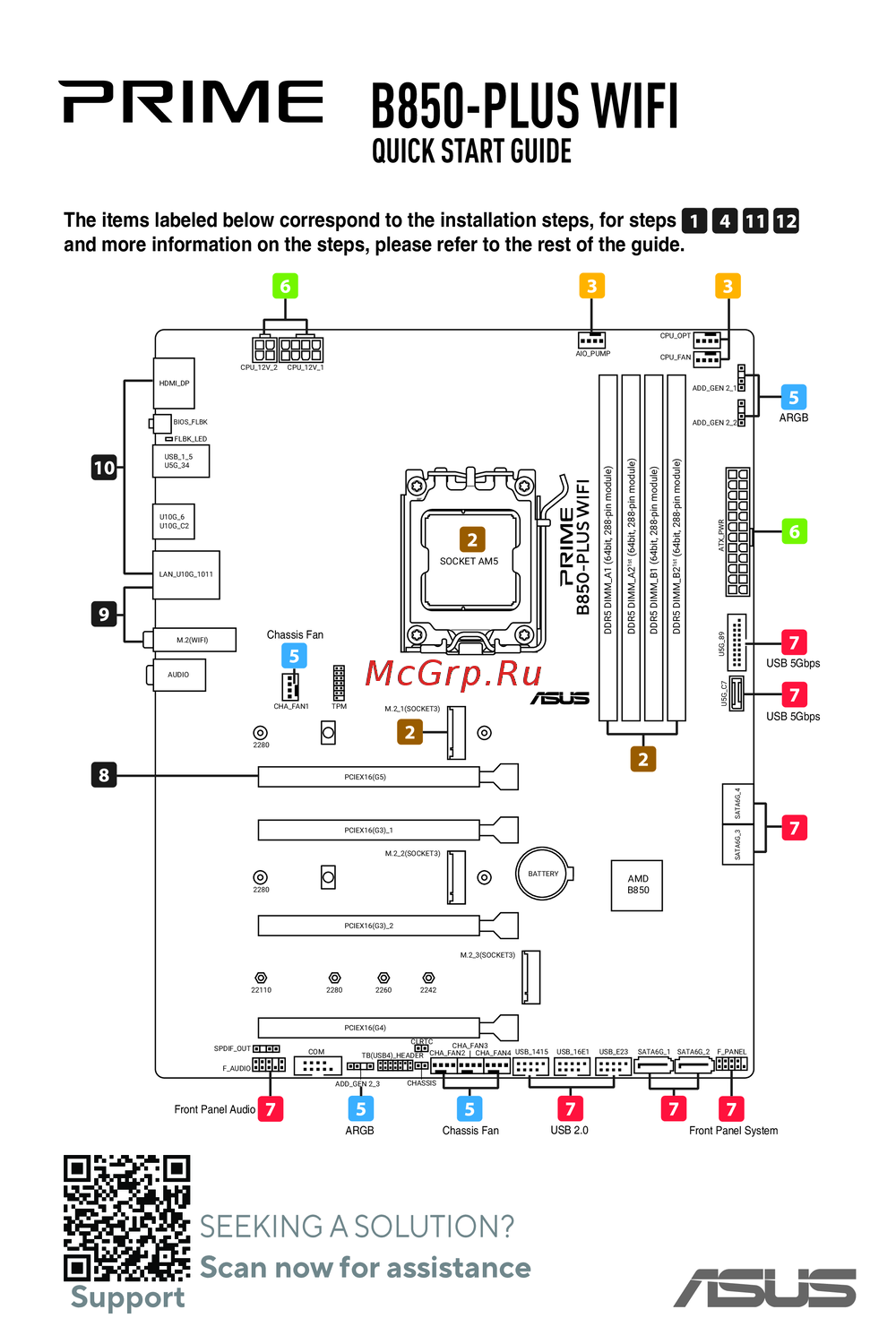 Asus B850-PLUS WIFIКраткое руководство
Узнайте, как правильно подключить аудио и ATX питание на материнской плате. Подробные инструкции по настройке и подключению модулей для оптимальной работы.