![Huawei U8300 — рекомендации по эксплуатации устройства в различных условиях [142/153]](/icons/site-icon-64.png)
Huawei U8300 — рекомендации по эксплуатации устройства в различных условиях [142/153]
Превью страниц
Страница 142 /
153
![Huawei U8300 [142/153] Operating environment](/views2/1004179/page142/bg8e.png)
137
Appendix
Operating Environment
• Do not use or charge the device in dusty, damp, and dirty
places or places with magnetic fields. Otherwise, it may result
in a malfunction of the circuit.
• The device complies with the RF specifications when the
device is used near your ear or at a distance of 1.5 cm from
your body. Ensure that the device accessories such as a
device case and a device holster are not composed of metal
components. Keep your device 1.5 cm away from your body to
meet the requirement earlier mentioned.
• On a stormy day with thunder, do not use your device when it
is being charged, to prevent any danger caused by lightning.
• When you are on a call, do not touch the antenna. Touching
the antenna affects the call quality and results in increase in
power consumption. As a result, the talk time and the standby
time are reduced.
• While using the device, observe the local laws and
regulations, and respect others' privacy and legal rights.
• Keep the ambient temperature between –10°C and 45°C while
the device is being charged. Keep the ambient temperature
between –10°C to 55°C for using the device powered by a
battery.
Содержание
284- Wonderful communication mobile life
- Reading before proceeding 1
- Getting to know your mobile phone 7
- Contacts 40
- Calling 31
- Using the keyboard 49
- Messaging 52
- Getting connected 61
- Entertainment 72
- Managing your mobile phone 123
- Google services 87
- Using other applications 108
- Synchronizing information 102
- Appendix 134
- Safety precautions
- Reading before proceeding
- Trademarks and permissions
- Legal notice
- Copyright huawei technologies co ltd 2011 all rights reserved
- Notice
- No warranty
- Import and export regulations
- What s in the box
- Getting to know your mobile phone
- Phone at a glance
- Mobile phone view
- Getting to know your mobile phone
- Key functions at your fingertips
- Remove the battery cover
- Press to return to the home screen
- Press to hang up a call
- Installing the sim card
- Insert the sim card as shown in the diagram
- Getting started with your mobile phone
- Installing the battery
- Charging your mobile phone
- Powering on your mobile phone
- Powering on or off your mobile phone
- Setting up your mobile phone
- Powering off your mobile phone
- Using the touchscreen
- Touchscreen actions
- Rotating the mobile phone screen
- Unlocking the screen
- Locking the screen
- Locking and unlocking the screen
- The home screen allows you to put all the items you need in one place
- Home screen
- Getting to know your mobile phone
- Getting to know the home screen
- Notification and status icons
- Opening the notifications panel
- Notification panel
- Removing a screen item
- Moving a screen item
- Customizing the home screen
- Closing the notification panel
- Adding a new screen item
- Widgets
- Renaming a folder
- Folders
- Creating a folder
- Using the microsd card
- Installing the microsd card
- Changing the wallpaper
- Using the microsd card as usb mass storage
- Removing the microsd while your mobile phone is on
- Customizing your mobile phone settings
- Making a call
- Calling
- Touch the appropriate numeric keys to enter the phone number
- Press to initiate the call
- Making a call with the dialer
- Dialer to display the dialer
- Dialing panel
- Touch to the right of the log entry to dial
- Touch to dial the phone number
- Making a call from contacts
- Making a call from call log
- In the list touch the contact you want to call
- Contacts to display the contact list
- Call log to display the call log
- Rejecting an incoming call
- Ending a call
- Answering and rejecting a call
- Answering an incoming call
- Other operations during a call
- Making a conference call
- Using call log
- Switching between calls
- Adding an entry to contacts
- Using the airplane mode
- Opening the contacts application
- Contacts
- Importing contacts from a sim card
- Adding a contact
- Searching for a contact
- Adding a contact to your favorites
- Editing a contact
- Viewing contact details
- Contact details
- Connecting through quick contact for android
- Communicating with your contacts
- Quick contact for android
- Deleting a contact
- Communicating with a contact
- Using the keyboard
- Using the phone keyboard
- Choosing an input method
- Customizing keyboard settings
- Sms and mms
- Opening messaging
- Messaging
- Creating and sending a text message
- Creating and sending a multimedia message
- Adding a slideshow
- Replying to a message
- Opening and viewing a multimedia message
- Customizing the message settings
- Adding an email account
- Adding other email accounts
- Viewing an email message
- Creating and sending an email message
- Replying to an email message
- Deleting an email account
- Changing email account settings
- Gprs 3g
- Getting connected
- Checking the network connection
- Turning on wi fi
- Turning on the data service
- Connecting to a wireless network
- Sharing your phone s data connection as a portable wi fi hotspot
- Opening the browser
- Browser
- Opening a web page
- Setting a home page
- Managing bookmarks
- Adding a bookmark
- Opening a bookmark
- Customizing the browser settings
- Bluetooth
- Turning on bluetooth
- Pairing and connecting a bluetooth device
- Sending files via bluetooth
- Modem behaviour
- Disconnecting or unpairing a bluetooth device
- Taking photos and recording videos
- Opening your camera
- Entertainment
- Capture screen
- Taking a photo
- Viewing your photos
- Shooting a video
- Viewing your videos
- Using the gallery
- Opening the gallery
- Viewing a picture
- Rotating a picture
- Cropping a picture
- Enjoying music
- Copying music to the microsd card
- Playing music
- Opening the media library
- Music player screen
- Playing a playlist
- Listening to fm radio
- Adding music to a playlist
- Opening the fm radio
- Fm radio screen
- Tuning the fm radio
- Google services
- Creating a google account
- Using gmail
- Switching between accounts
- Opening gmail
- Creating and sending an email
- Searching for an email
- Replying to or forwarding an email
- Customizing your gmail settings
- Using talk
- Opening talk
- Starting a chat
- Adding a friend
- Accepting an invitation
- Setting notifications for new instant messages
- Enabling location source
- Using maps
- Signing out of talk
- Searching for places of interest
- Opening maps
- Getting directions
- Using youtube
- Searching for a video
- Opening youtube
- Using market
- Sharing a video
- Opening market
- Searching for applications
- Installing an application
- Uninstalling an application
- Synchronizing information
- Managing your accounts
- Adding an account
- Removing an account
- Customizing your account synchronization
- Configuring general sync settings
- Changing an account s synchronization settings
- Using the pc suite to synchronize
- Using the calendar
- Using other applications
- Use calendar to create and manage events meetings and appointments depending on your synchronization settings the calendar on your phone stays in synchronization with your calendar on the web
- Opening the calendar
- Calendar to open the application
- Calendar panel
- Creating an event
- Setting an event reminder
- Customizing the calendar settings
- Opening the alarm
- Using the alarm
- Alarm list screen
- Setting an alarm
- Adding an alarm
- Using sound recorder
- Customizing alarm settings
- Sound recorder screen
- Using the file manager
- Starting a recording
- Setting a voice clip as a ringtone
- Opening the file manager
- Moving or copying a file
- Creating a folder
- Doing a quick search for a file
- Using the calculator
- Opening the calculator
- Viewing your memory status
- Using the richpad
- Switching to the advanced panel
- Setting the date and time
- Managing your mobile phone
- Setting the display
- Adjusting the screen brightness
- Turning on silent mode
- Setting ringers
- Adjusting the time before the screen turns off
- Adjusting the ringer volume
- Adjusting the media volume
- Setting your phone to vibrate for incoming calls
- Setting phone services
- Customizing call settings
- Changing the phone ringtone
- Turning on data roaming
- Switching off the data service
- Switching on always on mobile data
- Setting text to speech
- Installing voice data
- Turning on your sim card pin
- Protecting your mobile phone
- Adjusting the speech rate
- Viewing an installed application
- Managing applications
- Ways to free up your mobile phone memory
- Resetting your mobile phone
- Removing an installed application
- Backing up my settings
- Restoring factory data
- Appendix
- Warnings and precautions
- Medical device
- Electronic device
- Potentially explosive atmosphere
- Traffic security
- Operating environment
- Safety of children
- Prevention of hearing damage
- Battery and charger
- Accessories
- Cleaning and maintenance
- Emergency call
- Certification information sar
- Fcc statement
- Disposal and recycling information
- Reduction of hazardous substances
- Eu regulatory conformance
Похожие устройства
-
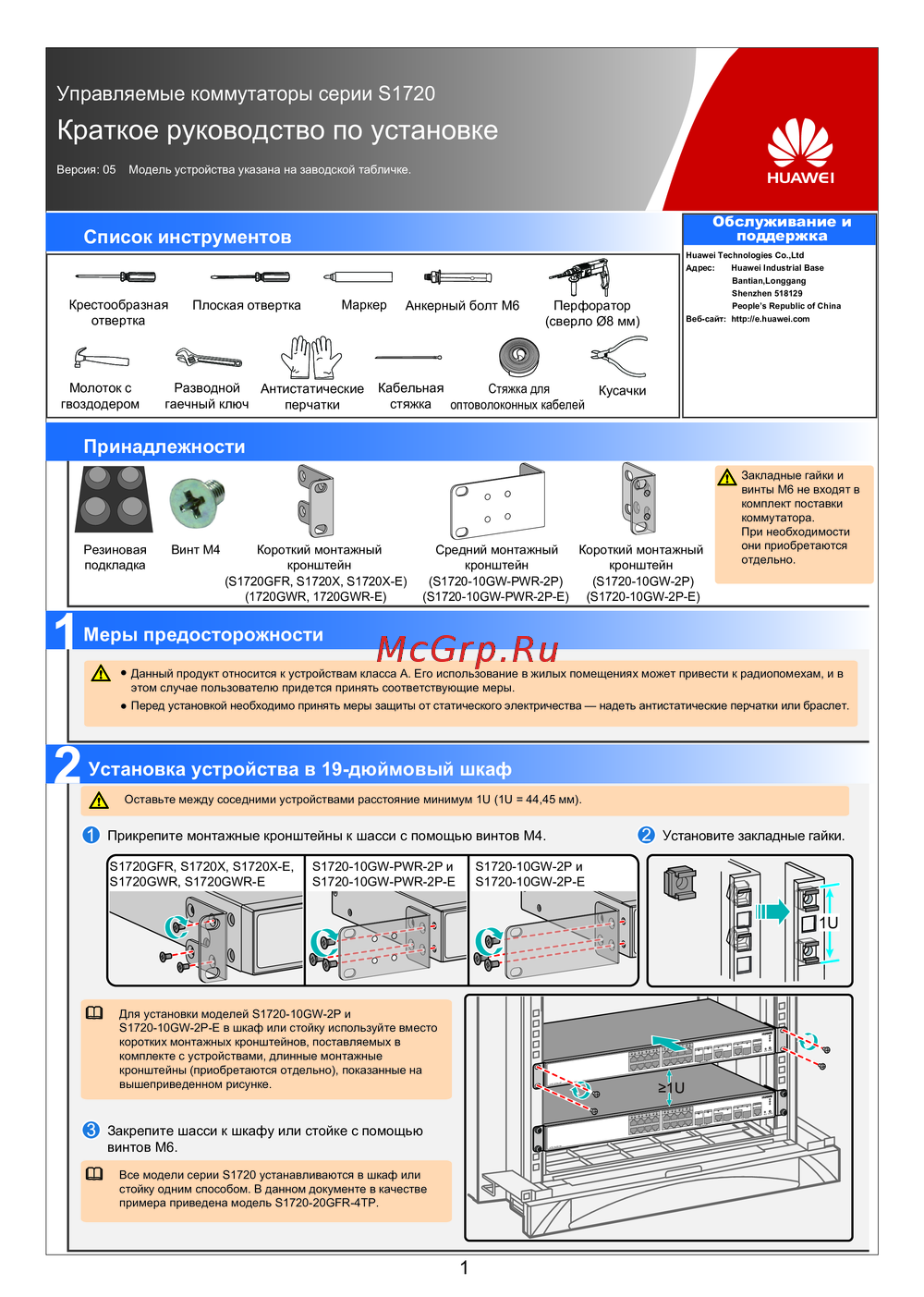 Huawei S1720-28GFR-4TP-ACКраткий обзор функций
 -
Huawei S1720-20GFR-4TPКраткая инструкция
-
Huawei S1720-10GW-2P-EСжатое руководство пользователя
-
Huawei S1720-10GW-2PБыстрый старт
-
Huawei S1720-10GW-PWR-2P-EКраткое руководство
-
Huawei S1720-10GW-PWR-2PКраткая инструкция по использованию
-
Huawei S1720GWR-EКраткая инструкция по использованию
-
Huawei S1720GWRКраткая инструкция по использованию
-
Huawei S1720X-EКраткое руководство
-
Huawei S1720XБыстрый старт
-
Huawei S1720GFRКраткое руководство пользователя
-
 Huawei CE6880Краткая эксплуатационная инструкция
Узнайте, как правильно использовать и заряжать устройство в различных условиях, чтобы избежать поломок и обеспечить безопасность. Соблюдайте рекомендации по температуре и расстоянию.
