![Asus Pro WS W480-ACE — настройки уведомлений: выбор методов и конфигурация [172/196]](/icons/site-icon-64.png)
Asus Pro WS W480-ACE — настройки уведомлений: выбор методов и конфигурация [172/196]
Превью страниц
Страница 172 /
196
![Asus Pro WS W480-ACE Руководство ACC Express онлайн [172/196] 595705](/views2/1769475/page172/bgac.png)
8-6 Chapter 8: Account & General Settings
5. Select the notification method between the following options (multiple
notification methods may be selected):
• Event Log
The notification will be displayed on the device’s event log and system
overview.
• Email
The notification is sent to the entered email addresses.
Ensure to set up the SMTP server settings before using the email function. For
more information please refer to
8.1.1 SMTP Settings
.
When entering multiple emails, press <Enter> after each email to separate the
emails.
Содержание
414- E17075 revised edition v2 october 2020
- Chapter 1 getting started
- Chapter 2 main menu overview
- Contents
- Chapter 4 device information
- Chapter 3 deploy management
- Contents
- Chapter 5 management functions
- Contents
- Contents
- Chapter 8 account general settings
- Chapter 7 report generator
- Chapter 6 settings migrator
- Contents
- How this guide is organized
- About this guide
- Typography
- Reference
- Conventions
- Getting started
- Chapter 1 getting started
- Chapter 1
- Setting up
- Please visit the product website of your asus product to download the asus control center express installer
- Installing asus control center express acce
- Unzip the installation file then execute setup exe you should be guided to install vcredist_x64 vcredist_x86 and asus control express respectively
- Select the folder you would like to install asus control center express to we recommend using the default folder then click next once you have finished
- Click on next to begin the installation
- Once in the port setting page you may adjust the default set ports if your working environment is already using a port that is displayed once you have finished adjusting the ports or if you wish to use the default ports click on next
- Select and check the options you wish to execute during the installation then click next
- Please wait while asus control center express is installing
- Logging in to asus control center express
- Changing the account password
- Activating your license key
- Changing languages
- The screenshots in this section are for reference only
- Main menu overview
- Graphic view
- Classic view
- A brief overview of both views of asus control center express is displayed as below
- 9 asus control center express
- You can toggle between classic and graphic views by clicking on
- Top menu bar items description
- To use the management control function ensure that the motherboard you wish to control supports remote management controller rtl8117
- The menu bar on the top of the screen has the following menu items
- Menu bar items
- 10 chapter 1 getting started
- Main menu overview
- Chapter 2 main menu overview
- Chapter 2
- Dashboard overview
- This graph displays a summary of the utilization status of all client devices
- This graph displays a summary of the hardware status of all client devices
- This graph displays a summary of the connection status of all client devices
- The system overview allows you to view activity alerts and event logs to monitor client devices in real time
- Hardware sensor
- Connection
- Utilization
- Switching sensor views
- The event log displays the status of all client devices in real time allowing you to keep track of the status changes of your client devices at a quick glance you can also click on the top right corner of the event log block to expand the event log to view a detailed list of the event items
- Event log
- Clicking on a client device ip address on the event log will highlight the selected device in the devices list helping you quickly locate devices which require immediate attention
- Filtering client devices
- Device overview
- Redirecting to device information
- Export device list
- Customizing device list metadata
- Creating client device groups
- Using shortcut functions
- You can perform certain actions or schedule tasks for the client devices
- Select the device s you would like to perform an action on
- Click on select function and select the function you would like to use please refer to the table below for a brief summary of each function
- Customizing the graphic view
- Customizing the graphic view for the first time
- Using the graphic view menu items
- Please refer to the table below for the different functions available on the graphic view
- 15 asus control center express
- Using the client device icons
- Single click on client device icon a single click on the client device icon will select the icon for when you wish to use a function on a client device or multiple devices to deselect the icon click on the client device icon again
- Hover over client device icon hover over a client device icon to view the details of the client you may customize the information shown by clicking on
- Double click on client device icon double clicking on a client device icon will redirect you to the device information screen
- Customize and checking or unchecking the metadata item you wish to display or hide then click on save
- Client device icon status the client device icon will change or change colors depending on the status
- Using the mission center
- Mission center
- Viewing task information clicking on a task name in the expanded view of the mission center will allow you to view the client devices the task is being performed on as well as the status or results for each client device
- The table below lists the tasks you can view on the mission center
- Mission center tasks
- Chapter 3
- Deploy management
- Chapter 3 deploy management
- Deploying agents
- Automatically scanning and deploying to devices
- Once you have finished editing the scanned device information select the devices you wish to deploy agents to then click deploy
- Double click on a device in the scan results to edit the device information then click save once you are finished
- After the deployment is completed you may view the deploy status in the deploy list
- Scanning an ip range
- Main server ip address
- Client device ip address
- Adding and deploying to devices
- Adding a single device
- If you already have an existing exported device list csv file for asus control center express you may use the import function to import multiple devices for deployment
- Click on import
- Browse for the csv file you wish to import then click open
- After the deployment is completed you may view the deploy status in the deploy list
- Adding multiple devices
- The imported devices will appear in the device list select the devices you wish to deploy agents to then click deploy
- Select the devices you wish to deploy agents to in the device list then click deploy
- Click on save the device should appear in the device list
- Editing device information
- Installing agents manually
- Removing agents through main server
- Removing agents
- Removing manually installed agents
- When your main asus control center express server has been updated you can easily update the agents of all client devices ensuring your main asus control center express main server and client agents are all up to date with the latest updates using the client agent updater function
- Client agent updater
- Updating agents
- You can view the agent deploy and update progress in the mission center
- Device information
- Chapter 4
- Classic view click on a client device in the device list
- To access device information of a client device from the different views please refer to the following
- The device information overview provides you with detailed information about your selected client device and also provides you with some software controlled management functions such as power control options
- Graphic view double click on a client device shortcut icon
- Device information overview
- Usb redirection
- Logon user
- Ip address
- Inventory
- Installer
- Utilization
- Hardware sensor
- Event log
- Up time
- Device name
- Trust zone
- Device manager
- Time zone
- Control
- These functions are only available on motherboards which supports remote management controller rtl8117
- Bios version
- The device information page also allows you to view information or utilize the different functions available to control and manage the device using the functions located to the right of the screen
- Agent version
- Software
- 3 asus control center express
- Remote desktop
- Os information
- Operating status
- Model name
- Operating status
- This item allows you to view s m a r t attributes or edit the threshold value for items such as voltage temperature fans and graphics card this item is software controlled and values may differ with the hardware version please refer to 5 hardware sensor hardware for more information on hardware mode
- Hardware sensor software
- 6 chapter 4 device information
- The threshold options for each item may vary
- Some items such as voltage items or fan items allow you to edit the threshold values click on the item you wish to edit then click on save once you are finished editing
- Some items may not have a threshold value you can edit
- Monitor
- Low threshold
- High threshold
- Editing the threshold value
- Check zero value
- Partition
- Network
- High warning
- High critical
- Editing the threshold value
- Click on the item you wish to edit then click on save once you are finished editing
- Click on
- 7 asus control center express
- Utilization
- To hide or show sub items
- This item allows you to view and set the utilization threshold value for the cpu dimm partition and network of a single device
- This item displays more details about a single client device and disk this item is software controlled and values may differ with the hardware version please refer to 5 inventory hardware for more information on hardware mode
- Inventory software
- Disk information
- Click on disk information for more details on the disk
- 9 asus control center express
- Processor
- Oem string
- Network adapter
- Memory
- Graphic card
- Click on asset information for more details on the client device you may also edit items with a gray border by double clicking on the item
- Baseboard
- Asset information
- System
- This item displays details on the software and applications of a single device with the application processes services and environment tab
- The application tab allows you to view information on installed applications on the client device you may also click on an application then select uninstall to uninstall the application
- Software
- Application tab
- Services tab
- Processes tab
- Environment tab
- This item allows you to configure items such as regedit usb storage device and power control options this item is software controlled and values may differ with the hardware version please refer to 5 control hardware for more information on hardware mode
- Control software
- Monitor tab
- Event log
- The application tab allows you to filter application related events by selecting your filter criteria from the filter type block then clicking query
- Application tab
- The system tab allows you to filter system related events by selecting your filter criteria from the filter type block then clicking query
- System tab
- The security tab allows you to filter security related events by selecting your filter criteria from the filter type block then clicking query
- Security tab
- Remote desktop general
- Flashing bios by manually uploading bios file
- Bios flash management
- Flashing bios from the bios cache
- Removing a bios file from the bios cache
- Single device
- Multiple devices
- Bios setting
- Adjust the bios advanced boot monitor and security settings of a single client device or multiple client devices
- Please refer to the table below for the different functions you can use on the bios setting page
- Bios setting functions
- Installer
- Downloading drivers applications bios
- A status bar will display the download status click on ok once the download is completed
- Select the drivers utility applications or bios you would like to download then click on download
- Downloading and installing drivers applications bios
- Select the drivers utility applications or bios you would like to download and install then click on download install
- Select a model from the drop down menu then check the client device you wish to download drivers or applications for the client device is checked by default
- Device manager
- Management control
- Chapter 5 management functions
- Chapter 5
- Metadata management
- Adding metadata fields
- Removing metadata fields
- Updating the metadata manually
- Updating the metadata using a batch update
- Software management
- Software dispatch
- Dispatching software to client device
- Software pool
- Adding software packages to the software pool
- Dispatching software using the software pool
- Modifying a software package
- Deleting a software package
- Software information
- Processes tab
- Application tab
- Software blacklist
- Services tab
- Environment tab
- Adding a software to the software blacklist
- Removing a software from the software blacklist
- Installer
- The software rule management allows you to manage software applications the user may install on the client device through setting software rules you may apply whitelist and blacklist rules to software and when the user installs a software that violates the whitelist rule or complies to the blacklist rule an email notification will be sent to user defined receivers notifying them of this software installation
- Software rule management
- Enter the required information into the basic information block
- Click on add
- Adding a new rule to the rule list
- Select whether to add a blacklist or whitelist condition then select the type and condition and enter keywords for the rule into the data field click add to add the blacklist or whitelist condition
- Whitelist conditions
- Blacklist conditions
- Select the client devices you want to apply this software rule to then click save to finish modifying the software rule
- Next to the rule you wish to modify
- Modifying a software rule
- Click on next once you are finished modifying the rule
- Click on
- Deleting a software rule
- You can set scheduled tasks for client devices to perform on set dates or set them to repeat periodically to begin setting tasks please select the device s you would like to schedule tasks for from the devices list then select the task scheduler function from the select function drop down list of functions
- Task scheduler calendar overview
- Task scheduler
- 30 chapter 5 management functions
- You can view the tasks already set on the task scheduler calendar
- Setting a new task
- Editing a task
- Deleting a task
- You can scan for client devices which support the management control functions by clicking on scan clicking on a device from the scan results will redirect you to the management control information page
- To access management control click on
- The management control options allow you to manage a client device remotely which is connected via a management lan port which supports rtl8117 lan ic and also allows out of band management
- Scanning for devices
- Management control overview
- Located at the top right menu bar
- Using shortcut functions
- Select the device s you would like to perform an action on
- Click on select function and select the function you would like to use please refer to the table on the next page for a brief summary of each function
- Setting the password for rtl8117
- Graphic view double click on a client device shortcut icon then select hardware in the mode dropdown menu
- Classic view click on a client device in the device list then select hardware in the mode dropdown menu
- To access management control information of a client device please refer to one of the following methods
- The management control information provides you with detailed information about your selected client device and also provides you with some hardware controlled management functions such as power control options
- Management control information overview
- Management control click on a client device in the scan results of the management control screen
- Up time
- U boot version
- Os information
- Model name
- Management controller
- Machine name
- Kernel version
- Ip address
- Firmware version
- Device icon
- 44 chapter 5 management functions
- Hardware sensor hardware
- This item displays the client device s hardware details from the previous time the client device was powered on this item is hardware controlled and values may differ with the software version please refer to 4 inventory software for more information on software mode
- Inventory hardware
- This item allows you to configure kvm and watchdog clear cmos restart services set an encryption password and configure power control options for scenarios where the client may not have an os installed or cannot enter the os this item is hardware controlled and values may differ with the software version please refer to 4 control software for more information on software mode
- Control hardware
- Setting up kvm before using remote desktop
- Remote desktop kvm 8117
- Using the out of band management remote desktop
- Usb redirection
- The usb redirection function allows your client devices to read usb drives connected to your main server this is useful for situations where you need to boot up the client device using a usb device or when you need to access a usb connected to the main server from a remote location
- Sharing an image
- Sharing a local drive
- Smart bios
- Flashing bios by manually uploading bios file
- Bios flash management
- Flashing bios from the bios cache
- Removing a bios file from the bios cache
- Uploading and updating firmware
- Firmware update
- Trust zone
- Adding a trust zone
- Deleting a trust zone
- Check the ip addresses you would like to delete from the trust zone list then click on remove
- Settings migrator
- Chapter 6
- Settings migrator
- Migrating configurations of acc csm server
- Enter the required information into the fields then click on save
- The results of the configuration and data migration may differ according to the acc csm s configurations you can view the migration results for each option in the mission center
- Importing acc csm data
- Deploying acce agents to acc csm devices
- Optional check client setting migration to import the acc csm client settings and data for the selected devices when you deploy this option is checked by default please refer to the table below for more information on the client settings and data client setting migration will import
- Click on deploy and wait for the agent deployment to be completed the results of the deployment may differ according to the acc csm s configurations you can view the deployment and data migration results for each device in the result block
- Optional check remove the client device s acc agent to remove any previous versions of asus control center agents installed on the selected client devices when deploying new agents
- Report generator
- Chapter 7
- You can generate reports on the connection status software installation history and hardware information of the client device
- To create a connection report on all devices click on
- The connection report will generate a report on the connection status of a single or multiple selected device s
- Report generator
- Located at the top right
- Connection report
- Connection
- Generated connection report excel file
- Generated connection report chart
- The software report will generate a report on the software installation history of a single or multiple selected device s
- Software report
- Software
- Located at the top right
- To create a software report on all devices click on
- Generated software report excel file
- Generated software report chart
- To create a hardware report on all devices click on
- The hardware report will generate a report on the hardware of a single or multiple selected device s
- Located at the top right
- Hardware report
- Hardware
- Generated hardware report excel file
- Generated hardware report chart
- Chapter 8
- Account general settings
- Smtp settings
- Options menu
- Rule management
- Adding a new rule
- Enter a rule name then select the devices to apply the rule to click next
- You can select to enable or disable the newly added rule by checking active rule
- Select conditions type and status of hardware or utilization sensors to send notifications then click next
- To edit a notification rule
- To delete a notification rule
- The general configurations allows you to configure different settings for the main server and agents scroll down to view more options
- Mainserver settings
- General configuration
- Configure items for the main asus control center express server click on save to save the changes made
- Report generator
- Configure the agent sensor intervals and response times click on save to save the changes made
- Allows you to enable or disable recording for connection reports click on save to save the changes made
- Agent configuration list
- Agent port
- Configure the ports for the agent and main server to use when connecting to the client device click on save to save the changes made
- Agent device s administrator account
- Set the default administrator account and password for client devices if no administrator account and password were entered when deploying agents click on save to save the changes made
- View the version of the main server as well as customize the banner logo click on save to save the changes made or click on reset to return to the default banner logo
- Update settings
- Configure the update settings for the main server and clients click on update to save the changes made
- Appearance configuration
- Installer settings
- Configure the installer settings click on save to save the changes made
- To add a license key
- License
- To import multiple license keys
- To add an acc csm license key
- To remove a license key
- To import multiple acc csm license keys
- Account settings displays all user accounts on asus control center express and allows you to add edit or delete user accounts
- Account settings
- Account menu
- To access account settings click on
- The account menu allows you to manage accounts for asus control center express you can also scan a qr code for easy access to the web version of asus control center express or provide feedback to the developers
- Select settings
- Located at the top right menu bar then
- To add an account
- Enter the required information into the fields and check enable the account in the active field to enable this account then click on save to add this new account
- Click on add
- To edit an account
- To delete an account
- To add a new role
- Role privilege management
- To edit a role
- To delete a role
- To access qr code click on
- Qr code
- Located at the top right menu bar then select
- You can scan the qr code to quickly access the web version of asus control center express on your mobile device
- Submit feedback
- Backup and restore
- Backing up asus control center express data and settings
- Restoring asus control center express data and settings
Похожие устройства
-
 Asus TUF GAMING B550-PROРуководство по быстрому запуску
 -
 Asus PRIME A520M-A IIКраткое руководство пользователя
 -
 Asus PRIME B250M-PLUSКраткое руководство
 -
 Asus TUF GAMING Z590-PLUSКраткое руководство
 -
 Asus ProArt B650-CREATORКраткий обзор функций
 -
 Asus TUF GAMING B650-PLUSБыстрый старт
 -
 Asus ROG STRIX X670E-I GAMING WIFIКраткое руководство пользователя
 -
Asus ROG FPS-IIРуководство по быстрому запуску
-
 Asus Pro WS W680M-ACE SEКраткая эксплуатационная инструкция
 -
 Asus PRIME B760M-A WIFI D4Инструкция в сокращённом виде
 -
 Asus PRIME H770-PLUSБыстрый старт
 -
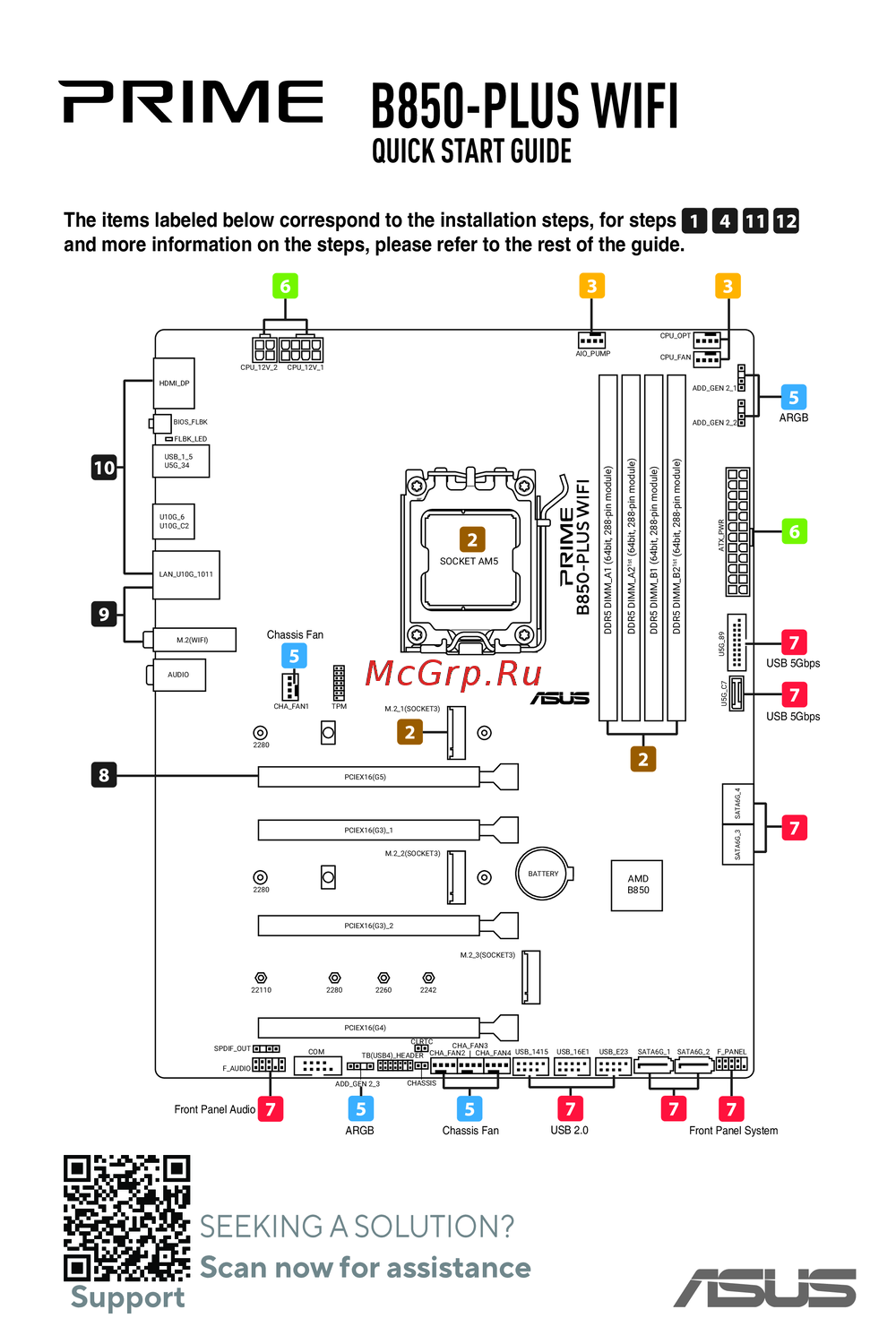 Asus B850-PLUS WIFIКраткое руководство
Узнайте, как выбрать методы уведомлений для вашего устройства, включая журнал событий и электронную почту. Настройте SMTP для отправки уведомлений.