![Asus ROG STRIX X470-I GAMING [17/66] User password](/icons/site-icon-64.png)
Asus ROG STRIX X470-I GAMING [17/66] User password
Превью страниц
Страница 17 /
66
![Asus ROG STRIX X470-I GAMING [17/66] User password](/views2/1769587/page17/bg11.png)
ROG STRIX X470-I GAMING BIOS Manual
17
Administrator Password
If you have set an administrator password, we recommend that you enter the administrator
password for accessing the system. Otherwise, you might be able to see or change only
selected elds in the BIOS setup program.
To set an administrator password:
1. Select the Administrator Password item and press <Enter>.
2. From the Create New Password box, key in a password, then press <Enter>.
3. Re-type to conrm the password then select OK.
To change an administrator password:
1. Select the Administrator Password item and press <Enter>.
2. From the Enter Current Password box, key in the current password, then press
<Enter>.
3. From the Create New Password box, key in a new password, then press <Enter>.
4. Re-type to conrm the password then select OK.
To clear the administrator password, follow the same steps as in changing an administrator
password, but leave other elds blank then select OK to continue. After you clear the
password, the Administrator Password item on top of the screen shows [Not Installed].
User Password
If you have set a user password, you must enter the user password for accessing the system.
The User Password item on top of the screen shows the default [Not Installed]. After you set
a password, this item shows [Installed].
To set a user password:
1. Select the User Password item and press <Enter>.
2. From the Create New Password box, key in a password, then press <Enter>.
3. Re-type to conrm the password then select OK.
To change a user password:
1. Select the User Password item and press <Enter>.
2. From the Enter Current Password box, key in the current password, then press
<Enter>.
3. From the Create New Password box, key in a new password, then press <Enter>.
4. Re-type to conrm the password then select OK.
To clear the user password, follow the same steps as in changing a user password, but
leave other elds blank then select OK to continue. After you clear the password, the User
Password item on top of the screen shows [Not Installed].
Содержание
174- Motherboard
- Rog strix x470 i gaming bios manual
- E13987 first edition february 2019
- Contents
- You have installed a new system component that requires further bios settings or update
- Rx470igm ca
- Rog strix x470 i gaming bios manual
- Knowing bios
- Bios setup
- Bios basic input and output system stores system hardware settings such as storage device configuration overclocking settings advanced power management and boot device configuration that are needed for system startup in the motherboard cmos in normal circumstances the default bios settings apply to most conditions to ensure optimal performance do not change the default bios settings except in the following circumstances
- An error message appears on the screen during the system bootup and requests you to run the bios setup
- Bios setup program
- Bios menu screen
- Use the bios setup to update the bios or configure its parameters the bios screen include navigation keys and brief onscreen help to guide you in using the bios setup program
- To enter bios setup after post
- Simultaneously
- Rog strix x470 i gaming bios manual
- Press the reset button on the system chassis
- Press the power button to turn the system off then back on do this option only if you failed to enter bios setup using the first two options
- Post continues with its routines
- Key to enter bios
- Hotkey
- Entering bios setup after post
- Entering bios at startup
- The advanced mode provides advanced options for experienced end users to configure the bios settings the figure below shows an example of the advanced mode refer to the following sections for the detailed configurations
- The default screen for entering the bios setup program can be changed refer to the setup mode item in section boot menu for details
- Rog strix x470 i gaming bios manual
- Advanced mode
- Ez tuning wizard f11
- Submenu items
- Q fan control f6
- My favorites f3
- Menu items
- Menu bar
- Language
- Search on faq
- Search f9
- Scroll bar
- Last modified button
- Hot keys
- General help
- Configuration fields
- Aura f4
- Hotkey
- Ez mode
- The boot device options vary depending on the devices you installed to the system
- Rog strix x470 i gaming bios manual
- Hotkey for the advanced bios settings
- The qfan control allows you to set a fan profile or manually configure the operating speed of your cpu and chassis fans
- Rog strix x470 i gaming bios manual
- Q fan control
- Configuring fans manually
- Oc tuning
- Ez tuning wizard
- My favorites
- Adding items to my favorites
- The security menu items allow you to change the system security settings
- The main menu screen appears when you enter the advanced mode of the bios setup program the main menu provides you an overview of the basic system information and allows you to set the system date time language and security settings
- Security
- Rog strix x470 i gaming bios manual
- Main menu
- User password
- Administrator password
- Ai tweaker menu
- Ai overclock tuner
- Smt mode
- Performance bias
- Memory frequency
- Epu power saving mode
- Cpu core ratio
- Core performance boost
- Dram timing control
- External digi power control
- Tweaker s paradise
- Cpu soc voltage
- Cpu core voltage
- Advanced menu
- Firmware tpm
- Erase ftpm nv for factory reset
- Amd ftpm configuration
- Svm mode
- Rog effects
- Pss support
- Onboard led
- Cpu configuration
- Smart self test
- Sata port enable
- Sata mode
- Sata configuration
- Nvme raid mode
- M gray
- Hd audio controller
- Audio jack led lighting
- Sata6g_1 gray sata6g_4 gray
- Onboard devices configuration
- Wi fi controller
- Sb link mode
- Rgb led lighting
- Pciex16 mode
- M _2 pcie bandwidth configuration
- M _2 link mode
- M _1 link mode
- Intel lan oprom
- Intel lan controller
- Bluetooth controller
- Power on by rtc
- Power on by pci e pci
- Erp ready
- Apm configuration
- Restore on ac power loss
- Network stack configuration
- Network stack
- Hdd ssd smart information
- Xhci hand off
- Usb single port control
- Usb mass storage driver support
- Usb configuration
- Legacy usb support
- Zen common options
- Amd cbs
- Df common options
- Umc common options
- Nbio common options
- Promontory common options
- Cpu core voltage 3 v voltage 5v voltage 12v voltage x xxxx v
- Q fan configuration
- Monitor menu
- Cpu temperature motherboard temperature pch temperature t_sensor temperature xxx c xxx f
- Cpu fan speed chassis fan speed aio_pump speed xxxx rpm
- Fast boot
- Boot menu
- Ami native nvme driver support
- Wait for f1 if error
- Setup mode
- Option rom messages
- Interrupt 19 capture
- Boot up numlock state
- Boot configuration
- Secure boot
- Csm compatibility support module
- Asus ez flash 3 utility
- Tool menu
- Setup animator
- Boot override
- Boot option priorities
- Ssd speeds may lower over time as with any storage medium due to data processing asus secure erase completely and safely cleans your ssd restoring it to factory performance levels
- Rog strix x470 i gaming bios manual
- Asus secure erase on the advanced mode menu
- Asus secure erase
- Save to profile
- Profile name
- Load save profile from to usb drive
- Load from profile
- Asus user profile
- Asus spd information
- Gpu post
- Bus interface
- Graphics card information
- Save changes reset
- Load optimized defaults
- Launch efi shell from usb drives
- Exit menu
- Discard changes exit
- Updating bios
- Ez update
- Asus ez flash 3
- To update the bios by internet
- Select via internet
- Rog strix x470 i gaming bios manual
- Reboot the system when the update process is done
- Follow the onscreen instructions to complete the update
- Recovering the bios
- Asus crashfree bios 3
- Rog strix x470 i gaming bios manual
Похожие устройства
-
 Asus TUF GAMING B550-PROРуководство по быстрому запуску
 -
 Asus PRIME A520M-A IIКраткое руководство пользователя
 -
 Asus PRIME B250M-PLUSКраткое руководство
 -
 Asus TUF GAMING Z590-PLUSКраткое руководство
 -
 Asus ProArt B650-CREATORКраткий обзор функций
 -
 Asus TUF GAMING B650-PLUSБыстрый старт
 -
 Asus ROG STRIX X670E-I GAMING WIFIКраткое руководство пользователя
 -
Asus ROG FPS-IIРуководство по быстрому запуску
-
 Asus Pro WS W680M-ACE SEКраткая эксплуатационная инструкция
 -
 Asus PRIME B760M-A WIFI D4Инструкция в сокращённом виде
 -
 Asus PRIME H770-PLUSБыстрый старт
 -
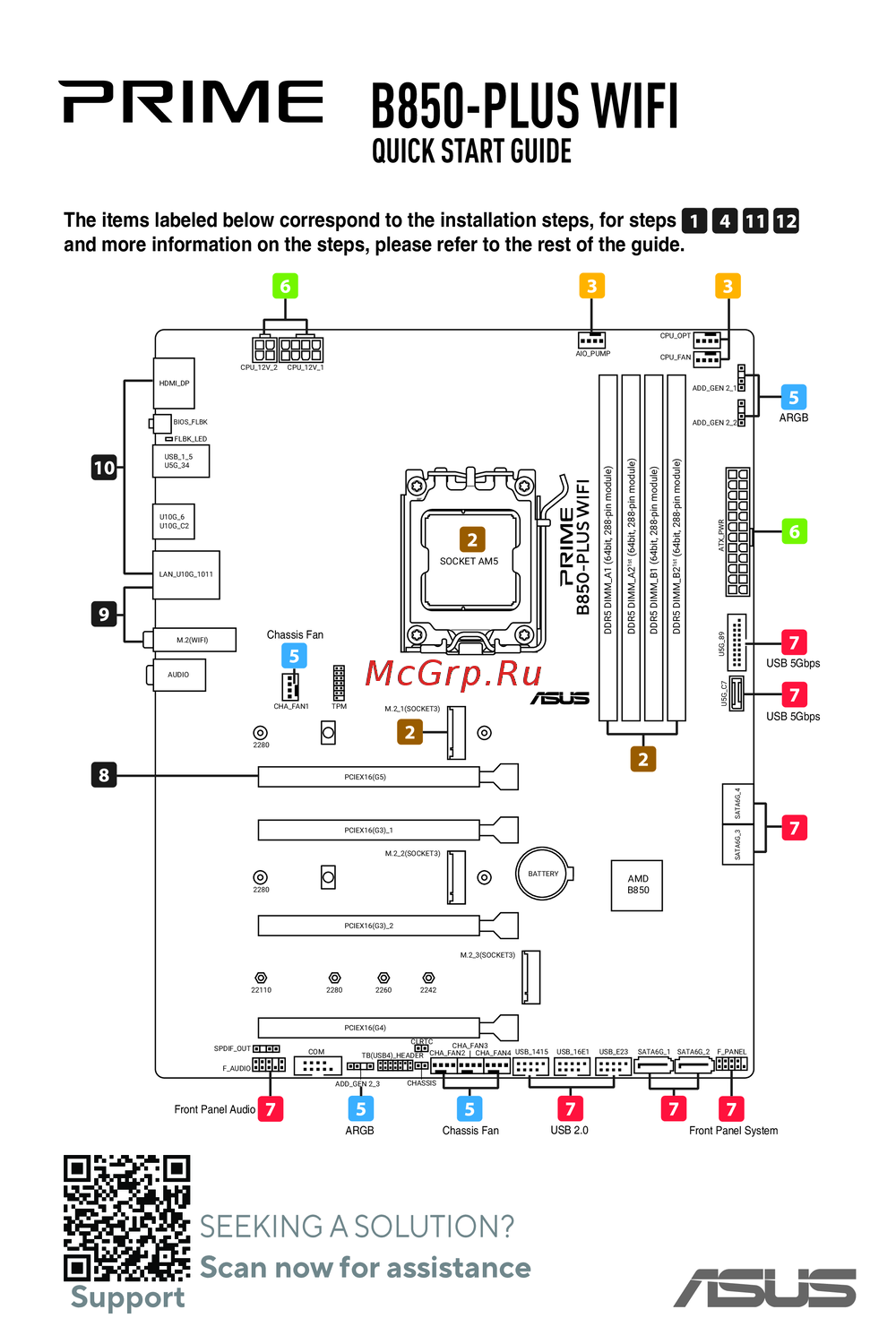 Asus B850-PLUS WIFIКраткое руководство
