![JVC SR-VS30E — функции T-V Link для подключения видеорекордера к телевизору [16/92]](/img/pdf.png)
JVC SR-VS30E — функции T-V Link для подключения видеорекордера к телевизору [16/92]
Превью страниц
Страница 16 /
92
![JVC SR-VS30E [16/92] Vcr auto standby](/views2/1929160/page16/bg10.png)
16
T-V LINK
T-V Link Functions
When you connect the recorder to your TV via a fully-wired 21-pin SCART cable (
墌
pg. 11), the following functions are available.
You can use these functions only with a TV offering T-V Link, etc.*
For details, refer to the instruction manual of your TV.
* Compatible with TVs offering T-V Link, EasyLink, Megalogic, SMARTLINK, Q-Link, DATA LOGIC or NexTView Link via fully-wired 21-pin SCART cable.
The degree of compatibility and available functions may differ by system.
NexTView Link
You can download the EPG (Electronic Programme Guide) information from your TV for timer-programming on the recorder.
For details, refer to the instruction manual of your TV.
TV Auto Power On
The TV will turn on and be set to its AV mode automatically whenever you play a tape.
For details, refer to the instruction manual of your TV.
VCR Auto Standby
You can use your TV’s remote control to turn off the recorder.
For details, refer to the instruction manual of your TV.
Direct Rec
You can easily start recording the programme that you are watching on your TV. When you use this function, set “DIRECT REC” to
“ON” (
墌
pg. 67).
Содержание
228- Initial settings 13
- Mini dv s vhs video cassette recorder
- Contents
- Troubleshooting 83
- List of terms 89
- System connections 63
- Sat control set 17
- Questions and answers 87
- Safety precautions
- Safety first
- Important
- Caution
- Some do s and don ts on the safe use of equipment
- Front view
- Rear view
- Index cont
- Front display panel
- On screen display for dv deck
- On screen display for vhs deck
- Remote control
- Index cont
- Remote control lcd
- How to use
- Check contents
- Check all the contents shown below
- Basic connections
- S video connection
- Auto set up
- Auto channel set auto clock set auto guide program number set
- Preset download
- Auto channel set by downloading from tv auto clock set auto guide program number set
- Results of auto set up preset download appear on the front display panel
- Information
- Important
- Vcr auto standby
- Tv auto power on
- T v link functions
- Nextview link
- Direct rec
- Satellite receiver control setting
- Installing satellite controller
- Setting satellite receiver s brand and channel
- Select the satellite receiver s channel for testing
- Check the result of the test
- Vhs deck
- Basic playback
- Vhs deck
- Basic recording
- Vhs deck
- Slow motion
- Playback features
- Still picture frame by frame playback
- Variable speed search
- Skip search
- Instant review
- Index search
- High speed turbo search
- Activate instant review
- Activate index search
- Stop repeat playback
- Start playback
- Repeat playback
- Playback recording on vhs deck cont
- Next function memory
- Activate repeat playback
- Adjust the tracking manually
- Start playback
- Soundtrack selection
- Override automatic tracking
- Ntsc playback
- Manual tracking
- Load a cassette
- Vhs deck
- Recording features
- Record one programme while watching another
- Instant timer recording itr
- Set the counter display
- Tape remaining time
- Reset the counter
- Elapsed recording time indication
- Locate the start point
- Engage the record pause mode
- Retake
- Resume recording
- Receiving stereo and bilingual programmes
- Playback recording on vhs deck cont
- Vhs deck
- Recording
- Playback
- B e s t picture system
- Dv deck
- Basic playback
- Dv deck
- Basic recording
- Still picture frame by frame playback
- Slow motion
- Playback features
- Dv deck
- Variable speed search
- Soundtrack selection
- Next function memory
- High speed turbo search
- Recording features
- Record one programme while watching another
- Instant timer recording itr
- Dv deck
- Time code
- Receiving stereo and bilingual programmes
- Video plus
- Timer programming
- Attention
- Information
- Engage the recorder s timer mode
- Check the programme data
- Set the tape speed
- Set the pdc mode
- Return to the normal screen
- Express timer programming
- Pdc recording
- Hour express timer programming
- To cancel or change a programme
- Check cancel and change programmes
- When programmes overlap each other
- Tape dubbing
- From dv to vhs
- Dubbing an entire cassette
- Tape dubbing
- From vhs to dv
- Dubbing an entire cassette
- From dv to vhs
- Normal dubbing
- From vhs to dv
- Normal dubbing
- Edit from a camcorder
- Simultaneous dubbing
- Edit to or from another video recorder
- C a c b
- Output input set
- L 1 output and l 1 input setting
- Vhs f 1 input setting
- L 2 select setting
- Vhs audio dubbing
- Dv audio dubbing
- Audio dubbing
- Engage the audio dubbing mode
- End audio dubbing
- Start dubbing
- Set the recorder s input mode
- Select the recording deck
- Make connections
- Locate the start point
- Load a cassette
- Vhs insert editing
- Insert editing
- Dv insert editing sp mode only
- Av insert editing vhs deck only
- Random assemble editing
- Programme editing memory 8 programmes x 8 scenes
- Prepare the vhs deck for dubbing
- Prepare the source tape
- Locate the end point
- End random assemble editing
- Start random assemble editing
- Remote control functions
- Remote a b c d code switching
- Tv multi brand remote control
- Satellite receiver multi brand remote control
- Connecting to a printer
- System connections cont
- Important
- Connecting to a satellite receiver
- Make connections
- Connecting using a stereo system
- Mode set
- Mode set
- Vhs mode set
- Subsidiary settings cont
- Vhs mode set cont
- Vhs mode set cont
- Subsidiary settings cont
- Dv mode set
- Tuner set
- Auto channel set
- View the confirmation screen
- Return to the normal screen
- Important
- Manual channel set
- Delete a channel
- Change station channel position
- Set stations b
- Set stations a
- Fine tuning channels already stored
- Tv station and id list
- Subsidiary settings cont
- Tv station channel number guide
- Clock set
- Start the clock operation
- Set the source channel position for clock data
- Set the date and time
- Set just clock
- Video plus
- System setup
- Guide program number set
- Guide program number
- Playback
- Troubleshooting
- Tape transport
- Symptom possible cause corrective action
- Symptom possible cause corrective action
- Recording
- Troubleshooting cont
- Timer recording
- Symptom possible cause corrective action
- Troubleshooting cont
- Symptom possible cause corrective action
- Other problems
- Attention
- Timer recording
- Recording
- Questions and answers
- Playback
- Specifications
- Tuner timer
- General
- Dv deck video audio
- Accessories
- Vhs deck video audio
- List of terms
Похожие устройства
-
 JVC GZ-R310Руководство по эксплуатации
 -
JVC GZ-R315Руководство пользователя
-
 JVC GZ-R495Руководство по настройке
 -
 JVC GZ-HM650 EverioИнструкция 1
 -
JVC GZ-HM445 EverioИнструкция 1
-
JVC GZ-HM440 EverioИнструкция 1
-
 JVC CR-DF470Руководство по эксплуатации
 -
 JVC GZ-X900Руководство по эксплуатации
 -
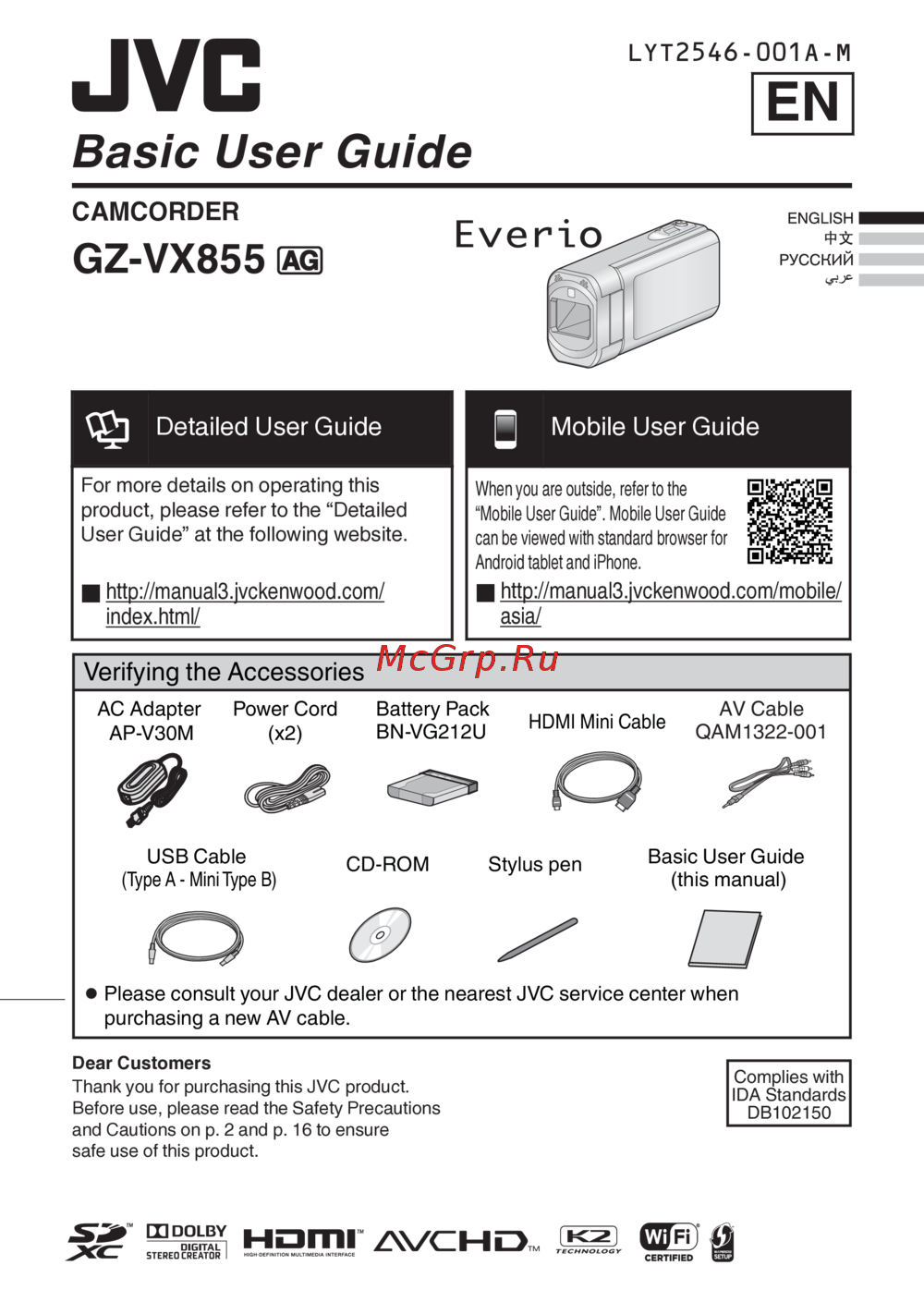 JVC GZ-VX855Руководство по эксплуатации
 -
 JVC GZ-VX815Руководство по эксплуатации
 -
 JVC GZ-VX810Руководство по эксплуатации
 -
 JVC GZ-VX755Руководство по эксплуатации
Узнайте о функциях T-V Link, которые позволяют управлять видеорекордером через телевизор. Подключение, автоматическое включение и запись программ - все это возможно!