![Buffalo WHR-G300NV2 — настройка и доступ к веб-интерфейсу маршрутизатора [18/107]](/icons/site-icon-64.png)
Buffalo WHR-G300NV2 — настройка и доступ к веб-интерфейсу маршрутизатора [18/107]
Превью страниц
Страница 18 /
107
![Buffalo WHR-G300NV2 [18/107] To display the configuration of the airstation follow the procedure below](/views2/1112947/page18/bg12.png)
WHR-G300N User Manual 17
Chapter 4
Conguration
ThischapterexplainstheadvancedsettingsfortheAirStation.Tochangeadvancedsettings,usethe
AirStation's web-based conguration utility.
How to Access the Web-Based Conguration Utility
To display the conguration of the AirStation, follow the procedure below.
1
2
3
Launchawebbrowser.
Entertherouter’sLAN-sideIPaddressintheaddress
eld,andpressthe"Enter"key.
Note:
・
TheAirStation’sdefaultLAN-sideIPaddressdependsonthepositionofthemodeswitch.
Inroutermode:192.168.11.1
Inbridgemode:192.168.11.100(*)
Note: Iftherouterswitchissetto"AUTO"andtheunitisworkinginbridgemode,theAirStation’sIP
addressisassignedtoitbytheexternalDHCPserver.
・
IfyouchangetheIPaddressofthisunit,usethenewIPaddress.
Whenthisscreenappears,enter“root”
(in lower case) for the user name and the
password that you set during initial setup.
Click“OK”.
Note:
・
By default, the password is blank (not set).
・
Ifyouforgetyourpassword,holddown
the Reset button (page 11) to initialize all
settings. The password will then be blank.
Note that all other settings will also revert to
their default values.
Содержание
238- Chapter 3 installation 5
- Chapter 1 product overview
- Contents
- Chapter 4 configuration 7
- Chapter 2 placing your airstation 3
- Admin config 59
- Wireless config 38
- Security router mode only 51
- Lan config router mode only 55
- Diagnostic 68
- Chapter 6 troubleshooting 2
- Chapter 5 connect to a wireless network 4
- Cannot connect to the internet over wired connection 82 cannot access the web based configuration utility 82 cannot connect to the network wirelessly 83 you forgot airstation s ssid encryption key or password 83 the link speed is slower than 300 mbps maximum link speed is only 150mbps 83 other tips 84
- Automatic secure setup aoss wps 74
- Appendix a specifications 7
- Manual setup 77
- Features
- Chapter 1 product overview
- Mbps high speed mode
- Air navigator cd requirements
- Package contents
- Hardware overview
- Front panel led s
- 2 neverunplugtheacadapterwhilethediagledisblinkingcontinuously
- 1 unplugtheacadapterfromthewallsocket waitforafewseconds andthenplugitagain ifthe lightstillflashes pleasecontacttechnicalsupport
- Back panel
- Bottom
- Right side
- Place the unit horizontally as the figure below
- Horizontal placement
- Chapter 2 placing your airstation
- Vertical placement
- Toplaceunitvertically refertothefollowingfiguretoplacethevertical wall mountingstand
- Wall mounting
- Youcansetupthisunitwiththeincludedsoftwarecd insertthecdintoyourpcandfollowthe instructions on the screen
- Unplugthelancablethatconnects your computer and modem
- Turn off your computer and modem
- To configure your airstation manually follow the procedure below
- Plugoneendofthelancableintoyourmodemandtheothersidetotheinternetportofthe airstation turn on your modem
- Manual setup
- Make sure the mode switch on the back of the airstation is in the auto position
- Chapter 3 installation
- Cd setup
- Connectyoucomputertooneoftheairstation slanportswiththelancable turn on the airstation wait one minute and then turn on your computer
- Confirmthatthedevicesareconnectedcorrectlyasshownbelow
- Chapter 3 installation
- Afteraminute theairstation sledsshouldbelitasdescribedbelow
- You vecompletedinitialsetupofyourairstation refertochapter4foradvancedsettings
- Wireless greenlightonorblinking
- Whr g300n user manual 16
- Router greenlightonoroffdependingonyournetwork
- Refertopage8and10forledlocationsandotherdetails
- Power greenlighton
- Launchawebbrowser ifthe home screenisdisplayed setupiscomplete ifausernameandpasswordscreenisdisplayed enter root in lower case for the user name leavethepasswordblank andclick ok follow the instructions on the screen to complete setup
- Lan greenlightonorblinking
- Internet greenlightonorblinking
- Diag off
- To display the configuration of the airstation follow the procedure below
- Thischapterexplainstheadvancedsettingsfortheairstation tochangeadvancedsettings usethe airstation s web based configuration utility
- Launchawebbrowser
- How to access the web based configuration utility
- Entertherouter slan sideipaddressintheaddress field andpressthe enter key
- Chapter 4 configuration
- Whenthisscreenappears enter root in lower case for the user name and the password that you set during initial setup click ok
- The configuration utility is displayed
- Inroutermode theairstation sweb basedconfigurationutilityhasthefollowingmenuscreens see the pages listed at right for more information about a menu screen
- Configuration menu router mode
- Inbridgemode theairstation sweb basedconfigurationutilityhasthefollowingmenuscreens see the pages listed at right for more information about a menu screen
- Configuration menu bridge mode
- The home page of the configuration utility
- Parameter meaning
- Parameter meaning
- Thescreentoconfigureaportoftheinternetside
- Parameter meaning
- Internet router mode only
- Internet lan lan config
- Thescreentoconfigurepppoesettings
- Pppoe router mode only
- Parameter meaning
- Parameter meaning
- Parameter meaning
- Parameter meaning
- Ddns router mode only
- Configuredynamicdnssettings
- Parameter meaning
- Vpn server router mode only
- Configureavpnserver
- Parameter meaning
- Parameter meaning
- Configurelan sideipaddresssettings
- Parameter meaning
- Parameter meaning
- Dhcp lease router mode only
- Configuredhcpleases
- Nat networkaddresstranslation allowsyourprivatelansidenetworkdevicestocommunicate withtheinternet
- Parameter meaning
- Nat router mode only
- Parameter meaning
- Configure the airstation s ip communication routes
- Wireless config
- Parameter meaning
- Configurewpssettings
- Configureanduseairstationone touchsecuresystem aoss
- Parameter meaning
- Parameter meaning
- Configurebasicwirelesssettings
- Parameter meaning
- Parameter meaning
- Parameter meaning
- Don t change advanced wireless settings unless you know what you re doing
- Advanced
- Configureqosprioritieshere
- Parameter meaning
- Thisscreenletsyourestrictwirelessaccesstowirelessdeviceswithspecificmacaddresses
- Parameter meaning
- Mac filter
- Restrictunnecessarymulticastpacketsfromwirelesslanports
- Parameter meaning
- Multicast control
- Wds bridging allows communication between airstations
- Parameter meaning
- Search clicktosearchforotherairstations ssids
- Parameter meaning
- Notes a master airstation can communicate with two slaves only a slave airstation cannot communicate with any airstation other than its master
- Master
- Encryptionforwireless chooseencryptiontypeforthemasterairstation
- Chapter 4 configuration
- Wpa psk presharedkey setthemasterairstation sencryptionkey
- Wireless authentication configureauthenticationmethodforthemasterairstation
- Whr g300n user manual 50
- Ssid configurethemasterairstation sssid
- Slave1 slave2
- Security router mode only
- Parameter meaning
- Firewall router mode only
- Parameter meaning
- Parameter meaning
- Ip filter router mode only
- Createandeditipfilters
- Vpn pass through router mode only
- Parameter meaning
- Configureipv6passthrough pppoepassthrough andpptppassthrough
- Configureporttranslation
- Port forwarding router mode only
- Parameter meaning
- Lan config router mode only
- Parameter meaning
- Dmz router mode only
- Configureadestinationtotransfercommunicationpacketswithoutalansidedestination
- Upnp router mode only
- Upnp enableordisableuniversalplugandplay upnp functionality
- Parameter meaning
- Configureuniversalplugandplay
- Qos router mode only
- Parameter meaning
- Configurethepriorityofpacketssenttotheinternet
- Parameter meaning
- Configuretheairstation sname
- Admin config
- Password
- Parameter meaning
- Configuretheloginpasswordfortheairstation sconfigurationutility
- Time date
- Parameter meaning
- Configuretheairstation sinternalclock
- Parameter meaning
- Configuretheairstation sinternalclocktoautomaticallysynchronizewithanntpserver
- You may restrict access to the airstation s settings screens
- Parameter meaning
- Access
- You may use a syslog server to manage the airstation s logs
- Parameter meaning
- You may save your airstation s settings as a file and restore settings from that file later
- Save restore
- Parameter meaning
- Reboot or initialize the airstation
- Parameter meaning
- Initialize restart
- Update the airstation s firmware
- Update
- Parameter meaning
- This screen displays the airstation s system information
- System info
- Diagnostic
- Parameter meaning
- Parameter meaning
- Checktheairstation slogs
- Verifytransferredpackets
- Parameter meaning
- Packet info
- Client monitor
- This screen list connected devices
- Parameter meaning
- Parameter meaning
- A ping test checks whether the airstation can communicate with a specific network device
- Chapter 5 connect to a wireless network
- Automatic secure setup aoss wps
- Windows vista client manager v
- Windows xp client manager 3
- Windows 7 wlan autoconfig
- Other devices e g game console
- Manual setup
- Windows vista wlan autoconfig
- Step through the wizard to finish configuration
- Entertheencryptionkeyandclick connect
- Windows xp wireless zero configuration
- Cannot access the web based configuration utility
- Chapter 6 troubleshooting
- Cannot connect to the internet over wired connection
- You forgot airstation s ssid encryption key or password
- The link speed is slower than 300 mbps maximum link speed is only 150mbps
- Cannot connect to the network wirelessly
- Other tips
- Answer
- Answer
- Answer
- Appendix a specifications
- Appendix b default configuration settings
- Windows 7
- Appendix c tcp ip settings in windows
- Windows vista
- Windows xp
- Appendix d restoring the default configuration
- Hold down this button for 5 seconds the airstation will be initialized
- Important note fcc radiation exposure statement
- Federal communication commission interference statement
- Fcc caution
- Appendix e regulatory compliance information
- European union notice
- 來自台灣 ncc 的警告
- Industry canada statement
- Appendix f environmental information
- Appendix g gpl information
- Appendix h warranty information
- North america
- Europe
- Appendix i contact information
- Asia pacific
Похожие устройства
-
 Buffalo WHR-HP-GNИнструкция по эксплуатации
 -
 Buffalo WZR-HP-G450HИнструкция по эксплуатации
 -
 Buffalo WZR-D1800HИнструкция по эксплуатации
 -
 Buffalo WLAE-AG300NИнструкция по эксплуатации
 -
 Buffalo WBMR-HP-GNV2Инструкция по эксплуатации
 -
 Buffalo WCR-GNИнструкция по эксплуатации
 -
Buffalo WHR-HP-G300NИнструкция по эксплуатации
-
 Buffalo WBMR-HP-G300HИнструкция по эксплуатации
 -
 Buffalo WZR-HP-AG300HИнструкция по эксплуатации
 -
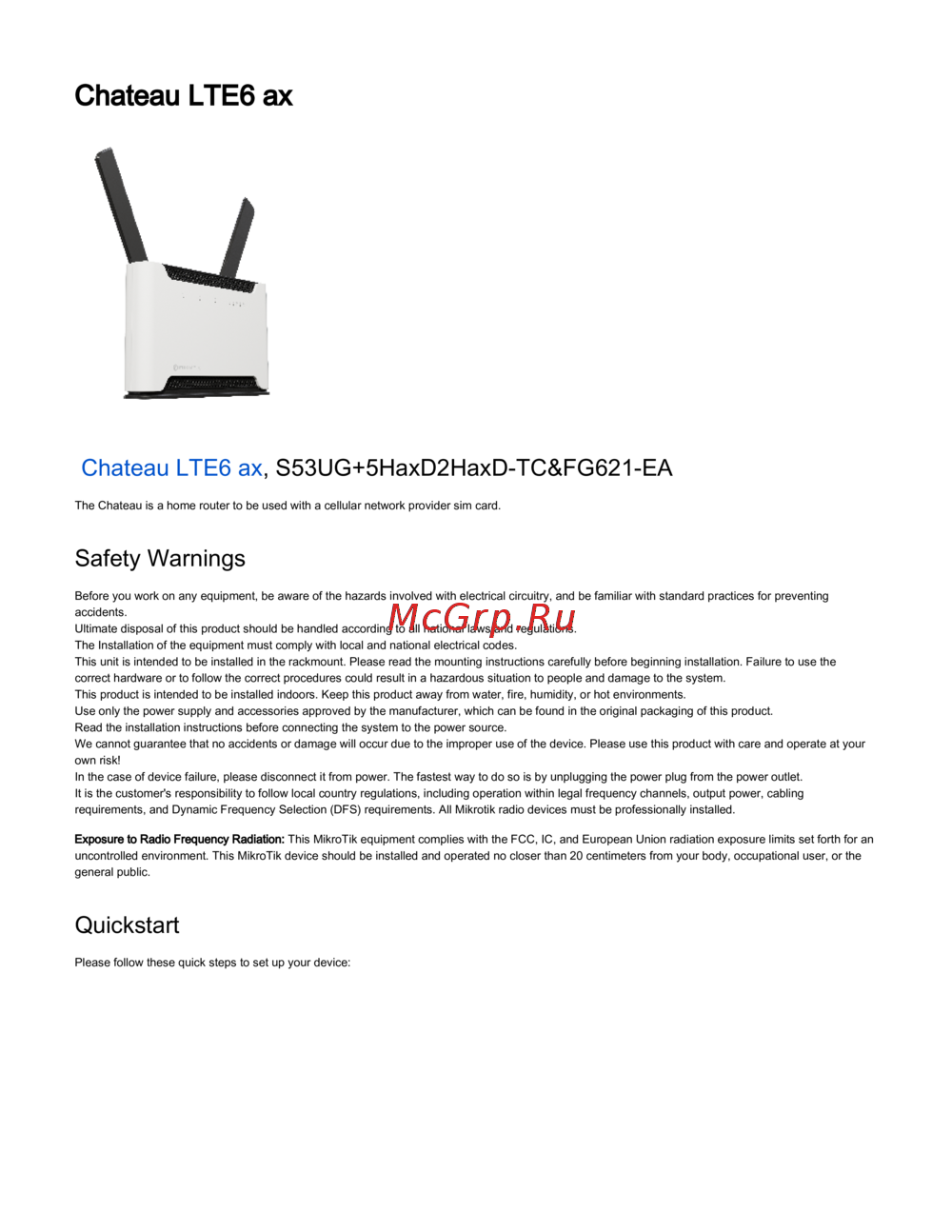 MikroTik Chateau LTE6 ax S53UG+5HaxD2HaxD-TC&FG621-EAСжатое руководство пользователя
 -
 Asus ZenWiFi AX Hybrid XP4Руководство по настройке
 -
 Tp-Link Archer BE450Краткая инструкция
Узнайте, как получить доступ к веб-интерфейсу маршрутизатора и изменить его настройки. Подробная инструкция по настройке и восстановлению пароля.
