![Wacom intuos pen&touch m — гарантийное обслуживание и поддержка продуктов [69/73]](/icons/site-icon-64.png)
Wacom intuos pen&touch m — гарантийное обслуживание и поддержка продуктов [69/73]
Превью страниц
Страница 69 /
73
![Wacom intuos pen&touch m Инструкция по эксплуатации онлайн [69/73] 166906](/views2/1191985/page69/bg45.png)
69
IndexContents
69
69
IndexContents
69
Contents
Index
Contents
Index
WARRANTY SERVICE
The full product warranty and licensing agreement is provided in the Important Product Information document
included on your product CD.
WARRANTY SERVICE IN THE U.S. AND CANADA
To obtain Warranty service within the U.S. or Canada contact:
Wacom Support Center
Phone: 1.360.896.9833
Email Inquiry form: http://www.wacom.com/en/support/contact-support/technical-contact
WARRANTY SERVICE OUTSIDE OF THE U.S. AND CANADA
For products purchased or used outside the United States and Canada, the warranty period may be determined by
regional requirements. The warranty period for your pen display is described on the Support page of the Wacom web
site for your region, or contact Wacom Technical Support.
Wacom Technical Support in Asia Pacific (except Japan and China)
Detailed Asia Pacific Limited Warranty policy and product registration may be found online at
http://www.wacom.asia.
To obtain technical support or Warranty service within Southeast Asia, Oceania and Taiwan, please contact Wacom
Customer Support Service for your region.
Phone numbers can be found at: http://www.wacom.asia/customer-care.
Should you have any questions about this Agreement, or if you want to contact Wacom, please write to:
IN NORTH AND SOUTH AMERICA CONTACT: IN JAPAN CONTACT:
Wacom Technology Corporation Wacom Co., Ltd.
1311 SE Cardinal Court Sumitomo Fudosan Shinjuku Grand Tower 31F
Vancouver, Washington 98683 8-17-1 Nishi-Shinjuku, Shinjuku-ku
U.S.A. Tokyo 160-6131
Japan
IN ASIA PACIFIC CONTACT:
IN MAINLAND CHINA (EXCEPT HONG KONG)
CONTACT:
Wacom Co., Ltd. Wacom China Corporation
Sumitomo Fudosan Shinjuku Grand Tower 31F 1103 Beijing IFC West Tower
8-17-1 Nishi-Shinjuku, Shinjuku-ku No. 8, Jianguomenwai Street,
Tokyo 160-6131 Beijing, 100022, China
Japan E-mail: support@wacom.com.cn
Содержание
167- Table of contents
- About the manual
- Your intuos tablet
- System requirements
- See using the expresskeys
- Led indicators
- Battery and wireless connection statu
- Touch is available on the intuos cth 480 and cth 680 models
- The active area of the tablet is where touch pen or other intuos tools are detected the boundaries of the active area are shown by four small dots on the corners of the metallic portion of the tablet
- Warning choking hazard prevent children from dislodging chewing on or swallowing parts of the pen the pen nib or side switch may be accidentally dislodged if children chew on them
- Product informatio
- Pen holders are provided you can add a pen holder as shown and use it to personalize your intuos
- Pen holder
- Ordering parts and accessorie
- Intuos pen
- All intuos pens are cordless and battery free an eraser is included on the pen with the cth 480 and cth 680 models
- Setting up intuos
- Connecting intuos to your computer
- Installing the driver
- The tablet active area
- Tablet to screen mappin
- Learn about the touch experience with intuos also see the wacom gesture guide for windows and mac at www wacom com en support manuals
- Control panel basics
- Working with multiple monitors
- Using your intuos
- Using the pen
- Holding the pen
- Hold the intuos pen as you would a normal pen or pencil adjust your grip so that the side switch is in a convenient location where you can easily toggle it with your thumb or forefinger be careful not to accidentally press the switch while drawing or positioning with the pen tilt the pen in any way that feels most comfortable
- Working with pressure sensitivity
- Positioning
- Erasing
- Dragging
- Clicking
- Using the side switch
- Using the expresskeys
- Expresskey defaults
- Application specific expresskey defaults
- The intuos multi touch experience
- Navigating with touc
- You can also customize your expresskeys to perform some touch functions
- Using the expresskey display navigating with touch
- Using the expresskey displa
- Use gestures to scroll zoom rotate and perform other functions some gestures may provide a visual cue on your display screen to indicate when the gesture has been recognized by intuos
- Use basic actions to navigate and perform typical mouse operations
- Touch is enabled or disabled using the slider switch toggle on the upper right corner of the tablet
- The touch feature of your intuos touch tablet enables you to control a computer using only your fingertips on the tablet surface see the tablet active area
- Navigating with touch
- Tab the touch options determine how fast you must move or tap your fingers in order for an action or gesture to be recognized
- Setting the touch options
- Select the
- Using the expresskey display
- Customizing intuos
- All settings shown below the list apply to the selected tablet or pen display the control panel will not launch unless a supported tablet or pen display is connected to the computer
- Control panel overview
- Choose from any of the other available functions see using the expresskeys
- Use the wacom tablet control panel to customize your intuos tablet or tools the appropriate tabs are displayed and the active applications are shown in the
- Tool tips are available for most control panel items position the cursor over an item and let it rest there the appropriate tool tip will pop up in a few moments your keyboard tab and arrow keys can also be used to navigate the control panel
- To customize make changes to the tab controls experiment with different settings to find what works best for you current selections will be highlighted any changes you make will take effect immediately
- Set a key to right click or double click if you prefer not to or cannot use the side switch on your pen
- Set a key to a commonly used keyboard shortcut or launch a commonly used file or application
- List you can use the control panel to
- Important some applications can override and control the expresskey functions for details see using applications integrated for tablet control
- Using the side switch
- Use a soft
- To adjust the feel and sensitivity of your pen and eraser select the
- Setting
- In some applications a soft pressure setting can make the pen overreact so that slight pressure on the pen will be magnified on the screen if you experience this try a firmer
- For a wider range of pressure values in most pressure sensitive applications
- Adjusting tip feel and double click
- A large double click distance may cause a delay at the beginning of brush strokes in some drawing applications this may also cause a delay at the beginning of a drag action or inking stroke if you notice such effects try setting a smaller double click distance and using the side switch to double click you can also set an expresskey to double click
- By default the entire active area of the tablet maps to the entire monitor if more than one monitor is in use the tablet will map to all monitors
- Tablet to screen mapping
- Tab to define the relationship between tool movement on the tablet surface and cursor movement on the monitor screen
- Select the
- Portion of tablet are
- Portion of screen are
- To define which portion of the display screen your tablet will map to choose a
- Portion of screen area
- Option from the
- Maps the entire monitor s area this is the default setting
- Maps the entire area of a single monitor that you choose if more than one monitor is connected to your system an option will be available for each detected monitor
- In the dialog box that appears choose a method for defining a portion of the display
- The entire active area of the tablet is mapped this is the default setting
- Tab choose a
- Portion of tablet area
- Option
- In the dialog box that appears choose a method for defining a portion of the tablet
- To define the tablet area that will be mapped to the screen area in the
- Function name description
- Customize intuos for the way you like to work simply use the wacom tablet control panel to change the button function that is assigned to a tool button expresskey or radial menu setting
- Button functions
- Button function options may vary depending on your tablet model not all options are available for all controls or tablet models
- Function name description
- Function name description
- Function name description
- Using and customizing the radial menu
- Working with display toggle
- Customizing your application settings
- Once you have created application specific settings applications that have not been customized in this manner will use the settings for
- List you can use the wacom tablet control panel to customize settings for the application
- Creating an application specific setting
- Choose the application for which you want to create a specific setting
- After adding an application its icon appears in the
- To remove an application specific setting
- To confirm your selection the selected application is removed from the list you can restore the application to the tablet by clicking on the
- To change settings for a specific application select the application then customize the tab settings
- Removing application specific settings
- Options
- List select the application you want to remove from the list
- List button in the dialog box that appears click
- In the
- Dialog box
- Click the wacom tablet control panel
- Click on the
- Changing application specific settings
- Button to access the
- Managing preferences
- Installing multiple tablets
- Going wireless with intuos
- Wireless receiver storag
- Wireless accessory components wireless setup wireless module removal battery life information battery replacement wireless module removal wireless receiver storage
- Wireless accessory components
- To install the kit see wireless setup
- The wacom wireless accessory kit includes the following components
- See ordering parts and accessories
- Intuos tablets are designed to let you go wireless by adding the wacom wireless accessory kit
- Wireless setup
- Establishing a wireless connection
- Optimizing the wireless connection
- Wireless module removal
- Charging the battery
- Battery and power management
- Battery and wireless connection status
- Power saving features
- Battery life information
- Battery replacement
- Wireless receiver storage
- Testing the wireless connection
- Troubleshooting
- Testing your tablet
- Testing the tablet controls and tools
- Testing the expresskeys
- Testing a pen
- Troubleshooting tables
- General problems
- Pen problems
- Touch problems
- Wireless connection problems
- Windows specific problems
- Mac specific problems
- Technical support options
- Obtaining software updates
- Care and maintenance
- Replacing the pen nib
- Appendix
- Uninstalling intuos
- Using applications integrated for tablet control
- Pen and digital ink capabilities in windows
- Product information
- Ordering parts and accessories
- Warranty service outside of the u s and canada
- Warranty service in the u s and canada
- Warranty service
- Wacom technical support in asia pacific except japan and china
- In north and south america contact in japan contact
- In asia pacific contact in mainland china except hong kong contact
- Glossary
Похожие устройства
-
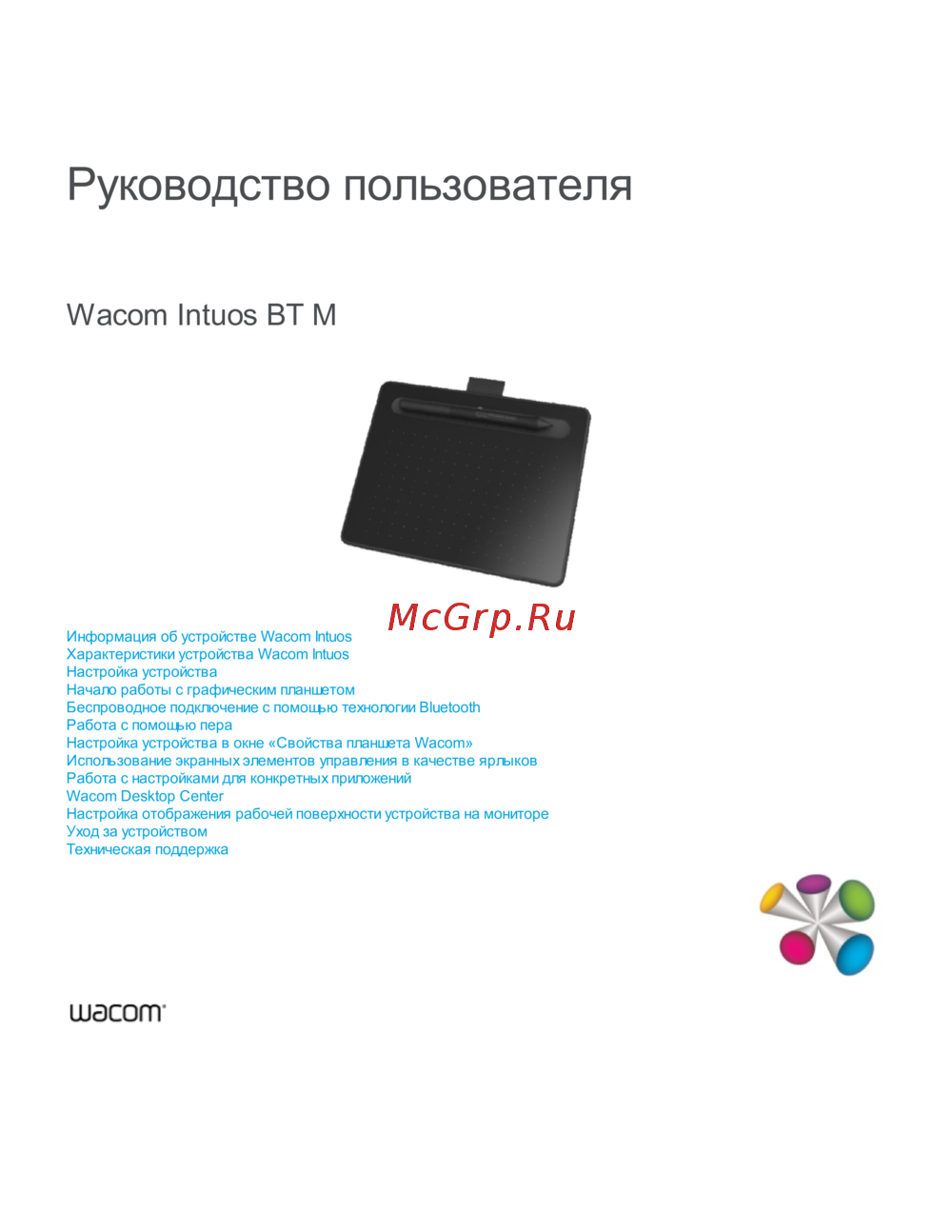 Wacom Intuos BT MРуководство по работе с устройством
 -
 Wacom CTL-672Руководство пользователя
 -
Wacom CTL-472Эксплуатационная инструкция
-
 Wacom Intuos S Bluetooth Pistachio (CTL-4100WLE-N)Инструкция по эксплуатации
 -
 Wacom Intuos Pro M Special Edition (PTH-651 S-RUPL)Руководство по эксплуатации
 -
 Wacom INTUOS5Руководство по эксплуатации
 -
 Wacom INTUOS4Руководство по эксплуатации
 -
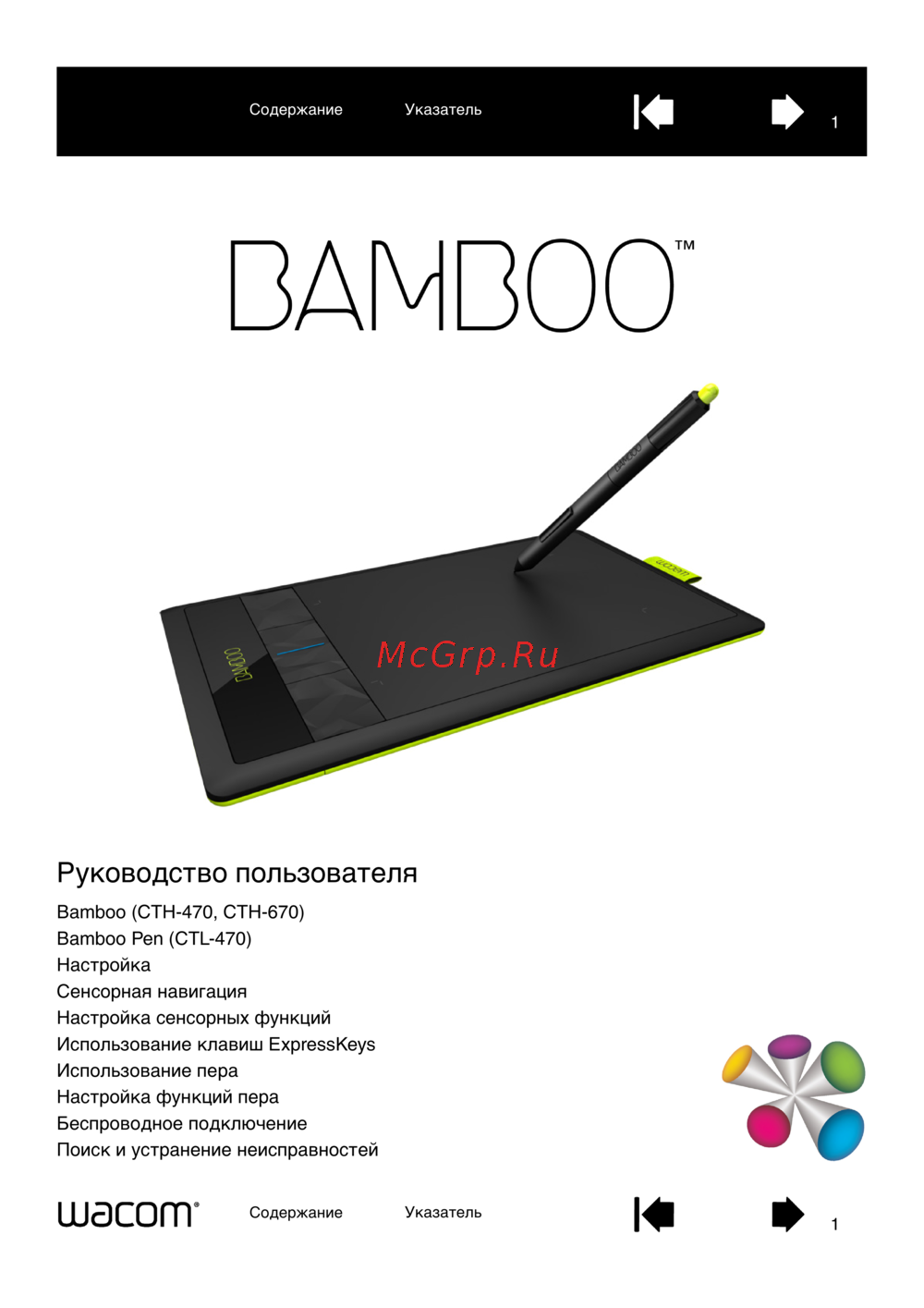 Wacom BAMBOO PEN&TOUCHРуководство по эксплуатации
 -
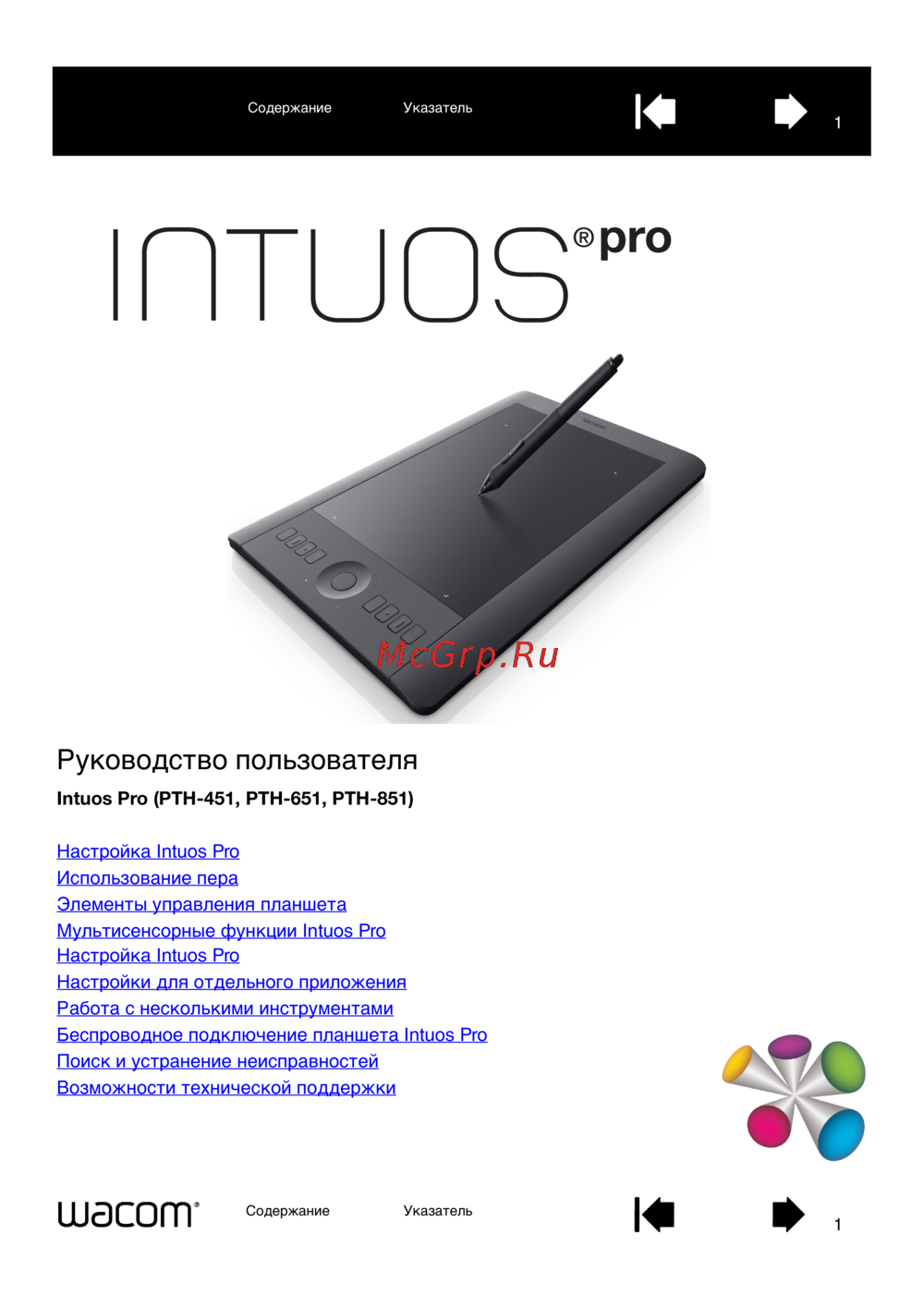 Wacom Intous Pro LРуководство по эксплуатации
 -
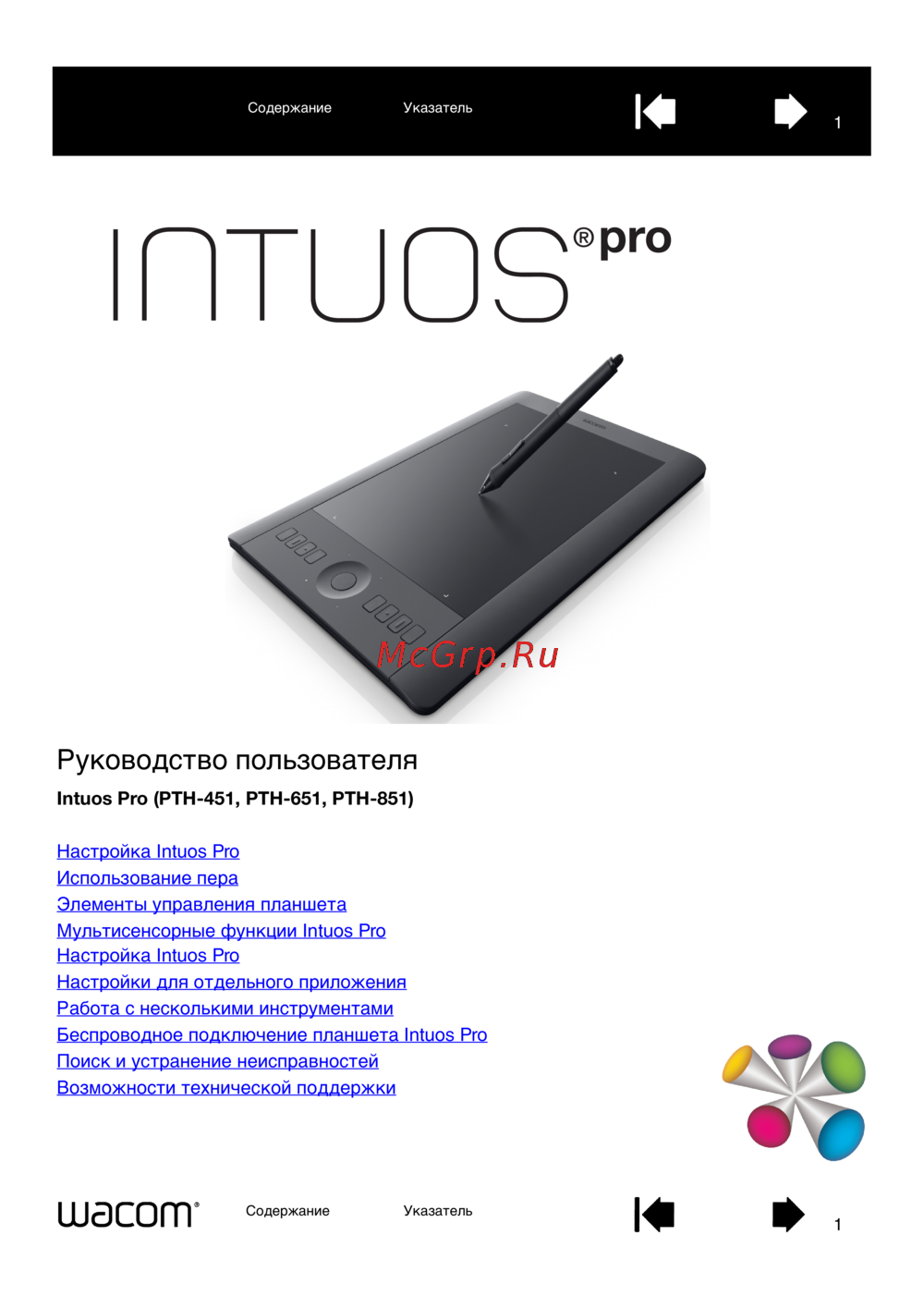 Wacom Intous Pro MРуководство по эксплуатации
 -
 Wacom Intous Pro SРуководство по эксплуатации
 -
 Wacom Intuos Pro SРуководство по эксплуатации
Узнайте о гарантийном обслуживании и поддержке продуктов в разных регионах. Получите информацию о сроках гарантии и контактных данных для обращения в службу поддержки.