![Moxa ioLogik E1240 — настройка устройства с Ethernet-портами: пошаговое руководство [25/115]](/img/pdf.png)
Moxa ioLogik E1240 — настройка устройства с Ethernet-портами: пошаговое руководство [25/115]
Превью страниц
Страница 25 /
115
![Moxa ioLogik E1211 [25/115] Jumper settings dio and ai](/views2/1201059/page25/bg19.png)
ioLogik E1200 Series Initial Setup
2-3
Connecting to the Network
The ioLogik E1200 has two built-in RJ45 Ethernet ports for connecting a standard direct or crossover Ethernet
cable to either the host PC or another ioLogik E1200 device. For initial setup of the ioLogik E1200, it is
recommended that the ioLogik E1200 be configured using a direct connection to a host computer rather than
remotely over the network.
Configure the host PC’s IP address to 192.168.127.xxx (where xxx ranges from 001 to 253). When using
Windows, you will need to configure from the Control Panel.
ioLogik E1200 Default IP Address Default Netmask Default Gateway
192.168.127.254 255.255.255.0 None
Use the web console or ioSearch™ configuration utility to connect to the ioLogik E1200. Once the ioLogik E1200
has been detected, modify the settings as needed for your network environment, and then restart the server.
Refer to Chapters 3 and 4 for further details.
Jumper Settings (DIO and AI)
The ioLogik E1212, E1240, and E1242 models require configuration for the jumpers located inside the cover.
Remove the screw on the back panel and open the cover to configure the jumpers.
Содержание
319- Iologik e1200 series user s manual
- Edition 12 november 2016
- Www moxa com product
- Iologik e1200 series user s manual
- Copyright notice
- Www moxa com support
- Trademarks
- Technical support contact information
- Disclaimer
- Table of contents
- Introduction
- Product model information
- Product features
- Iologik e1200 series introduction
- Inside the box
- Iologik e1200 series introduction
- Standards and certifications
- Product specifications
- Physical characteristics
- Environmental limits
- Common specifications
- Warranty
- Inputs and outputs
- Digital output
- Digital input
- Power requirements
- Mtbf mean time between failures
- Iologik e1211
- Iologik e1210
- Iologik e1200 series introduction
- Iologik e1212
- Mtbf mean time between failures
- Iologik e1200 series introduction
- Inputs and outputs
- Digital output
- Digital input
- Power requirements
- Iologik e1213
- Digital input
- Power requirements
- Mtbf mean time between failures
- Iologik e1200 series introduction
- Inputs and outputs
- Digital output
- Iologik e1214
- Power requirements
- Mtbf mean time between failures
- Iologik e1200 series introduction
- Inputs and outputs
- Digital input
- Iologik e1240
- Analog input
- Inputs and outputs
- Analog output
- Power requirements
- Mtbf mean time between failures
- Iologik e1241
- Iologik e1200 series introduction
- Digital input
- Power requirements
- Mtbf mean time between failures
- Iologik e1242
- Iologik e1200 series introduction
- Inputs and outputs
- Digital output
- Analog input
- Iologik e1200 series introduction
- Inputs and outputs
- Power requirements
- Mtbf mean time between failures
- Iologik e1260
- Thermocouple
- Power requirements
- Mtbf mean time between failures
- Iologik e1262
- Iologik e1200 series introduction
- Inputs and outputs
- Physical dimensions
- Iologik e1200 series introduction
- Ethernet port
- Panel guide
- Led indicators
- Iologik e1200 series introduction
- Hardware reference
- Sinking do circuit
- Iologik e1200 series introduction
- I o circuit diagram
- Di circuit
- Sourcing do circuit
- Iologik e1200 series introduction
- Iologik e1200 series introduction
- Dio circuit
- Rtd circuit
- Relay circuit
- Iologik e1200 series introduction
- Ai circuit
- Tc circuit
- Iologik e1200 series introduction
- Initial setup
- Attention
- Iologik e1200 series initial setup
- Hardware installation
- Grounding the iologik e1200
- Din rail wall mounting
- Connecting the power
- Jumper settings dio and ai
- Iologik e1200 series initial setup
- Connecting to the network
- Iologik e1200 series initial setup
- Ext power configuration settings iologik e1213 only
- Dio mode configuration settings
- Ai mode configuration settings
- Iologik e1200 series initial setup
- I o wiring diagrams
- Attention
- Iologik e1200 series initial setup
- Load factory default settings
- Iosearch installation
- Iologik e1200 series initial setup
- Using the web console
- Iologik e1200 series using the web console
- Introduction to the web console
- Overview
- Iologik e1200 series using the web console
- Network settings for the web console
- Iologik e1200 series using the web console
- General settings
- Ethernet configuration
- User defined modbus addressing
- Iologik e1200 series using the web console
- Default modbus address
- Attention
- Tag generation
- Iologik e1200 series using the web console
- Aopc server settings
- Iologik e1200 series using the web console
- Iologik e1200 series using the web console
- I o settings
- Di channels
- Iologik e1200 series using the web console
- Iologik e1200 series using the web console
- Do channels
- Iologik e1200 series using the web console
- Ai channels
- Iologik e1200 series using the web console
- Ai input range
- Iologik e1200 series using the web console
- Attention
- Iologik e1200 series using the web console
- Ao channels
- Rtd channels
- Iologik e1200 series using the web console
- Iologik e1200 series using the web console
- Tc channels
- Iologik e1200 series using the web console
- Peer to peer settings 1 50
- Peer to peer networking
- Iologik e1200 series using the web console
- Server settings
- Sample peer to peer configuration
- Iologik e1200 series using the web console
- Client settings
- Do safe mode settings
- Ao safe mode settings
- Standard trap
- Snmp trap
- Iologik e1200 series using the web console
- Using snmp
- Snmp trap settings
- Snmp trap server
- Snmp agent
- Private trap
- Iologik e1200 series using the web console
- Specific id
- Snmp trap
- Iologik e1200 series using the web console
- Digital output pulse output trap settings
- Digital input counter trap settings
- Iologik e1200 series using the web console
- Analog input trap settings
- Tc input trap settings
- Rtd input trap settings
- Iologik e1200 series using the web console
- Iologik e1200 series using the web console
- Accessibility ip list
- Restful api setting
- Iologik e1200 series using the web console
- Ethernet ip setting
- System management
- Network connection
- Iologik e1200 series using the web console
- Import system configuration settings
- Firmware update
- Export system settings
- Change password
- Attention
- Load factory defaults
- Iologik e1200 series using the web console
- Save restart
- Iologik e1200 series using the web console
- Using iosearch
- Main screen overview
- Iosearch main screen
- Iologik e1200 series using iosearch
- Introduction to iosearch
- System
- Iosearch setup
- Iologik e1200 series using iosearch
- Quick links
- Main function
- Iologik e1200 series using iosearch
- Attention
- Unlock
- Locate
- Iologik e1200 series using iosearch
- Firmware upgrade
- Batch upgrades on multiple devices of the same model
- Iologik e1200 series using iosearch
- Import
- Export
- Iologik e1200 series using iosearch
- Change ip address
- Batch tcp ip configuration on multiple devices
- Iologik e1200 series using iosearch
- Change server name
- Activate ethernet ip
- Restart system
- Iologik e1200 series using iosearch
- Reset to default
- Mass deployment import
- Mass deployment export
- Iologik e1200 series using iosearch
- Activation process for the ethernet ip function
- Iologik e1200 series activation process for the ethernet ip function
- Iologik e1200 series activation process for the ethernet ip function
- Iologik e1200 series activation process for the ethernet ip function
- Iologik e1200 series activation process for the ethernet ip function
- How to connect the iologik e1200 to an allen bradley plc
- Iologik e1200 series how to connect the iologik e1200 to an allen bradley plc
- Eds installation of the iologik e1200 series in rockwell software rslogix 5000
- Iologik e1200 series how to connect the iologik e1200 to an allen bradley plc
- Iologik e1200 series how to connect the iologik e1200 to an allen bradley plc
- Iologik e1200 series how to connect the iologik e1200 to an allen bradley plc
- Establishing communication between the iologik e1200 device and the allen bradley plc
- Iologik e1200 series how to connect the iologik e1200 to an allen bradley plc
- Iologik e1200 series how to connect the iologik e1200 to an allen bradley plc
- Iologik e1200 series how to connect the iologik e1200 to an allen bradley plc
- Iologik e1200 series how to connect the iologik e1200 to an allen bradley plc
- Iologik e1200 series how to connect the iologik e1200 to an allen bradley plc
- Iologik e1200 series how to connect the iologik e1200 to an allen bradley plc
- Modbus tcp default address mappings
- System
- Iologik e1210 modbus address and register map
- Iologik e1200 series modbus tcp default address mappings
- Iologik e1211 modbus address and register map
- Iologik e1200 series modbus tcp default address mappings
- System
- Iologik e1200 series modbus tcp default address mappings
- Iologik e1212 modbus address and register map
- Iologik e1200 series modbus tcp default address mappings
- System
- Iologik e1200 series modbus tcp default address mappings
- Iologik e1213 modbus address and register map
- Iologik e1200 series modbus tcp default address mappings
- System
- Iologik e1200 series modbus tcp default address mappings
- Iologik e1214 modbus address and register map
- Iologik e1200 series modbus tcp default address mappings
- System
- Iologik e1200 series modbus tcp default address mappings
- System
- Iologik e1240 modbus address and register map
- Iologik e1200 series modbus tcp default address mappings
- Iologik e1241 modbus address and register map
- Iologik e1200 series modbus tcp default address mappings
- Iologik e1200 series modbus tcp default address mappings
- System
- Iologik e1242 modbus address and register map
- Iologik e1200 series modbus tcp default address mappings
- System
- Iologik e1200 series modbus tcp default address mappings
- Iologik e1260 modbus address and register map
- Iologik e1200 series modbus tcp default address mappings
- System
- Iologik e1200 series modbus tcp default address mappings
- Iologik e1262 modbus address and register map
- Iologik e1200 series modbus tcp default address mappings
- System
- Iologik e1200 series modbus tcp default address mappings
- Input data map by models
- Ethernet ip default address mappings
- Assembly object 0x04
- Supported service
- Iologik e1200 ethernet ip map
- Output data map by models
- Iologik e1200 series ethernet ip default address mappings
- Di channel object 0x65
- Relay channel object 0x6a
- Iologik e1200 series ethernet ip default address mappings
- Do channel object 0x67
- Ai channel object 0x6b
- Tc channel object 0x6e
- Rtd channel object 0x6d
- Iologik e1200 series ethernet ip default address mappings
- Ao channel object 0x6c
- Restful api default address mappings
- Iologik e1200 restful api map
- Api list
- Supported methods
- Iologik e1200 series restful api default address mappings
- Response code
- Iologik e1200 series restful api default address mappings
- Network port numbers
- Iologik e1200 network port usage
- Factory default settings
- Pinouts
- Pin assignment of terminal blocks
- Federal communication commission warning
- Fcc interference statement
Похожие устройства
-
 Moxa ioLogik W5340-TБрошюра
 -
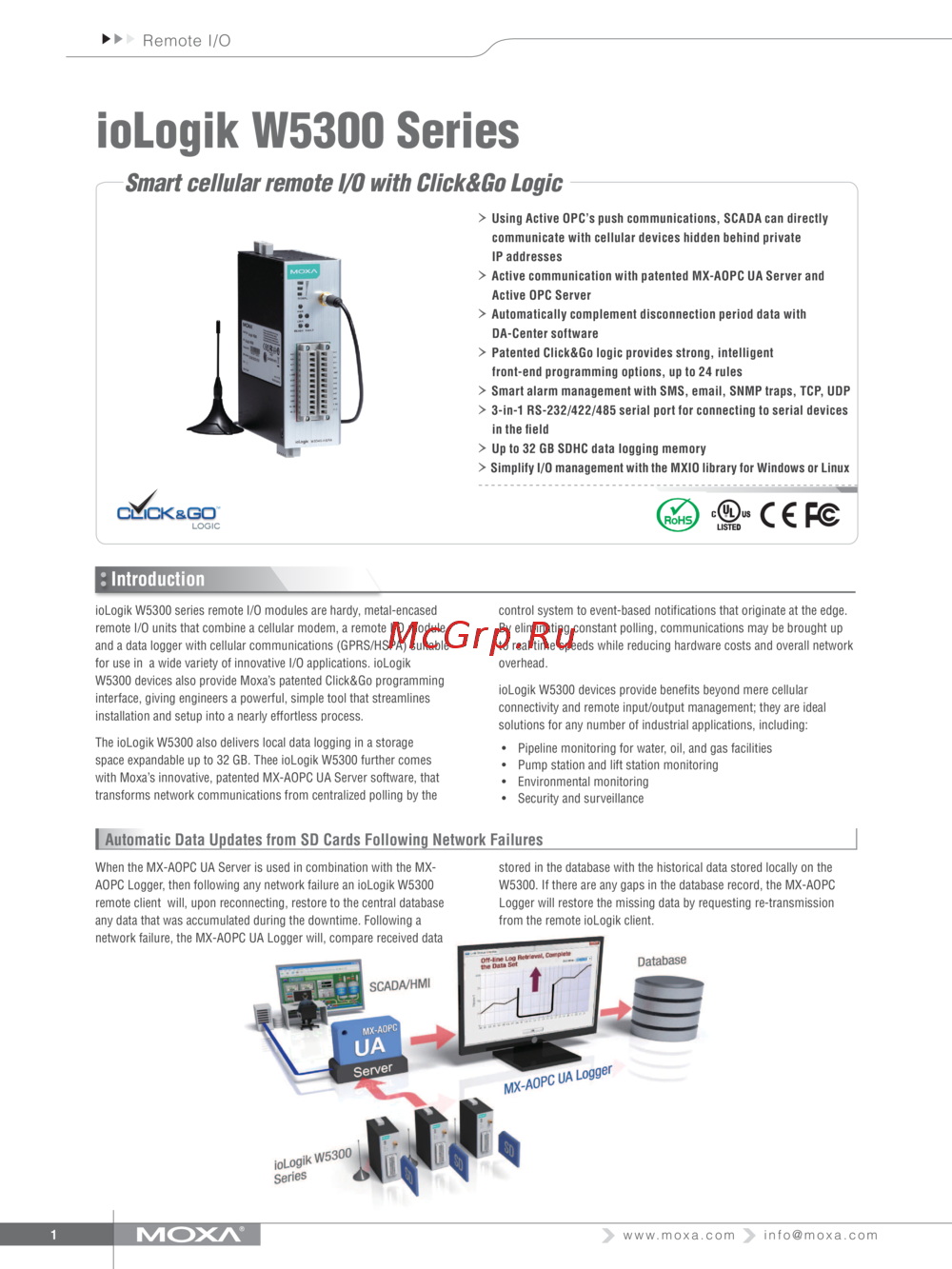 Moxa ioLogik W5340-TТехнические характеристики
 -
 Moxa ioLogik W5340-TИнструкция по эксплуатации
 -
Moxa ioLogik W5340Брошюра
-
Moxa ioLogik W5340Технические характеристики
-
Moxa ioLogik W5340Инструкция по эксплуатации
-
Moxa ioLogik W5312-TБрошюра
-
Moxa ioLogik W5312-TТехнические характеристики
-
Moxa ioLogik W5312-TИнструкция по эксплуатации
-
Moxa ioLogik W5312Брошюра
-
Moxa ioLogik W5312Технические характеристики
-
Moxa ioLogik W5312Инструкция по эксплуатации
Узнайте, как правильно настроить устройство с Ethernet-портами для подключения к сети. Пошаговые инструкции и советы по конфигурации IP-адресов.