![Asus x99-a ii — декларация о соответствии устройства требованиям директив ЕС [122/124]](/img/pdf.png)
Asus x99-a ii — декларация о соответствии устройства требованиям директив ЕС [122/124]
Превью страниц
Страница 122 /
124
![Asus x99-a ii [122/124] Appendix](/views2/1214231/page122/bg7a.png)
A-4
Appendix
Appendix
Română ASUSTeK Computer Inc. declară că acest dispozitiv se conformează
cerinţelor esenţiale şi altor prevederi relevante ale directivelor conexe. Textul
complet al declaraţiei de conformitate a Uniunii Europene se găseşte la:
www.asus.com/support
Srpski ASUSTeK Computer Inc. ovim izjavljuje da je ovaj uređaj u saglasnosti
sa osnovnim zahtevima i drugim relevantnim odredbama povezanih
Direktiva. Pun tekst EU deklaracije o usaglašenosti je dostupan da adresi:
www.asus.com/support
Slovensky Spoločnosť ASUSTeK Computer Inc. týmto vyhlasuje, že toto
zariadenie vyhovuje základným požiadavkám a ostatým príslušným
ustanoveniam príslušných smerníc. Celý text vyhlásenia o zhode pre štáty EÚ
je dostupný na adrese: www.asus.com/support
Slovenščina ASUSTeK Computer Inc. izjavlja, da je ta naprava skladna z
bistvenimi zahtevami in drugimi ustreznimi določbami povezanih direktiv.
Celotno besedilo EU-izjave o skladnosti je na voljo na spletnem mestu:
www.asus.com/support
Español Por la presente, ASUSTeK Computer Inc. declara que este dispositivo
cumple los requisitos básicos y otras disposiciones pertinentes de las
directivas relacionadas. El texto completo de la declaración de la UE de
conformidad está disponible en: www.asus.com/support
Svenska ASUSTeK Computer Inc. förklarar härmed att denna
enhet överensstämmer med de grundläggande kraven och andra
relevanta föreskrifter i relaterade direktiv. Fulltext av EU-försäkran om
överensstämmelse nns på: www.asus.com/support
Українська ASUSTeK Computer Inc. заявляє, що цей пристрій відповідає
основним вимогам та іншим відповідним положенням відповідних
Директив. Повний текст декларації відповідності стандартам ЄС
доступний на: www.asus.com/support
Türkçe AsusTek Computer Inc., bu aygıtın temel gereksinimlerle ve ilişkili
Yönergelerin diğer ilgili koşullarıyla uyumlu olduğunu beyan eder. AB
uygunluk bildiriminin tam metni şu adreste bulunabilir:
www.asus.com/support
Bosanski ASUSTeK Computer Inc. ovim izjavljuje da je ovaj uređaj usklađen
sa bitnim zahtjevima i ostalim odgovarajućim odredbama vezanih direktiva.
Cijeli tekst EU izjave o usklađenosti dostupan je na: www.asus.com/support
English ASUSTeK Computer Inc. hereby declares that this device is in
compliance with the essential requirements and other relevant provisions of
related Directives. Full text of EU declaration of conformity available at:
www.asus.com/support
Français AsusTek Computer Inc. déclare par la présente que cet appareil est
conforme aux critères essentiels et autres clauses pertinentes des directives
concernées. La déclaration de conformité de l’UE peut être téléchargée à
partir du site Internet suivant : www.asus.com/support.
Deutsch ASUSTeK Computer Inc. erklärt hiermit, dass dieses Gerät mit
den wesentlichen Anforderungen und anderen relevanten Bestimmungen
der zugehörigen Richtlinien übereinstimmt. Der gesamte Text der EU-
Konformitätserklärung ist verfügbar unter: www.asus.com/support
Italiano ASUSTeK Computer Inc. con la presente dichiara che questo
dispositivo è conforme ai requisiti essenziali e alle altre disposizioni pertinenti
con le direttive correlate. Il testo completo della dichiarazione di conformità
UE è disponibile all’indirizzo: www.asus.com/support
Русский Компания ASUS заявляет, что это устройство соответствует
основным требованиям и другим соответствующим условиям
соответствующих директив. Подробную информацию, пожалуйста,
смотрите на www.asus.com/support
Български С настоящото ASUSTeK Computer Inc. декларира, че това
устройство е в съответствие със съществените изисквания и другите
приложими постановления на свързаните директиви. Пълният текст на
декларацията за съответствие на ЕС е достъпна на адрес:
www.asus.com/support
Hrvatski ASUSTeK Computer Inc. ovim izjavljuje da je ovaj uređaj sukladan
s bitnim zahtjevima i ostalim odgovarajućim odredbama vezanih direktiva.
Cijeli tekst EU izjave o sukladnosti dostupan je na: www.asus.com/support
Čeština Společnost ASUSTeK Computer Inc. tímto prohlašuje, že toto
zařízení splňuje základní požadavky a další příslušná ustanovení souvisejících
směrnic. Plné znění prohlášení o shodě EU je k dispozici na adrese:
www.asus.com/support
Dansk ASUSTeK Computer Inc. erklærer hermed, at denne enhed er i
overensstemmelse med hovedkravene og andre relevante bestemmelser i de
relaterede direktiver. Hele EU-overensstemmelseserklæringen kan ndes på:
www.asus.com/support
Nederlands ASUSTeK Computer Inc. verklaart hierbij dat dit apparaat
voldoet aan de essentiële vereisten en andere relevante bepalingen van
de verwante richtlijnen. De volledige tekst van de EU-verklaring van
conformiteit is beschikbaar op: www.asus.com/support
Eesti Käesolevaga kinnitab ASUSTeK Computer Inc, et see seade vastab
asjakohaste direktiivide oluliste nõuetele ja teistele asjassepuutuvatele
sätetele. EL vastavusdeklaratsiooni täielik tekst on saadaval järgmisel
aadressil: www.asus.com/support
Suomi ASUSTeK Computer Inc. ilmoittaa täten, että tämä laite on
asiaankuuluvien direktiivien olennaisten vaatimusten ja muiden tätä
koskevien säädösten mukainen. EU-yhdenmukaisuusilmoituksen koko teksti
on luettavissa osoitteessa: www.asus.com/support
Ελληνικά Με το παρόν, η AsusTek Computer Inc. δηλώνει ότι αυτή η
συσκευή συμμορφώνεται με τις θεμελιώδεις απαιτήσεις και άλλες σχετικές
διατάξεις των Οδηγιών της ΕΕ. Το πλήρες κείμενο της δήλωσης συμβατότητας
είναι διαθέσιμο στη διεύθυνση: www.asus.com/support
Magyar Az ASUSTeK Computer Inc. ezennel kijelenti, hogy ez az eszköz
megfelel a kapcsolódó Irányelvek lényeges követelményeinek és egyéb
vonatkozó rendelkezéseinek. Az EU megfelelőségi nyilatkozat teljes szövege
innen letölthető: www.asus.com/support
Latviski ASUSTeK Computer Inc. ar šo paziņo, ka šī ierīce atbilst saistīto
Direktīvu būtiskajām prasībām un citiem citiem saistošajiem nosacījumiem.
Pilns ES atbilstības paziņojuma teksts pieejams šeit: www.asus.com/support
Lietuvių „ASUSTeK Computer Inc.“ šiuo tvirtina, kad šis įrenginys atitinka
pagrindinius reikalavimus ir kitas svarbias susijusių direktyvų nuostatas. Visą
ES atitikties deklaracijos tekstą galima rasti: www.asus.com/support
Norsk ASUSTeK Computer Inc. erklærer herved at denne enheten er i
samsvar med hovedsaklige krav og andre relevante forskrifter i relaterte
direktiver. Fullstendig tekst for EU-samsvarserklæringen nnes på:
www.asus.com/support
Polski Firma ASUSTeK Computer Inc. niniejszym oświadcza, że
urządzenie to jest zgodne z zasadniczymi wymogami i innymi właściwymi
postanowieniami powiązanych dyrektyw. Pełny tekst deklaracji zgodności UE
jest dostępny pod adresem: www.asus.com/support
Português A ASUSTeK Computer Inc. declara que este dispositivo está em
conformidade com os requisitos essenciais e outras disposições relevantes
das Diretivas relacionadas. Texto integral da declaração da UE disponível em:
www.asus.com/support
Содержание
- E11090 first edition april 2016 p.2
- Chapter 2 basic installation p.3
- Chapter 1 product introduction p.3
- Contents p.3
- Chapter 3 bios setup p.4
- Appendix p.5
- Chapter 4 raid support p.5
- Safety information p.6
- Operation safety p.6
- Electrical safety p.6
- Where to find more information p.7
- How this guide is organized p.7
- About this guide p.7
- Typography p.8
- Conventions used in this guide p.8
- X99 a ii specifications summary p.9
- X99 a ii specifications summary p.10
- Connectivity p.11
- Performance p.11
- Gaming p.11
- X99 a ii specifications summary p.11
- X99 a ii specifications summary p.12
- Q design p.12
- Ez diy p.12
- Entertainment p.12
- Asus 5x protection ii p.12
- X99 a ii specifications summary p.13
- Sfs stepless frequency selection p.13
- Quiet thermal design p.13
- Precision tweaker 2 p.13
- Overclocking protection p.13
- X99 a ii specifications summary p.14
- The illustrated items above are for reference only actual product specifications may vary with different models p.15
- Package contents p.15
- If any of the above items is damaged or missing contact your retailer p.15
- Check your motherboard package for the following items p.15
- Installation tools and components p.16
- The tools and components in the table above are not included in the motherboard package p.16
- Product introduction p.17
- Motherboard overview p.17
- Chapter 1 product introduction p.17
- Chapter 1 p.17
- Before you proceed p.17
- Motherboard layout p.18
- Chapter 1 product introduction p.18
- Chapter 1 p.18
- Layout contents p.19
- Chapter 1 p.19
- Core i7processors p.20
- Chapter 1 product introduction p.20
- Chapter 1 p.20
- Central processing unit cpu p.20
- Themotherboardcomeswithasurfacemountlga2011 3socketdesignedforinte p.20
- System memory p.21
- Recommended memory configurations p.21
- Chapter 1 p.21
- Youmayinstall2gb 4gband8gbunbufferedandnon eccddr4dimmsintothedimm sockets p.22
- Memory configurations p.22
- Chapter 1 product introduction p.22
- Chapter 1 p.22
- Expansion slots p.23
- Chapter 1 p.23
- Chapter 1 p.24
- Onboard buttons and switches p.25
- Chapter 1 p.25
- Installingdimmsthatarenotcompatiblewiththemotherboardmaycausesystemboot failure ifthesystemfailtobootduringpoststageandthedram_lednearthememok buttonlightscontinuously pressthememok buttonuntilthedram_ledstartsblinking systemwillbeginautomaticmemorycompatibilitytuningandrebootforsuccessfulboot p.26
- Chapter 1 product introduction p.26
- Chapter 1 p.26
- Memok button p.26
- Chapter 1 p.27
- Jumpers p.28
- Chapter 1 p.28
- Chapter 1 p.29
- Chapter 1 p.30
- Onboard leds p.30
- Chapter 1 p.31
- Chapter 1 p.32
- Chapter 1 p.33
- Chapter 1 p.34
- Chapter 1 p.35
- Chapter 1 p.36
- Ifyouinstalledserialataharddiskdrives youcancreatearaid0 1 5 and10 configurationwiththeinte p.37
- Chapter 1 p.37
- Asus x99 a ii p.37
- X99 serial ata 6 gb s connectors 7 pin sata6g_12 sata6g_34 p.37
- X99 chipset p.37
- Theseconnectorsconnecttoserialata6gb sharddiskdrivesviaserialata6gb s signal cables p.37
- Sata6g_56 sataexpress sata6g_78 sata6g_910 sata6g_56 sataexpress sata6g_78 sata6g_910 p.37
- Rapidstoragetechnologythroughtheonboardinte p.37
- Internal connectors p.37
- Chapter 1 p.38
- Usb 3 connectors 20 1 pin usb3_12 usb3_34 p.39
- Theseconnectorsallowyoutoconnectausb3 moduleforadditionalusb3 front orrearpanelports withaninstalledusb3 module youcanenjoyallthebenefitsof usb3 includingfasterdatatransferspeedsofupto5gb s fasterchargingtimefor usb chargeabledevices optimizedpowerefficiency andbackwardcompatibilitywith usb2 p.39
- Chapter 1 p.39
- Asus x99 a ii p.39
- Usb 2 connectors 10 1 pin usb1112 usb1314 p.40
- Theseconnectorsareforusb2 ports connecttheusbmodulecabletoanyof theseconnectors theninstallthemoduletoaslotopeningatthebackofthesystem chassis theseusbconnectorscomplywithusb2 specificationthatsupportsupto 480mb sconnectionspeed p.40
- Chapter 1 product introduction p.40
- Chapter 1 p.40
- Asus x99 a ii p.41
- Cpu cpu optional extension and chassis fan connectors 4 pin cpu_fan 4 pin cpu_opt 4 pin w_pump 4 pin h_amp_fan 5 pin ext_fan 4 pin cha_ fan1 2 p.41
- Connectthefancablestothefanconnectorsonthemotherboard ensuringthatthe black wire of each cable matches the ground pin of the connector p.41
- Chapter 1 p.41
- Theseconnectorsareforatxpowersupplyplugs thepowersupplyplugsare designedtofittheseconnectorsinonlyoneorientation findtheproperorientationand pushdownfirmlyuntiltheconnectorscompletelyfit p.42
- Chapter 1 product introduction p.42
- Chapter 1 p.42
- Atx power connectors 24 pin eatxpwr 8 pin eatx12v_1 4 pin eztx12v_2 p.42
- Chapter 1 p.43
- Chapter 1 p.44
- Chapter 1 p.45
- Chapter 1 p.46
- Thisconnectorisforachassis mountedfrontpanelaudioi omodulethatsupports eitherhdaudioorlegacyac 97audiostandard connectoneendofthefrontpanel audioi omodulecabletothisconnector p.47
- Front panel audio connector 10 1 pin aafp p.47
- Chapter 1 p.47
- Asus x99 a ii p.47
- Aura strip headers 4 pin rgb_header p.48
- Thisconnectorisforrgbledstrips p.48
- Chapter 1 product introduction p.48
- Chapter 1 p.48
- Chapter 1 p.49
- Chapter 1 product introduction p.50
- Chapter 1 p.50
- Motherboard installation p.51
- Chapter 2 basic installation p.51
- Chapter 2 p.51
- Building your pc system p.51
- Basic installation p.51
- Chapter 2 p.52
- Installing cpu p.53
- Cpu installation p.53
- Chapter 2 p.53
- Asus x99 a ii p.53
- Chapter 2 basic installation p.54
- Chapter 2 p.54
- Removing cpu p.55
- Chapter 2 p.55
- Asus x99 a ii p.55
- To install the cpu heatsink and fan assembly p.56
- Cpu heatsink and fan assembly installation p.56
- Chapter 2 basic installation p.56
- Chapter 2 p.56
- Dimm installation p.57
- Chapter 2 p.57
- Chapter 2 p.58
- Atx power connection p.58
- Sata device connection p.59
- Chapter 2 p.59
- Chapter 2 p.60
- Reset sw p.60
- Hdd led p.60
- Front i o connector p.60
- Expansion card installation p.61
- Chapter 2 p.61
- Usb bios flashback allows you to easily update the bios without entering the existing bios or operating system simply insert a usb storage device to the usb port the usb port hole marked in green on the i o shield then press the usb bios flashback button for three seconds to automatically update the bios p.62
- Usb bios flashback p.62
- To use usb bios flashback p.62
- Shut down your computer p.62
- Pressthebiosflashbackbuttonforthreesecondsuntiltheflashbackledbeginsto blink indicating that the bios flashback function is enabled then release p.62
- Place the bundled support dvd to the optical drive and install the usb bios flashback wizard follow the onscreen instructions to complete the installation p.62
- Launch the usb bios flashback wizard to automatically download the latest bios version p.62
- Insert the usb storage device to the usb flashback port p.62
- Chapter 2 basic installation p.62
- Chapter 2 p.62
- Bios update utility p.62
- Waituntiltheledgoesout indicatingthatthebiosupdatingprocessiscompleted p.62
- Rear i o connection p.63
- Motherboard rear and audio connections p.63
- Chapter 2 p.63
- Lan ports led indications p.64
- Chapter 2 p.64
- Audio 2 4 5 or 7 channel configuration p.64
- Chapter 2 p.65
- Audio i o connections p.65
- Chapter 2 p.66
- Starting up for the first time p.67
- Connect to 7 channel speakers p.67
- Chapter 2 p.67
- Turning off the computer p.68
- Chapter 2 p.68
- Bios setup p.69
- Knowing bios p.69
- Chapter 3 bios setup p.69
- Chapter 3 p.69
- To enter bios setup after post p.70
- Simultaneously p.70
- Press the reset button on the system chassis p.70
- Press the power button to turn the system off then back on do this option only if you failed to enter bios setup using the first two options p.70
- Post continues with its routines p.70
- Key to enter bios p.70
- Hotkey p.70
- Entering bios setup after post p.70
- Entering bios at startup p.70
- Chapter 3 bios setup p.70
- Chapter 3 p.70
- Bios setup program p.70
- Bios menu screen p.70
- Use the bios setup to update the bios or configure its parameters the bios screen include navigation keys and brief onscreen help to guide you in using the bios setup program p.70
- The default screen for entering the bios setup program can be changed between ez mode or advanced mode refer to the setup mode item in section 3 boot menu for details p.71
- The boot device options vary depending on the devices you installed to the system p.71
- Hotkey for the advanced bios settings p.71
- Ez mode p.71
- Chapter 3 p.71
- Asus x99 a ii p.71
- The advanced mode provides advanced options for experienced end users to configure the bios settings the figure below shows an example of the advanced mode refer to the following sections for the detailed configurations p.72
- Chapter 3 bios setup p.72
- Chapter 3 p.72
- Advanced mode p.72
- Menu items p.73
- Menu bar p.73
- Language p.73
- Ez tuning wizard f11 p.73
- Chapter 3 p.73
- Submenu items p.73
- Q fan control f6 p.73
- Myfavorites f3 p.73
- Search on faq p.74
- Scroll bar p.74
- Quick note f9 p.74
- Last modified button p.74
- Hot keys p.74
- General help p.74
- Configuration fields p.74
- Chapter 3 p.74
- The qfan control allows you to set a fan profile or manually configure the operating speed of your cpu and chassis fans p.75
- Qfan control p.75
- Chapter 3 p.75
- Asus x99 a ii p.75
- Chapter 3 p.76
- Configuring fans manually p.76
- Oc tuning p.77
- Ez tuning wizard p.77
- Chapter 3 p.77
- Creating raid p.78
- Chapter 3 p.78
- Chapter 3 p.79
- My favorites p.80
- Chapter 3 p.80
- Chapter 3 p.81
- Adding items to my favorites p.81
- The main menu screen appears when you enter the advanced mode of the bios setup program the main menu provides you an overview of the basic system information and allows you to set the system date time language and security settings p.82
- Security p.82
- Main menu p.82
- Chapter 3 bios setup p.82
- Chapter 3 p.82
- The security menu items allow you to change the system security settings p.82
- Chapter 3 p.83
- Ai tweaker menu p.83
- Ai overclock tuner p.83
- Dram frequency p.84
- Cpu core ratio p.84
- Chapter 3 p.84
- Bclk frequency dram frequency ratio p.84
- Asus multicore enhancement p.84
- Internal cpu power management p.85
- Epu power saving mode p.85
- Chapter 3 p.85
- The advanced menu items allow you to change the settings for the cpu and other system devices p.86
- Chapter 3 bios setup p.86
- Chapter 3 p.86
- Advanced menu p.86
- Hyper threading all p.87
- Cpu configuration p.87
- Chapter 3 p.87
- Pci express configuration p.88
- Pch configuration p.88
- Cpu power management configuration p.88
- Chapter 3 p.88
- Sata controller s p.89
- Pch storage configuration p.89
- Chapter 3 p.89
- Sata6g_1 gray sata6g_10 black p.90
- Sata mode selection p.90
- S m a r t status check p.90
- Hot plug p.90
- Chapter 3 p.90
- Asus x99 a ii p.91
- Usb single port control p.91
- Usb configuration p.91
- This item allows you to enable or disable the individual usb ports p.91
- The items in this menu allow you to change the usb related features p.91
- System agent configuration p.91
- Chapter 3 p.91
- Platform misc configuration p.92
- Onboard devices configuration p.92
- Hd audio controller p.92
- Chapter 3 p.92
- Pciex16_4 slot bandwidth p.93
- Pciex16_2 slot bandwidth p.93
- M2 u2 switch p.93
- Intel lan controller p.93
- Chapter 3 p.93
- Asmedia usb 3 controller p.93
- Rgb led lighting effects p.93
- Rgb led lighting color p.93
- Rgb led lighting p.93
- Network stack configuration p.94
- Erp ready p.94
- Chapter 3 p.94
- Apm configuration p.94
- Hdd ssd smart information p.95
- Chapter 3 p.95
- Qfan configuration p.96
- Monitor menu p.96
- Chapter 3 p.96
- Fast boot p.97
- Chapter 3 p.97
- Boot menu p.97
- Boot configuration p.97
- Setup mode p.98
- Directkey drct p.98
- Csm compatibility support module p.98
- Chapter 3 p.98
- Secure boot p.99
- Chapter 3 p.99
- Boot override p.99
- Boot option priorities p.99
- Tool menu p.100
- Setup animator p.100
- Gpu post p.100
- Chapter 3 p.100
- Asus ez flash 3 utility p.100
- Secure erase p.101
- Chapter 3 p.101
- Asus x99 a ii p.101
- Ssd speeds may lower over time as with any storage medium due to data processing secure erase completely and safely cleans your ssd restoring it to factory performance levels p.101
- Secure erase on the advanced mode menu p.101
- Save to profile p.102
- Profile name p.102
- Load save profile from to usb drive p.102
- Load from profile p.102
- Chapter 3 p.102
- Asus overclocking profile p.102
- Chapter 3 p.103
- Asus spd information p.103
- Save changes reset p.104
- Load optimized defaults p.104
- Launch efi shell from usb drives p.104
- Exit menu p.104
- Discard changes and exit p.104
- Chapter 3 p.104
- Updating bios p.105
- Ez update p.105
- Chapter 3 p.105
- Chapter 3 p.106
- Asus ez flash 3 p.106
- To update the bios by internet p.107
- Select by internet p.107
- Reboot the system when the update process is done p.107
- Follow the onscreen instructions to complete the update p.107
- Chapter 3 p.107
- Asus x99 a ii p.107
- Recovering the bios p.108
- Chapter 3 p.108
- Asus crashfree bios 3 p.108
- Chapter 4 raid support p.109
- Chapter 4 p.109
- Raiddefinitions p.109
- Raidconfigurations p.109
- Raid support p.109
- Raid definitions p.109
- Raid configurations p.109
- Rapidstoragetechnologyinuefibios p.110
- Intel rapid storage technology in uefi bios p.110
- Installingserialataharddisks p.110
- Installing serial ata hard disks p.110
- Chapter 4 p.110
- Creatingaraidset p.111
- Chapter 4 p.111
- Chapter 4 p.112
- Deletingaraidset p.113
- Chapter 4 p.113
- Chapter 4 p.114
- Turn on the system p.114
- To enter the inte p.114
- To display the utility main menu p.114
- The utility supports maximum four hard disk drives for raid configuration p.114
- The raid bios setup screens shown in this section are for reference only and may not exactly match the items on your screen p.114
- The navigation keys at the bottom of the screen allow you to move through the menus the navigation keys at the bottom of the screen allow you to move through the menus and select the menu options p.114
- Rapidstoragetechnologyoptionromutility p.114
- Rapid storage technology option rom utility p.114
- Intel rapid storage technology option rom utility p.114
- Chapter 4 raid support p.114
- To create a raid set p.115
- The following screen appears p.115
- Select disks p.115
- Creatingaraidset p.115
- Chapter 4 p.115
- Asus x99 a ii p.115
- To select the hard disk drives you want to include in the raid set the select disks screen appears p.115
- Chapter 4 p.116
- Deletingaraidset p.117
- Chapter 4 p.117
- Rapidstoragetechnologyoptionromutility p.118
- Exitingtheinte p.118
- Creatingaraiddriverdiskinwindow p.118
- Creatingaraiddriverdisk p.118
- Creating a raid driver disk in windows p.118
- Creating a raid driver disk p.118
- Chapter 4 p.118
- Notices p.119
- Federal communications commission statement p.119
- Appendix p.119
- Canadian department of communications statement p.120
- Appendix p.120
- Vcci japan compliance statement p.120
- Kc korea warning statement p.120
- Ic canadian compliance statement p.120
- Class b ite p.120
- Regional notice for california p.121
- Google license terms p.121
- Asus recycling takeback services p.121
- Appendix p.121
- Appendix p.122
- Technical support p.123
- Asustek computer inc p.123
- Asus contact information p.123
- Asus computer international america p.123
- Asus computer gmbh germany and austria p.123
- Appendix p.123
- Appendix p.124
- Declaration of conformity p.124
- Ca 94539 p.124
- Asus computer international p.124
Похожие устройства
-
 Asus TUF GAMING B550-PROРуководство по быстрому запуску
 -
 Asus PRIME A520M-A IIКраткое руководство пользователя
 -
 Asus PRIME B250M-PLUSКраткое руководство
 -
 Asus TUF GAMING Z590-PLUSКраткое руководство
 -
 Asus ProArt B650-CREATORКраткий обзор функций
 -
 Asus TUF GAMING B650-PLUSБыстрый старт
 -
 Asus ROG STRIX X670E-I GAMING WIFIКраткое руководство пользователя
 -
Asus ROG FPS-IIРуководство по быстрому запуску
-
 Asus Pro WS W680M-ACE SEКраткая эксплуатационная инструкция
 -
 Asus PRIME B760M-A WIFI D4Инструкция в сокращённом виде
 -
 Asus PRIME H770-PLUSБыстрый старт
 -
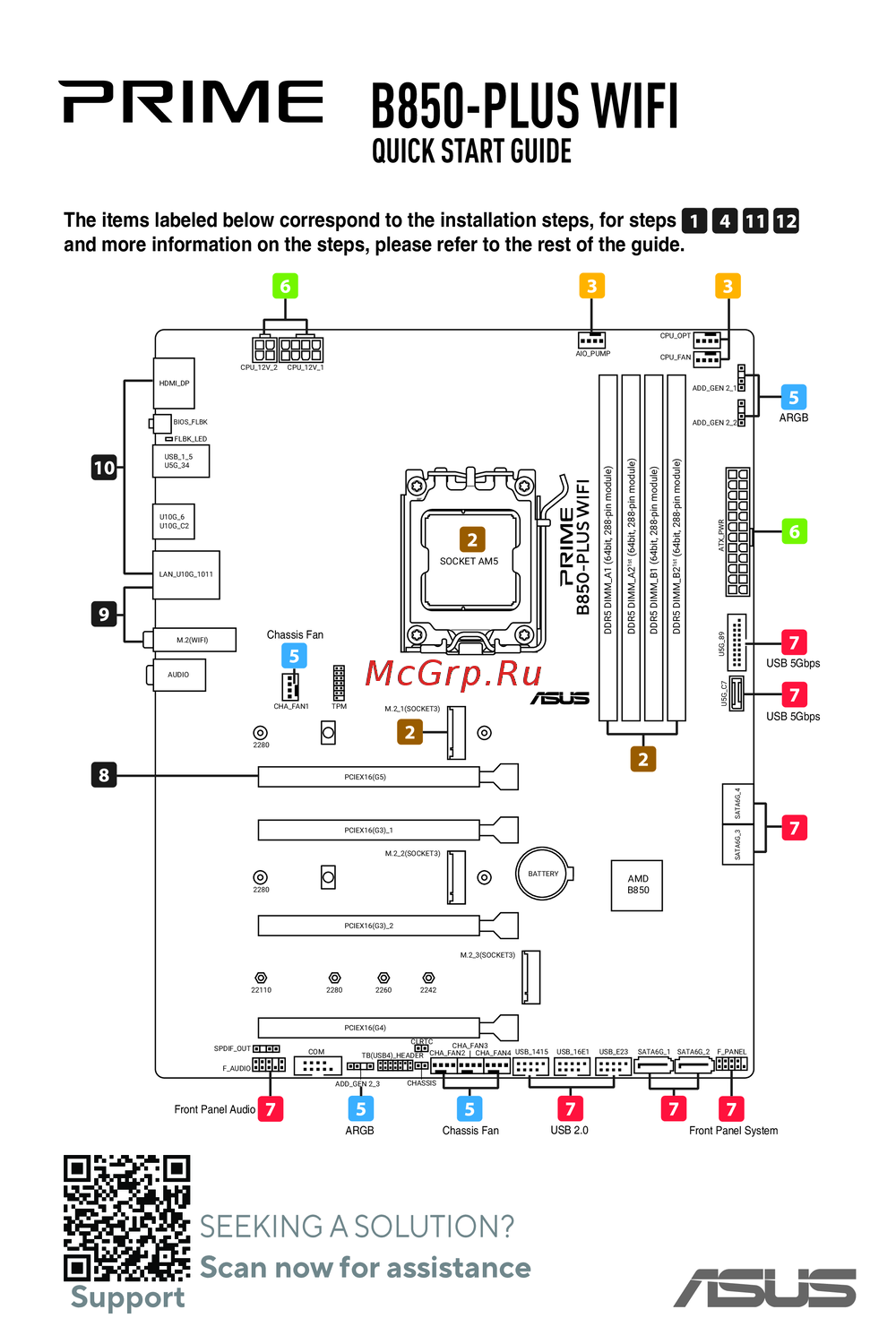 Asus B850-PLUS WIFIКраткое руководство
Узнайте о соответствии устройства основным требованиям и директивам ЕС. Полный текст декларации доступен на официальном сайте поддержки.