![Asus ROG STRIX B550-F GAMING — как обновить BIOS с помощью функции FlashBack: пошаговое руководство [46/64]](/img/pdf.png)
Asus ROG STRIX B550-F GAMING — как обновить BIOS с помощью функции FlashBack: пошаговое руководство [46/64]
Превью страниц
Страница 46 /
64
![Asus ROG STRIX B550-F GAMING [46/64] Chapter 2](/views2/1769529/page46/bg2e.png)
2-12
Chapter 2: Basic Installation
Chapter 2
BIOS FlashBack™ button BIOS FlashBack™ port
2.2 BIOS update utility
BIOS FlashBack™
BIOS FlashBack™ allows you to easily update the BIOS without entering the existing BIOS
or operating system. Simply insert a USB storage device to the USB port (the USB port hole
is marked on the I/O shield) then press the BIOS FlashBack™ button for three seconds to
automatically update the BIOS.
To use BIOS FlashBack™:
1. Insert a USB storage device to the BIOS FlashBack™ port.
We recommend you to use a USB 2.0 storage device to save the latest BIOS version for
better compatibility and stability.
2. Visit https://www.asus.com/support/ and download the latest BIOS version for this
motherboard.
3. Manually rename the file as RSB550FG.CAP, or launch the BIOSRenamer.exe
application to automatically rename the file, then copy it to your USB storage device.
The BIOSRenamer.exe application is zipped together with your BIOS file when you
download a BIOS file for a BIOS FlashBack™ compatible motherboard.
4. Shut down your computer.
5. Press the BIOS FlashBack™ button for three seconds until the BIOS FlashBack™
LED blinks three times, indicating that the BIOS FlashBack™ function is enabled.
6. Wait until the light goes out, indicating that the BIOS updating process is completed.
For more BIOS update utilities in BIOS setup, refer to the section Updating BIOS in
Chapter 3.
• Do not unplug portable disk, power system, or short the CLRTC header while BIOS
update is ongoing, otherwise update will be interrupted. In case of interruption,
please follow the steps again.
• If the light flashes for five seconds and turns into a solid light, this means that the
BIOS FlashBack™ is not operating properly. This may be caused by improper
installation of the USB storage device and filename/file format error. If this scenario
happens, please restart the system to turn off the light.
• Updating BIOS may have risks. If the BIOS program is damaged during the process
and results to the system’s failure to boot up, please contact your local ASUS Service
Center.
Содержание
214- Motherboard
- E16609 fisrt edition april 2020
- Chapter 2 basic installation
- Contents
- Chapter 1 product introduction
- Chapter 3 bios and raid support
- Appendix
- Electrical safety
- Safety information
- Operation safety
- How this guide is organized
- Where to find more information
- Conventions used in this guide
- About this guide
- Rog strix b550 f gaming specifications summary
- Rog strix b550 f gaming specifications summary
- Rog strix b550 f gaming specifications summary
- Rog strix b550 f gaming specifications summary
- Connectors with shared bandwidth
- Configuration 1 2
- Configuration
- Pciex16_2 shares bandwidth with pciex1_1 pciex1_2 and pciex1_3 when pciex16_2 runs x4 mode pciex1_1 pciex1_2 and pciex1_3 will be disabled pciex16_2 will run x1 mode when pciex1_1 pciex1_2 or pciex1_3 is occupied
- M _2 pcie 3 x4 sata
- Hdmi _dp
- When m _2 slot is populated sata6g_56 will be disabled
- Sata6g_56 v
- Pciex1_3 x1
- Pciex1_2 x1
- Pciex1_1 x1
- Pciex16_2 x4 x1
- Package contents
- The tools and components in the table above are not included in the motherboard package
- Installation tools and components
- Take note of the following precautions before you install motherboard components or change any motherboard settings
- Rog strix b550 f gaming
- Product introduction
- Chapter 1 product introduction
- Chapter 1
- Before you proceed
- Pciex16_1
- 1 4 11 4
- Pciex1_3
- Pciex1_2
- Pciex1_1
- Pciex16_2
- Motherboard layout
- Hdmi _dp
- Ddr4 dimm_b2 64bit 288 pin module
- Ddr4 dimm_b1 64bit 288 pin module
- Ddr4 dimm_a2 64bit 288 pin module
- Ddr4 dimm_a1 64bit 288 pin module
- Chapter 1 product introduction
- Chapter 1
- 11 10 12 15 13
- Chapter 1
- Chapter 1
- Recommended memory configurations
- Chapter 1
- Memory configurations
- You may install 4 gb 8 gb 16 gb and 32 gb unbuffered ecc and non ecc ddr4 dimms into the dimm sockets
- Chapter 1 product introduction
- Chapter 1
- Recommended vga configuration
- Chapter 1
- Supported ssds
- Slot pcie bifurcation settings in pcie x16 slots with different ryzen
- Pciex16_1 4
- Hyper m x16 series card configuration
- Gen amd ryzen processors support pcie gen 4 ssds
- Chapter 1 product introduction
- Chapter 1
- Aio_pump
- Cpu_opt
- Cha_fan2 cha_fan3
- Cha_fan1
- Cpu_fan cpu_opt
- Chapter 1
- We recommend that you use a psu with a higher power output when configuring a system with more power consuming devices the system may become unstable or may not boot up if the power is inadequate
- These power connectors allow you to connect your motherboard to a power supply the power supply plugs are designed to fit in only one orientation find the proper orientation and push down firmly until the power supply plugs are fully inserted
- Power connectors
- If you want to use two or more high end pci express x16 cards use a psu with 1000w power or above to ensure the system stability
- For a fully configured system we recommend that you use a power supply unit psu that complies with atx 12v specification 2 or later version and provides a minimum power of 350w
- Ensure to connect the 8 pin power plug or connect both the 8 pin and 4 pin power plugs
- Eatxpwr
- Eatx12v_1 eatx12v_2
- Do not connect the 4 pin power plug only the motherboard may overheat under heavy usage
- Chapter 1 product introduction
- Chapter 1
- The m slots allow you to install m devices such as m ssd modules
- Rog strix b550 f gaming
- M slots
- Chapter 1
- The sata 6gb s ports allow you to connect sata devices such as optical disc drives and hard disk drives via a sata cable
- Sata 6gb s ports
- Chapter 1 product introduction
- Chapter 1
- Usb 3 gen 1 header
- U32g1_12
- The usb 3 gen 1 module is purchased separately
- The usb 3 gen 1 header allows you to connect a usb 3 gen 1 module for additional usb 3 gen 1 ports the usb 3 gen 1 header provides data transfer speeds of up to 5 gb s
- Rog strix b550 f gaming
- Chapter 1
- Chapter 1 product introduction
- Chapter 1
- Usb_e34 usb_e12
- Usb 2 headers
- The usb 2 module is purchased separately
- The usb 2 headers allow you to connect a usb module for additional usb 2 ports the usb 2 headers provide data transfer speeds of up to 480 mb s
- Do not connect a 1394 cable to the usb connectors doing so will damage the motherboard
- Aura addressable gen 2 header
- Add_gen 2
- The addressable gen 2 header allows you to connect individually addressable rgb ws2812b led strips or ws2812b based led strips
- Rog strix b550 f gaming
- Chapter 1
- Rgb_header2
- The rgb headers allow you to connect rgb led strips
- Rgb_header1
- Chapter 1 product introduction
- Chapter 1
- Aura rgb headers
- Chapter 1
- Chapter 1
- Chapter 1
- Tb_header
- T_sensor
- Chapter 1
- Chapter 1
- Boot yellow green vga white cpu red dram yellow
- Chapter 1 product introduction
- Chapter 1
- Cpu installation
- Chapter 2 basic installation
- Chapter 2
- Building your pc system
- Basic installation
- Cooling system installation
- To install an aio cooler
- Chapter 2 basic installation
- Chapter 2
- Dimm installation
- Chapter 2
- M installation
- Chapter 2 basic installation
- Chapter 2
- Chapter 2
- Motherboard installation
- Chapter 2
- Sata device connection
- Chapter 2
- Atx power connection
- Front i o connector
- Chapter 2
- Expansion card installation
- Chapter 2
- Chapter 2
- Bios update utility
- Bios flashback
- Rear i o connection
- Motherboard rear and audio connections
- Chapter 2
- I225 v 2 gb ethernet port led indications
- Chapter 2
- Audio 2 4 5 or 7 channel configuration
- Chapter 2
- Audio i o connections
- Chapter 2
- Starting up for the first time
- Chapter 2
- Turning off the computer
- Chapter 2 basic installation
- Chapter 2
- You have installed a new system component that requires further bios settings or update
- Rog strix b550 f gaming
- Knowing bios
- Chapter 3 bios and raid support
- Chapter 3
- Bios basic input and output system stores system hardware settings such as storage device configuration overclocking settings advanced power management and boot device configuration that are needed for system startup in the motherboard cmos in normal circumstances the default bios settings apply to most conditions to ensure optimal performance do not change the default bios settings except in the following circumstances
- Bios and raid support
- An error message appears on the screen during the system bootup and requests you to run the bios setup
- Bios setup program
- Entering bios setup after post
- Entering bios at startup
- Chapter 3
- Bios menu screen
- Ez update
- Chapter 3
- Asus ez flash 3
- Recovering the bios
- Chapter 3
- Asus crashfree bios 3
- Raid definitions
- Raid configurations
- Chapter 3
- Chapter 3 bios and raid support
- Chapter 3
- Notices
- Fcc compliance information
- Appendix
- Eu reach and article 33
- Declaration of compliance for product environmental regulation
- Vietnam rohs
- Turkey rohs
- India rohs
- Google license terms
- Eu rohs
- Warning
- Regional notice for california
- Asus recycling takeback services
- Rog strix b550 f gaming
- Technical support
- Asustek computer inc
- Asus contact information
- Asus computer international america
- Asus computer gmbh germany and austria
Похожие устройства
-
 Asus TUF GAMING B550-PROРуководство по быстрому запуску
 -
 Asus PRIME A520M-A IIКраткое руководство пользователя
 -
 Asus PRIME B250M-PLUSКраткое руководство
 -
 Asus TUF GAMING Z590-PLUSКраткое руководство
 -
 Asus ProArt B650-CREATORКраткий обзор функций
 -
 Asus TUF GAMING B650-PLUSБыстрый старт
 -
 Asus ROG STRIX X670E-I GAMING WIFIКраткое руководство пользователя
 -
Asus ROG FPS-IIРуководство по быстрому запуску
-
 Asus Pro WS W680M-ACE SEКраткая эксплуатационная инструкция
 -
 Asus PRIME B760M-A WIFI D4Инструкция в сокращённом виде
 -
 Asus PRIME H770-PLUSБыстрый старт
 -
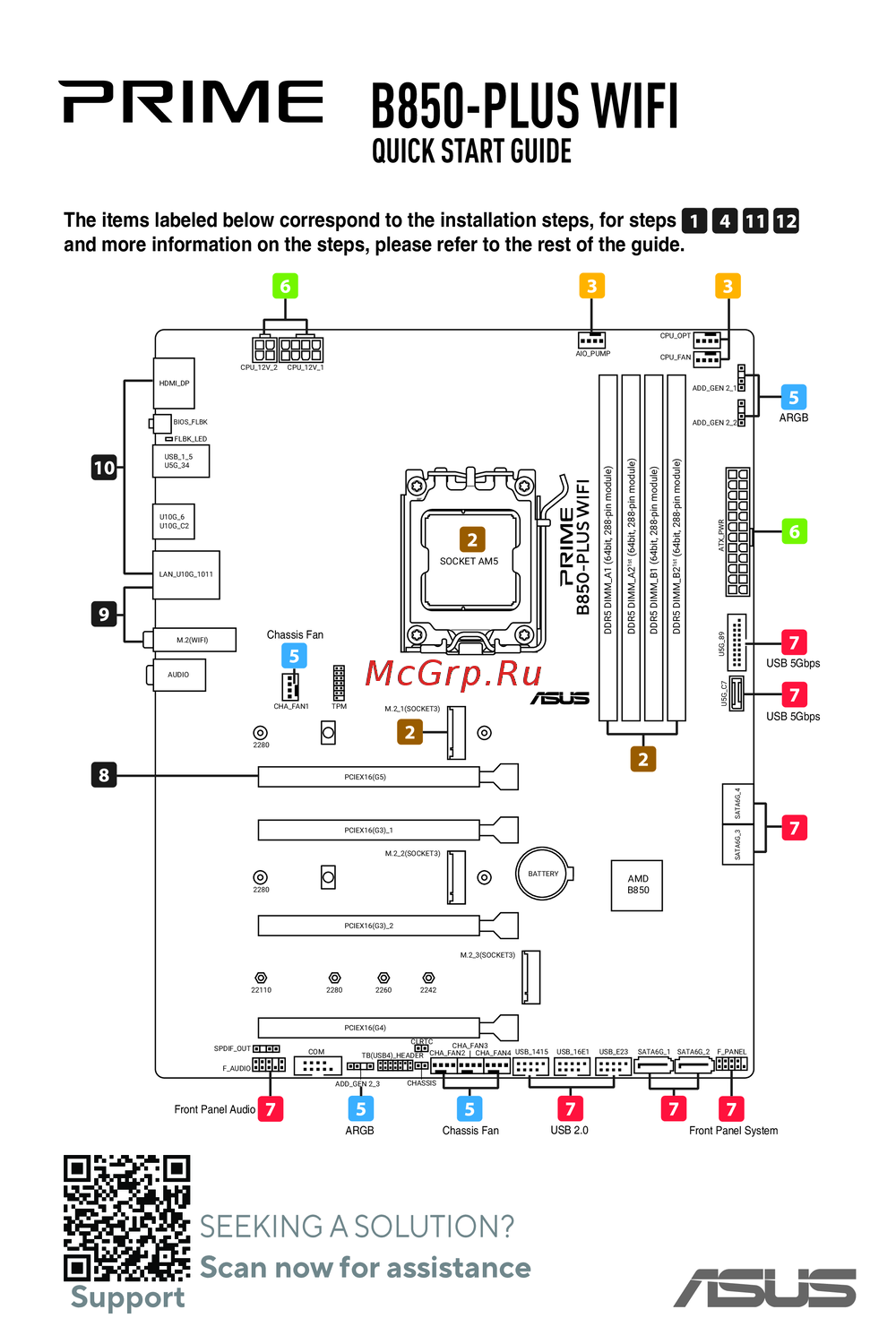 Asus B850-PLUS WIFIКраткое руководство
Узнайте, как легко обновить BIOS с помощью функции FlashBack. Следуйте простым шагам для безопасного обновления без входа в BIOS или ОС.