![Tp-Link TL-WA855RE V2 — как правильно установить расширитель Wi-Fi для лучшего сигнала [12/37]](/icons/site-icon-64.png)
Tp-Link TL-WA855RE V2 — как правильно установить расширитель Wi-Fi для лучшего сигнала [12/37]
Превью страниц
Страница 12 /
37
![Tp-Link TL-WA855RE V2 [12/37] Position your extender](/views2/1469486/page12/bgc.png)
10
Chapter 2
Set Up Internet Connection
2. 2. Position Your Extender
Please follow the instructions below to achieve optimal performance of the extender.
1. Plug the extender into an electrical outlet between your host router and the Wi-Fi
“dead“ zone. The location you choose must be within the range of your existing host
network.
2. Wait until the Signal LED is lit and solid blue. If not, relocate it closer to the host router
to achieve better signal quality.
Host Router Clients
Extended Network
Host Network
Red: Too far away
Blue: Good location
Tips:
To minimize signal interference, please choose a location which is far away from Bluetooth devices and
other household electronic devices, such as cordless phones, microwave ovens and baby monitors.
Содержание
75- User guide
- Chapter 2 set up internet connection
- Chapter 1 get to know about your extender
- About this guide
- Contents
- Chapter 5 manage your extender 23
- Chapter 4 more features of your extender 19
- Chapter 3 customize your network 11
- More info
- Conventions
- About this guide
- Get to know about your extender
- Chapter 1
- Product overview
- Easy management with the tp link tether app
- Easy installation quick position
- Bring dead zones back to life
- Appearance
- 2 port and button description
- 1 led explanation
- You can check the extender s working status by following the led explanation table
- Ports or buttons description
- Name status indication
- Chapter 1 get to know about your extender
- Set up internet connection
- Chapter 2
- Quick setup
- Power on
- Connect to the host network
- 2 method two via a web browser
- 1 method one via the wps button
- Position your extender
- Customize your network
- Chapter 3
- Configure wireless network
- Check internet status
- Change lan settings
- Specify dhcp server settings
- Set access control
- Adjust wi fi coverage
- More features of your extender
- Chapter 4
- Use your extender as a wireless adapter
- Transform your existing wired network to a wireless one
- 1 to set up the extender as an access point
- 2 to connect your wireless devices to the extender via wps
- Manage your extender
- Chapter 5
- Set up system time
- Control leds
- Power schedule
- Backup and restore configuration settings
- Upgrade the firmware
- Change login password
- System log
- Q5 i enabled wireless mac filter wireless access control or access control list acl on my router what should i do to configure and use the extender
- Q4 what can i do if i cannot access the web management page
- Q3 what can i do if i forgot my wireless password
- Q2 what can i do if i forgot my login password
- Q1 how to reset the extender to its factory default settings
- Copyright trademarks
- Fcc statement
- Fcc rf radiation exposure statement
- Ce mark warning
- Korea warning statements
- Industry canada statement
- Déclaration d exposition aux radiations
- Canadian compliance statement
- 注意
- Rf exposure information
- Radiation exposure statement
- Ncc notice bsmi notice
- 安全諮詢及注意事項
- Safety information
- Explanations of the symbols on the product label
Похожие устройства
-
 Tp-Link re450Инструкция по эксплуатации
 -
 Tp-Link re200Инструкция по эксплуатации
 -
 Tp-Link RE270K V1Руководство по быстрому старту
 -
 Tp-Link RE270K V1Руководство пользователя
 -
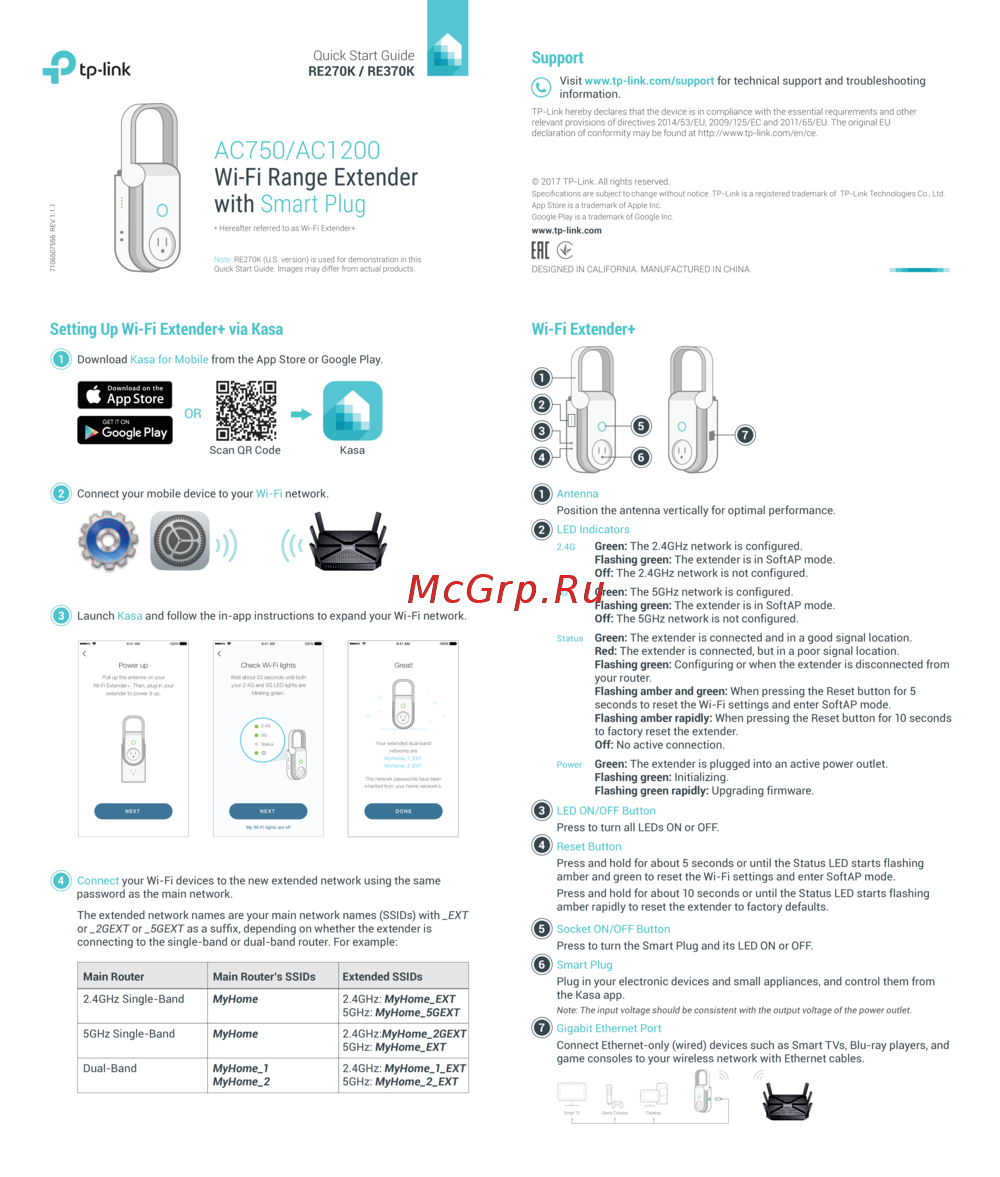 Tp-Link RE370K V1Руководство по быстрому старту
 -
Tp-Link RE370K V1Руководство пользователя
-
Tp-Link RE370K V2Руководство по быстрому старту
-
 Tp-Link TL-WA855RE V1Руководство пользователя
 -
 Tp-Link TL-WA855RE V1Руководство по быстрому старту
 -
 Tp-Link TL-WA855RE V2Руководство по быстрому старту
 -
 Tp-Link TL-WA855RE V3Руководство пользователя
 -
 Tp-Link TL-WA855RE V3Руководство по быстрому старту
Следуйте простым инструкциям для оптимальной установки вашего расширителя Wi-Fi. Узнайте, как выбрать правильное место для улучшения сигнала и минимизации помех.