![Asus PRIME A520M-K — настройка BIOS: Вход и управление параметрами системы [20/30]](/icons/site-icon-64.png)
Asus PRIME A520M-K — настройка BIOS: Вход и управление параметрами системы [20/30]
Превью страниц
Страница 20 /
30
![Asus PRIME A520M-K [20/30] Bios menu screen](/views2/1769218/page20/bg14.png)
2-2
Chapter 2: BIOS and RAID Support
2.2 BIOS Setup program
Use the BIOS Setup to update the BIOS or congure its parameters. The BIOS screens
include navigation keys and brief onscreen help to guide you in using the BIOS Setup
program.
Entering BIOS at startup
To enter BIOS Setup at startup, press <Delete> or <F2> during the Power-On Self Test
(POST). If you do not press <Delete> or <F2>, POST continues with its routines.
Entering BIOS Setup after POST
To enter BIOS Setup after POST:
• Press <Ctrl>+<Alt>+<Delete> simultaneously.
• Press the reset button on the system chassis.
• Press the power button to turn the system off then back on. Do this option only if you
failed to enter BIOS Setup using the rst two options.
After doing either of the three options, press <Delete> key to enter BIOS.
• Ensure that a USB mouse is connected to your motherboard if you want to use the
mouse to control the BIOS Setup program.
• If the system becomes unstable after changing any BIOS setting, load the default
settings to ensure system compatibility and stability. Select the Load Optimized
Defaults item under the Exit menu or press hotkey <F5>.
• If the system fails to boot after changing any BIOS setting, try to clear the CMOS and
reset the motherboard to the default value.
• The BIOS Setup program does not support Bluetooth devices.
BIOS menu screen
The BIOS Setup program can be used under two modes: EZ Mode and Advanced Mode.
You can change modes from Setup Mode in Boot menu or by pressing the <F7> hotkey.
Содержание
93- E16800 first edition june 2020
- Chapter 1 product introduction
- Chapter 2 bios and raid support
- Appendix
- Contents
- Operation safety
- Electrical safety
- Safety information
- How this guide is organized
- Where to find more information
- Conventions used in this guide
- About this guide
- Package contents
- Prime a520m k specifications summary
- Check your motherboard package for the following items
- Prime a520m k specifications summary
- Prime a520m k specifications summary
- Asus prime a520m k
- Motherboard overview
- Before you proceed
- Take note of the following precautions before you install motherboard components or change any motherboard settings
- Product introduction
- Power connectors
- Layout contents
- Fan headers
- Ddr4 dimm slots
- The motherboard comes with an amd socket am4 designed for
- The m slot allows you to install an m device such as an m ssd module
- The fan headers allow you to connect fans to cool the system
- Sata 6gb s ports
- M slot key m
- Gen amd ryzen with radeon graphics processors
- Gen amd ryzen and
- Expansion slots
- This motherboard supports one pcie x16 graphics card and two pcie 3 x1 network cards scsi cards and other cards that comply with the pci express specification
- Cpu socket
- These power connectors allow you to connect your motherboard to a power supply the power supply plugs are designed to fit in only one orientation find the proper orientation and push down firmly until the power supply plugs are fully inserted
- Chapter 1 product introduction
- The sata 6gb s ports allow you to connect sata devices such as optical disc drives and hard disk drives via a sata cable
- The motherboard comes with dual inline memory modules dimm slots designed for ddr4 double data rate 4 memory modules
- Rear panel connectors
- Audio 2 4 5 or 7 channel configuration
- Microphone port pink this port connects a microphone
- Chapter 1 product introduction
- Asus prime a520m k
- The motherboard comes with an amd socket am4 designed for
- Installing the cpu
- Gen amd ryzen with radeon graphics processors
- Gen amd ryzen and
- Central processing unit cpu
- Chapter 1 product introduction
- This motherboard comes with two double data rate 4 ddr4 dual inline memory module dimm sockets the figure illustrates the location of the ddr4 dimm sockets
- System memory
- Recommended memory configuration
- To remove a dimm
- Installing a dimm
- Asus prime a520m k
- Chapter 1 product introduction
- Asus prime a520m k 2 1
- An error message appears on the screen during the system bootup and requests you to run the bios setup
- You have installed a new system component that requires further bios settings or update
- Knowing bios
- Bios basic input and output system stores system hardware settings such as storage device configuration overclocking settings advanced power management and boot device configuration that are needed for system startup in the motherboard cmos in normal circumstances the default bios settings apply to most conditions to ensure optimal performance do not change the default bios settings except in the following circumstances
- Bios and raid support
- Bios and raid suppor
- Bios setup program
- Bios menu screen
- Entering bios setup after post
- Entering bios at startup
- Asus ez flash 3
- Recovering the bios
- Asus crashfree bios 3
- Raid definitions
- Raid configurations
- Notices
- Fcc compliance information
- Appendix
- Turkey rohs
- India rohs
- Google license terms
- Eu rohs
- Eu reach and article 33
- Declaration of compliance for product environmental regulation
- Vietnam rohs
- Warning
- Regional notice for california
- Asus recycling takeback services
- Asus prime a520m k
- Technical support
- Asustek computer inc
- Asus contact information
- Asus computer international america
- Asus computer gmbh germany and austria
Похожие устройства
-
 Asus TUF GAMING B550-PROРуководство по быстрому запуску
 -
 Asus PRIME A520M-A IIКраткое руководство пользователя
 -
 Asus PRIME B250M-PLUSКраткое руководство
 -
 Asus TUF GAMING Z590-PLUSКраткое руководство
 -
 Asus ProArt B650-CREATORКраткий обзор функций
 -
 Asus TUF GAMING B650-PLUSБыстрый старт
 -
 Asus ROG STRIX X670E-I GAMING WIFIКраткое руководство пользователя
 -
Asus ROG FPS-IIРуководство по быстрому запуску
-
 Asus Pro WS W680M-ACE SEКраткая эксплуатационная инструкция
 -
 Asus PRIME B760M-A WIFI D4Инструкция в сокращённом виде
 -
 Asus PRIME H770-PLUSБыстрый старт
 -
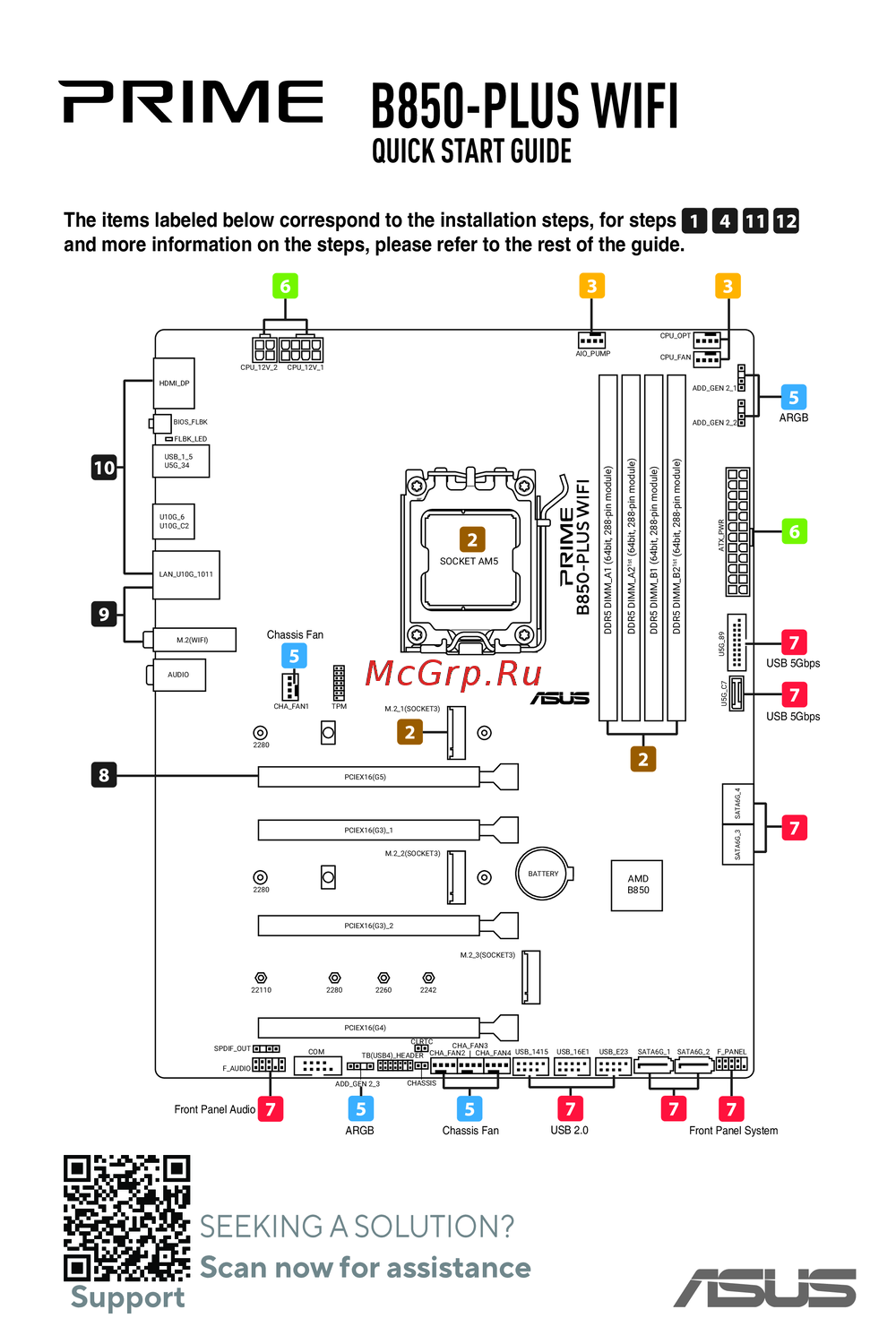 Asus B850-PLUS WIFIКраткое руководство
Узнайте, как войти в BIOS и настроить параметры системы. Подробные инструкции по использованию BIOS Setup и восстановлению настроек.