![Asus PRIME Z490-A — настройка BIOS для управления вентиляторами на материнской плате [52/68]](/icons/site-icon-64.png)
Asus PRIME Z490-A — настройка BIOS для управления вентиляторами на материнской плате [52/68]
Превью страниц
Страница 52 /
68
![Asus PRIME Z490-A [52/68] Q fan configuration](/views2/1769276/page52/bg34.png)
52
PRIME/PRO/ProArt/TUF GAMING Intel 400 Series BIOS Manual
Q-Fan Configuration
AI Cooling
ASUS AI Cooling will automatically manage and control all motherboard fans,
ensuring the most efficient settings are set depending on the current system load and
temperature. When you enable this function, AI Cooling function will try to lower fan
speed to decrease fan noise without compromising current performance. You can
keep track of fan performance via the ASUS Fan Xpert software with a blue dot in the
Fan curve chart.
Configuration options: [Enabled] [Disabled]
Q-Fan Tuning
Click this item to automatically detect the lowest speed and configure the minimum
duty cycle for each fan.
CPU Q-Fan Control
This item allows you to set the CPU Q-Fan operating mode.
[Auto] Detects the type of CPU fan installed and automatically switches
the control modes.
[PWM Mode] Enables the CPU Q-Fan Control feature in PWM mode for 4-pin
CPU fan.
[DC Mode] Enables the CPU Q-Fan Control feature in DC mode for 3-pin
CPU fan.
[Disabled] Disables the Q-Fan Control.
The following items appear only when CPU Q-Fan Control is set to [Auto], [PWM Mode],
or [DC Mode].
CPU Fan Step Up
This item allows you to set the value of the CPU fan step up.
Configuration options: [0 sec] [2.1 sec] [2.8 sec] [3.6 sec] [4.2 sec] [5.0 sec] [6.3 sec]
[8.5 sec] [12 sec] [25 sec]
CPU Fan Step Down
This item allows you to set the value of the CPU fan step down.
Configuration options: [0 sec] [2.1 sec] [2.8 sec] [3.6 sec] [4.2 sec] [5.0 sec] [6.3 sec]
[8.5 sec] [12 sec] [25 sec]
CPU Fan Speed Low Limit
This item allows you to set the low limit warning for CPU Fan speed.
Configuration options: [Ignore] [200 RPM] [300 RPM] [400 RPM] [500 RPM] [600
RPM]
CPU Fan Profile
This item allows you to set the appropriate performance level of the CPU fan.
[Standard] Set to make the CPU fan adjust automatically depending on the CPU
temperature.
[Silent] Set to minimize the fan speed for quiet CPU fan operation.
[Turbo] Set to achieve maximum CPU fan speed.
[Manual] Set to assign the detailed fan speed control parameters.
Содержание
192- Motherboard
- Prime pro proart tuf gaming intel 400 series bios manual
- E16452 first edition april 2020
- Contents
- Bios setup
- An error message appears on the screen during the system bootup and requests you to run the bios setup
- You have installed a new system component that requires further bios settings or update
- Prime pro proart tuf gaming intel 400 series bios manual
- Knowing bios
- Bios basic input and output system stores system hardware settings such as storage device configuration overclocking settings advanced power management and boot device configuration that are needed for system startup in the motherboard cmos in normal circumstances the default bios settings apply to most conditions to ensure optimal performance do not change the default bios settings except in the following circumstances
- Bios menu screen
- Bios setup program
- Press the power button to turn the system off then back on do this option only if you failed to enter bios setup using the first two options
- Key to enter bios
- Entering bios at startup
- Use the bios setup to update the bios or configure its parameters the bios screen include navigation keys and brief onscreen help to guide you in using the bios setup program
- To enter bios setup after post
- Simultaneously
- Prime pro proart tuf gaming intel 400 series bios manual
- Press the reset button on the system chassis
- Post continues with its routines
- Hotkey
- Entering bios setup after post
- The default screen for entering the bios setup program can be changed refer to the setup mode item in section boot menu for details
- The boot device options vary depending on the devices you installed to the system
- Prime pro proart tuf gaming intel 400 series bios manual
- Hotkey for the advanced bios settings
- Ez mode
- Advanced mode
- The advanced mode provides advanced options for experienced end users to configure the bios settings the figure below shows an example of the advanced mode refer to the following sections for the detailed configurations
- Prime pro proart tuf gaming intel 400 series bios manual
- Hotkey
- Language
- Submenu items
- Search f9
- Qfan control f6
- My favorites f3
- Menu items
- Menu bar
- General help
- Scroll bar
- Last modified button
- Hot keys
- Configuration fields
- Aura f4
- The qfan control allows you to set a fan profile or manually configure the operating speed of your cpu and chassis fans
- Qfan control
- Prime pro proart tuf gaming intel 400 series bios manual
- Configuring fans manually
- My favorites
- Adding items to my favorites
- The security menu items allow you to change the system security settings
- The main menu screen appears when you enter the advanced mode of the bios setup program the main menu provides you an overview of the basic system information and allows you to set the system date time language and security settings
- Security
- Prime pro proart tuf gaming intel 400 series bios manual
- Main menu
- User password
- Administrator password
- Ai tweaker menu
- Ai overclock tuner
- Asus multicore enhancement
- Svid behavior
- Cpu core ratio
- Dram timing control
- Dram odd ratio mode
- Dram frequency
- Cpu svid support
- Digi vrm
- Internal cpu power management
- Tweaker s paradise
- Min cpu cache ratio
- Max cpu cache ratio
- Dram voltage
- Cpu vccio voltage
- Cpu system agent voltage
- Cpu graphics voltage mode
- Cpu core cache voltage
- Pll termination voltage
- Max cpu graphics ratio
- Extreme over voltage
- Pch core voltage
- Dram ref voltage control
- Advanced menu
- Pch pci express
- Platform misc configuration
- Pci express native power management
- Pci express clock gating
- Pch dmi aspm control
- L1 substates
- Sa pci express
- Peg aspm
- Dmi link aspm control
- Cpu configuration
- Tcc offset time window
- Software guard extensions sgx
- Monitormwait
- Intel vmx virtualization technology
- Hyper threading
- Hardware prefetcher
- Cpu power management configuration
- Adjacent cache line prefetch
- Active processor cores
- Graphics configuration
- Above 4g decoding
- System agent sa configuration
- Memory configuration
- Peg port configuration
- Pci express configuration
- Pch configuration
- Sata mode selection
- Sata controller s
- Pch storage configuration
- Aggressive lpm support
- Smart self test
- Sata6g_1 gray sata6g_6 gray
- Pch fw configuration
- Thunderbolt tm support
- Thunderbolt tm configuration
- Thunderbolt boot support
- Native os security for tbt
- Control iommu pre boot behavior
- Tbt dynamic ac dc l1
- Sw smi on tbt hot plug
- Security level
- Acpi notify on tbt hot plug
- Wake from thunderbolt tm devices
- Titan ridge workabout for osup
- Thunderbolt tm configuration
- Usb configuration
- Sr iov support
- Pci subsystem settings
- Legacy usb support
- Xhci hand off
- Usb single port control
- Network stack configuration
- Network stack
- Onboard devices configuration
- Nvme configuration
- Intel lan
- Hyper m x16
- Hd audio
- Usb power deliver in soft off state s5
- Serial port configuration
- Led lighting
- Connectivity mode wi fi bluetooth
- Apm configuration
- Restore ac power loss
- Power on by rtc
- Power on by pci e
- Hdd ssd smart information
- Erp ready
- Energy star ready
- Cec ready
- Monitor menu
- Cpu temperature cpu package temperature motherboard temperature xxx c xxx f
- Cpu fan speed cpu optional fan chassis fan 1 3 speed aio pump speed xxxx rpm
- Cpu core voltage 3 v voltage 5v voltage 12v voltage x xxxx v
- Q fan configuration
- Chassis intrusion detection support
- Csm compatibility support module
- Cpu temperature led switch
- Boot menu
- Secure boot
- Boot override
- Boot option priorities
- Tool menu
- Setup animator
- Flexkey
- Asus ez flash 3 utility
- Ssd speeds may lower over time as with any storage medium due to data processing secure erase completely and safely cleans your ssd restoring it to factory performance levels
- Secure erase on the advanced mode menu
- Secure erase
- Prime pro proart tuf gaming intel 400 series bios manual
- Save to profile
- Profile name
- Load save profile from to usb drive
- Load from profile
- Asus user profile
- Download install armoury crate app
- Asus spd information
- Asus armoury crate
- Exit menu
- Save changes reset
- Load optimized defaults
- Launch efi shell from usb drives
- Discard changes exit
- Updating bios
- Ez update
- Asus ez flash 3
- Recovering the bios
- Asus crashfree bios 3
- Prime pro proart tuf gaming intel 400 series bios manual
Похожие устройства
-
 Asus TUF GAMING B550-PROРуководство по быстрому запуску
 -
 Asus PRIME A520M-A IIКраткое руководство пользователя
 -
 Asus PRIME B250M-PLUSКраткое руководство
 -
 Asus TUF GAMING Z590-PLUSКраткое руководство
 -
 Asus ProArt B650-CREATORКраткий обзор функций
 -
 Asus TUF GAMING B650-PLUSБыстрый старт
 -
 Asus ROG STRIX X670E-I GAMING WIFIКраткое руководство пользователя
 -
Asus ROG FPS-IIРуководство по быстрому запуску
-
 Asus Pro WS W680M-ACE SEКраткая эксплуатационная инструкция
 -
 Asus PRIME B760M-A WIFI D4Инструкция в сокращённом виде
 -
 Asus PRIME H770-PLUSБыстрый старт
 -
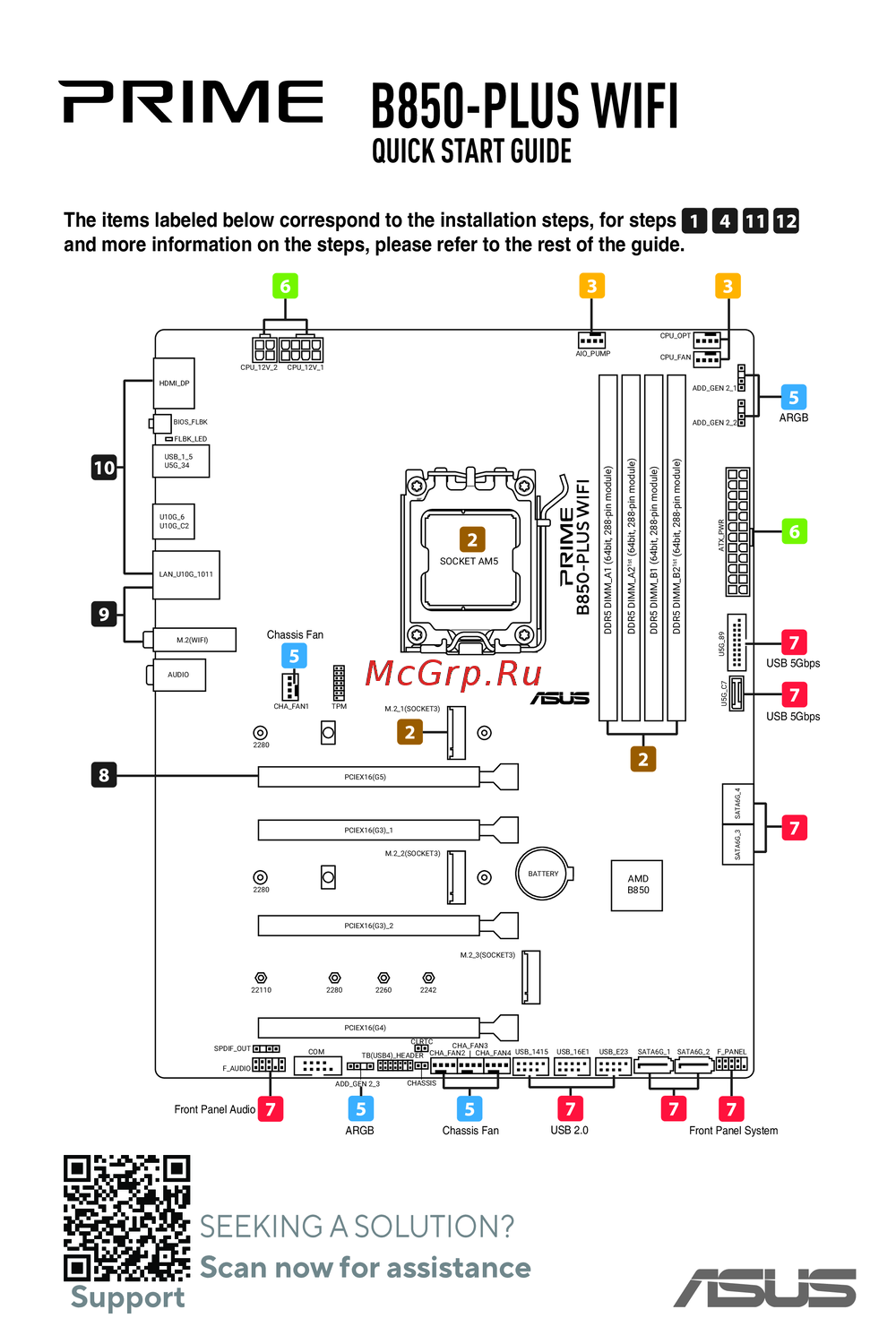 Asus B850-PLUS WIFIКраткое руководство
Узнайте, как настроить управление вентиляторами в BIOS для оптимизации производительности и снижения шума. Подробная информация о режимах и параметрах настройки.