![Kress Mission KR111 — обновление программного обеспечения и обслуживание устройства [15/25]](/icons/site-icon-64.png)
Kress Mission KR111 — обновление программного обеспечения и обслуживание устройства [15/25]
Превью страниц
Страница 15 /
25
![Kress Mission KR110 [15/25] Software update](/views2/1464821/page15/bgf.png)
15
EN
8. Software update
The software can be updated when new versions become available. The latest software can be downloaded
from our website www.kress-robotik.com. There are two methods to update software.
Method 1: Update via USB. See below for download and installation instructions:
(1) Locate the latest software version at: www.kress-robotik.com. Save the file to an empty FAT32 formatted
USB (flash drive). Delete any other files on the drive and check the format. If the drive is not formatted in
FAT32, please reformat the drive.
NOTE: the software update is downloaded as a zipped
file. You will need to unzip or extract it before proceeding.
(2) Place Mission™ on a secure and level surface. Press
the ON/OFF key to turn off your Mission™.
(3) Lift the rear of the Mission™ to access the underside.
(4) Open the protective rubber cover under Mission™ to
access the USB port.
(5) Insert the USB drive (flash drive) in the port. (See Fig. K)
(6) Place the Mission™ on the ground again.
(7) Press the ON/OFF key to turn on your Mission™.
(8) Without lifting the Mission™, remove the USB drive (flash drive) according to the screen tips.
(9) The update will begin automatically and may take several minutes. Mission™ will restart automatically after
the update is completed.
NOTE: If Mission™ is not inside the boundary wire, the message “Outside working area! Press “START” to
reset” will be displayed. Please refer to the manual for more information.
(10)Be sure to tightly and completely close the rubber protective USB port cover.
Method 2: Update via your smartphone.
If your Mission™ is connected to your smartphone via the Mission™ App, you can check the software version.
The App will also notify you when new software version is available.
The manual included with your Mission™ is based on the default software at the time of production. Some
new features/functions in the new version may not exist in the manual. If you found some settings not in the
manual, please visit www.kress-robotik.com to download the latest manual.
9. Maintenance
Your Mission™ works hard and needs to be cleaned and checked from time to time. Some parts will require
replacement as they become worn. Never use your Mission™ with defective on/off switch.
Switch off the machine before carrying out any service or maintenance.
Here's how to take care of your Mission™.
9.1 Keep it Sharp
WARNING:
Before cleaning, adjusting, or
replacing the blades, turn your Mission™ OFF
and put on protective gloves.
WARNING: When fitting new blades, make sure
you replace ALL the blades. Always use new
screws when fitting blades. This is important to
ensure blade retention and balance the blade
turning disc. Failure to use new screws could cause
serious injury.
The Mission™ does not cut grass like other mowers. Its
cutting blades are razor sharp on 2 edges and rotate in both directions for maximum cutting capacity (See Fig.
L). Each blade of your Mission™ has 2 cutting edges. The blade turning disc will make forward and reverse
rotation at random to use both cutting edges and minimize the frequency of replacing the blades. Each cutting
blade will last up to 2 months when it is programmed to mow every day. Always check to see if the blades
1
2
Содержание
42- Owner s manual
- Original instructions
- Product safety
- Information on missio
- Component list
- Technical data and noise data
- Noise data
- Accessories
- Intended use
- Control panel
- Understanding your missio
- Boundary wire basics
- Software update
- Maintenance
- Function messages
- Error messages
- Is connected to your smartphone you can lock it on your smartphone this prevents unauthorised people from being able to use it
- Security
- If mission runs abnormally once in a while please try to restart it if the problem cannot be solved please
- If missio
- Wire so please refer to the previous installation instructions and check your set up with its help
- If for any reason i e a party children playing you want to park your mission in the charging base
- Until the next scheduled mowing session if you want to re start it press then to start your
- If an error repeatedly occurs in the same area of your lawn you might have a problem with the boundary
- The contact between the charging and contact pins may be obstructed in some way 2 wipe off the charging and contact pins making sure there is not an object obstructing them then place your missio
- Do not wash the machine with a high pressure washer this could cause damage to the battery or the
- Provided with the charging base when mission runs out of charge take it manually to the charging base turn power on press then and the charge process will start
- Contact kress service agent for help
- Press then mission will go to its base and stay there please note mission will now wait
- Before turning power on always check missio
- Off and place it in the charging base then charging will be shown on screen which means it starts charging
- Area press start to reset will be displayed this message is displayed also when missio
- Mission
- Machine
- Is sitting over the boundary wire when turned on
- Is inside its territory if not the message outside working
- In this case you must turn missio
- In the charging base and check that the pins make good connection
- If your lawn is divided in two separated areas connected by a corridor less than 1m one of which is not
- Troubleshooting
- Environmental protection
- Declaration of conformity
Похожие устройства
-
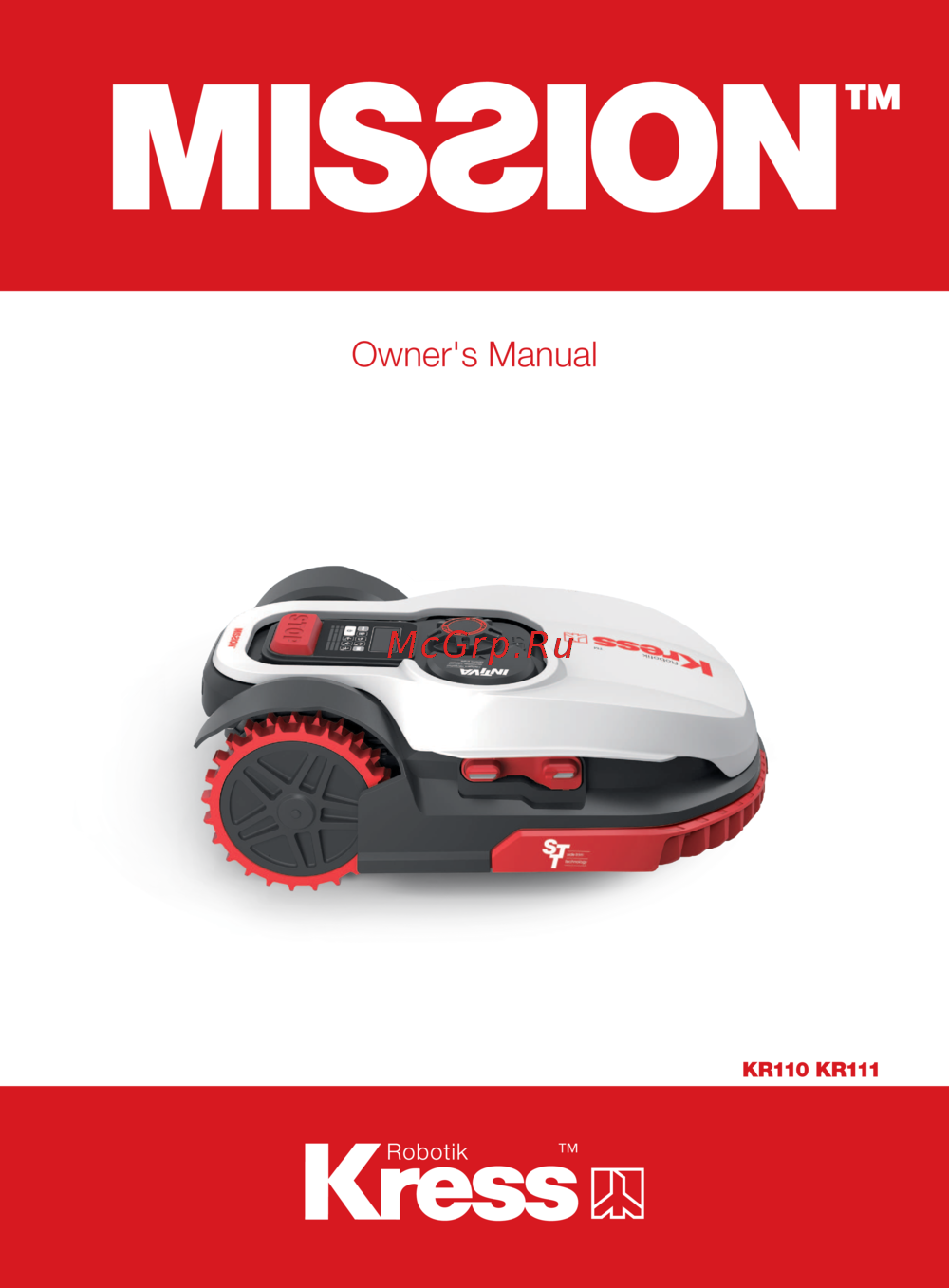 Kress Mission KR110Инструкция по эксплуатации(ENG)
 -
 Kress Mission NanoИнструкция по эксплуатации(ENG)
 -
 Stiga AUTOCLIP 920 SИнструкция по эксплуатации
 -
 Stiga AUTOCLIP 720 SИнструкция по эксплуатации
 -
 Stiga AUTOCLIP 527 SИнструкция по эксплуатации
 -
Stiga AUTOCLIP 527Инструкция по эксплуатации
-
 Stiga AUTOCLIP 525 SИнструкция по эксплуатации
 -
Stiga AUTOCLIP 525Инструкция по эксплуатации
-
Stiga AUTOCLIP 523Инструкция по эксплуатации
-
Stiga AUTOCLIP 520Инструкция по эксплуатации
-
 Stiga AUTOCLIP 325Инструкция по эксплуатации
 -
 Stiga AUTOCLIP 145 4WDИнструкция по эксплуатации
Узнайте, как обновить программное обеспечение вашего устройства с помощью USB или смартфона. Поддерживайте его в отличном состоянии с помощью регулярного обслуживания.