![Tp-Link TL-R4299G — руководство пользователя для маршрутизатора с поддержкой Dual-WAN [33/86]](/icons/site-icon-64.png)
Tp-Link TL-R4299G — руководство пользователя для маршрутизатора с поддержкой Dual-WAN [33/86]
Превью страниц
Страница 33 /
86
![Tp-Link TL-R4299G Инструкция по эксплуатации онлайн [33/86] 39444](/views2/1042656/page33/bg21.png)
TL-R4299G Dual-WAN SMB Broadband Router User Guide
27
ISPs. For example, you can specify some packets prior forwarding from WAN port 1, which
depend on specified source or destination IP addresses.
Figure 4-13
¾ Enable/Disable WAN - Enable the WAN port you want to use, then click Save to make it
effective.
¾ Additional IP Address dispatch rules - Enable the function and then make the dispatch
rules.
¾ Backup - Click the button to backup the list files.
¾ Upload - Click the button to upload an existed file. You can click Browse to locate the
specific file first, and then click the Upload List Files to complete the process.
¾ Rules list - This table displays the current dispatch rules.
To add a dispatch rule:
Step 1: Click Add New button shown in Figure 4-13, you will see a new screen shown in Figure
4-14.
Step 2: Select the Rules select,
protocol, Datagram Pass Policy and Transmit Path, enter IP
address and Port like the next screen shows.
Содержание
105- Tl r4299g dual wan smb broadband router
- Copyright trademarks
- Fcc statement
- Ce mark warning
- Package contents
- Conventions
- Chapter 3 quick installation guide 5
- Status 11
- Chapter 2 hardware installation 2
- Security 40
- Chapter 1 introduction 1
- Quick setup 13
- Panel layout 2
- Overview of the router 1
- Network 13
- Login 8
- Installation environment requirements 3
- Forwarding 34
- Features 1
- Dhcp 31
- Conventions 2
- Contents
- Connecting the router 4
- Configure pc 5
- Chapter 4 configuring the router 11
- System requirements 3
- System tools 64
- Switch setting 60
- Static routing 50
- Session limit 52
- Qos 53
- Ip mac binding 55
- Dynamic dns 58
- Appendix c glossary 80
- Appendix b faq 76
- Appendix a specifications 75
- Overview of the router
- Features
- Chapter 1 introduction
- Conventions
- Chapter 2 hardware installation
- The front panel
- Panel layout
- The rear panel
- System requirements
- Installation environment requirements
- Connecting the router
- Configure pc
- Chapter 3 quick installation guide
- Status
- Chapter 4 configuring the router
- Quick setup
- Network
- Network service detection
- Mac clone
- Flow balance
- Balance policy
- Wan port parameter
- Dhcp settings
- Dhcp clients list
- Address reservation
- Virtual servers
- Forwarding
- Port triggering
- Security
- Firewall
- Ip filtering
- Domain filtering
- Mac filtering
- Screen
- Static routing
- Session limit
- Session list
- Qos settings
- Qos rules list
- Ip mac binding
- Binding setting
- Arp list
- Dyndns ddns
- Dynamic dns
- Peanuthull ddns
- Comexe ddns
- Switch setting
- Port statistics
- Port mirror
- Port rate control
- Port parameter
- Port status
- Port vlan
- System tools
- Time settings
- Firmware
- Factory defaults
- Backup and restore
- Reboot
- Password
- System log
- Remote management
- Statistics
- Wan speed detect
- Nat source port settings
- Ip nat table
- Appendix a specifications
- Appendix b faq
- Appendix c glossary
Похожие устройства
-
 Tp-Link Archer BE450Краткая инструкция
 -
Tp-Link BE7200Краткое руководство пользователя
-
 Tp-Link Archer EC220 G5Руководство по настройке
 -
 Tp-Link EX220 AX1800Руководство пользователя
 -
 Tp-Link Wi-Fi 4G LTE роутерКраткая инструкция по использованию
 -
 Tp-Link TL-WR3002XИнструкция по применению
 -
 Tp-Link AC750Руководство по работе с устройством
 -
 Tp-Link TL-MR6400 черныйРуководство по эксплуатации
 -
 Tp-Link TL-MR100 N300Руководство по эксплуатации
 -
 Tp-Link TL-MR105 N300Руководство по эксплуатации
 -
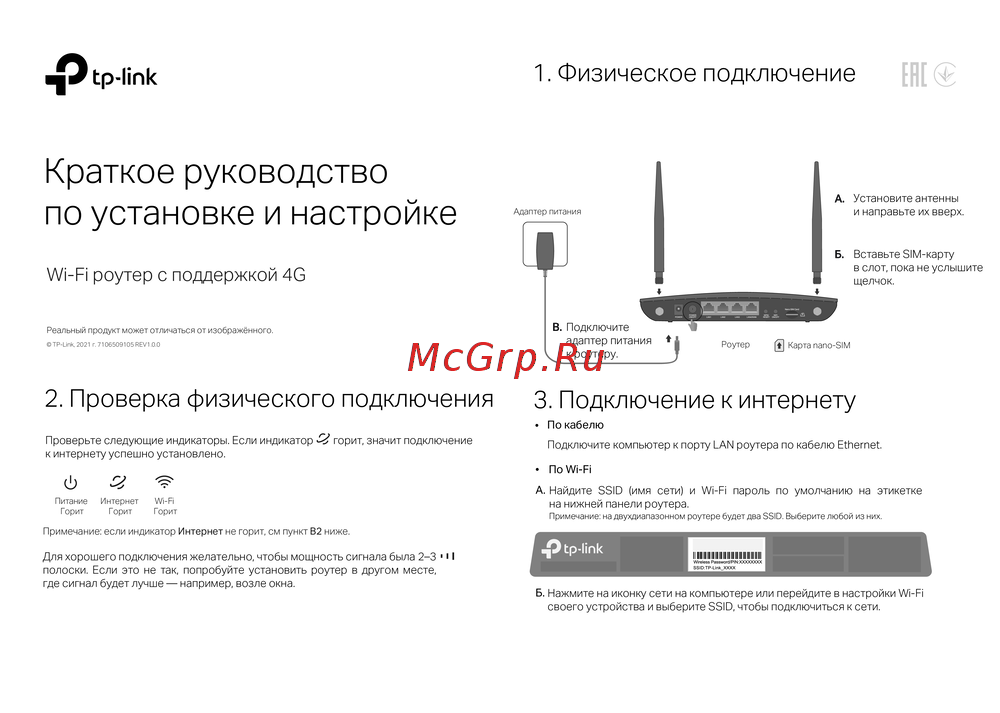 Tp-Link Archer MR500 AC1200Руководство по эксплуатации
 -
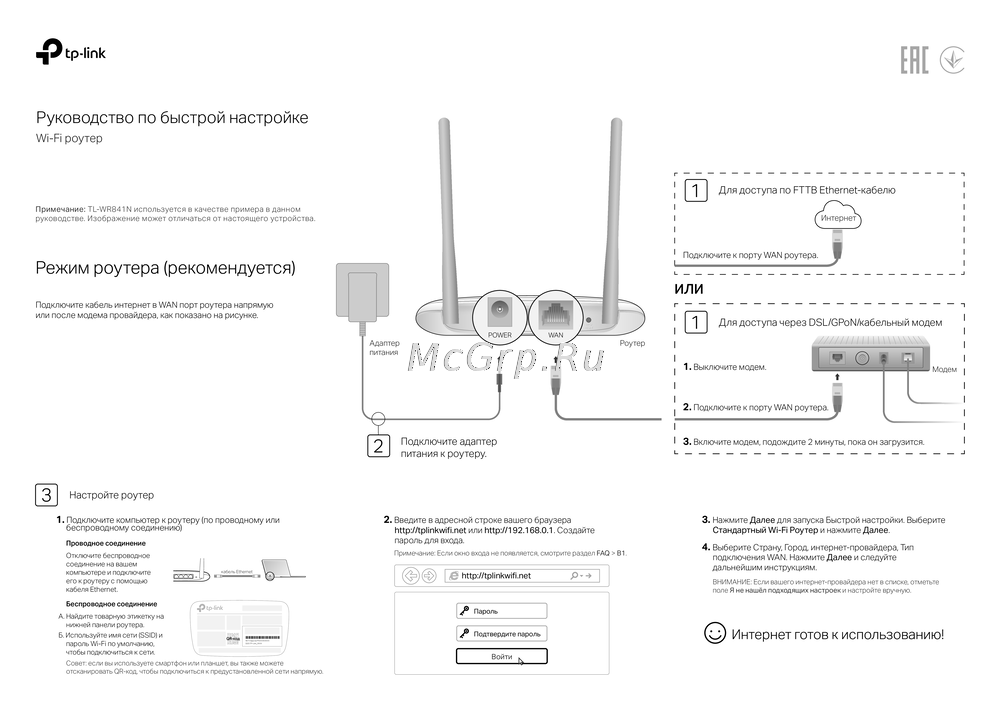 Tp-Link TL-WR840N N300Руководство по эксплуатации
Узнайте, как настроить маршрутизатор с поддержкой Dual-WAN для оптимизации интернет-соединения. Подробные инструкции по настройке правил и резервному копированию.
