![Netis WF2412 [4/60] Contents](/icons/site-icon-64.png)
Netis WF2412 [4/60] Contents
Превью страниц
Страница 4 /
60
![Netis WF2412 [4/60] Contents](/views2/1164338/page4/bg4.png)
150Mbps/300Mbps Wireless-N AP / Repeater / Router client User Manual
3
Contents
1.
INTRODUCTION .................................................................................................................... 6
1.1.
P
RODUCT
O
VERVIEW
.......................................................................................................... 6
1.2.
M
AIN
F
EATURES
................................................................................................................. 6
1.3.
S
UPPORTING
S
TANDARD AND
P
ROTOCOL
............................................................................. 6
1.4.
W
ORKING
E
NVIRONMENT
................................................................................................... 7
2.
HARDWARE INSTALLATION .............................................................................................. 8
2.1.
S
YSTEM
R
EQUIREMENT
...................................................................................................... 8
2.2.
P
ANEL
................................................................................................................................ 8
2.3.
R
ESTORE TO FACTORY CONFIGURATION
................................................................................ 9
2.4.
H
ARDWARE
I
NSTALLATION
P
ROCEDURES
........................................................................... 10
3.
LOGIN ................................................................................................................................... 11
3.1.
C
ONFIGURE COMPUTER
..................................................................................................... 11
3.1.1.
Windows 98/Me ....................................................................................................... 11
3.1.2.
Windows 2000 ......................................................................................................... 11
3.1.3.
Windows XP ............................................................................................................ 14
3.1.4.
Windows Vista ......................................................................................................... 17
3.1.5.
Windows 7 ............................................................................................................... 21
3.1.6. MAC OS .................................................................................................................. 23
3.2.
C
HECKING
C
ONNECTION WITH THE
R
OUTER
...................................................................... 25
3.3.
L
OGIN
.............................................................................................................................. 26
4.
ROUTER SETUP ................................................................................................................... 28
4.1.
STATUS............................................................................................................................. 28
4.1.1.
Version .................................................................................................................... 28
4.1.2.
WAN ........................................................................................................................ 28
4.1.3.
LAN......................................................................................................................... 29
4.1.4.
Wireless ................................................................................................................... 29
4.1.5.
Router Status ........................................................................................................... 30
4.1.6.
Traffic Statistics ....................................................................................................... 30
4.2.
Q
UICK
S
ETUP
................................................................................................................... 30
4.2.1.
DHCP (dynamic) ..................................................................................................... 30
4.2.2.
PPPoE .................................................................................................................... 31
4.2.3.
Static ....................................................................................................................... 31
4.2.4.
Wireless Configuration ............................................................................................ 32
4.2.5.
MAC Clone ............................................................................................................. 32
4.3. WPS SETTINGS................................................................................................................. 33
4.3.1.
WPS Settings ........................................................................................................... 33
4.3.2.
Add a New Device ................................................................................................... 33
4.3.3.
WPS Configuration .................................................................................................. 34
4.4.
N
ETWORK
........................................................................................................................ 35
Содержание
83- Certification
- Caution
- Fcc statement
- Fcc radiation exposure statement
- Fcc ce
- Brand and copyright announcement
- Contents
- Supporting standard and protocol
- Product overview
- Main features
- Introduction
- Working environment
- System requirement
- Hardware installation
- Front panel
- Restore to factory configuration
- Rear panel
- Hardware installation procedures
- Windows 98 me
- Windows 2000
- Configure computer
- Windows xp
- Windows vista
- Figure 3 15
- Choose obtain an ip address automatically and obtain dns server address automatically
- And then press ok to close the internet protocol tcp ip properties window
- Press ok to close the local area connection properties window
- Figure 3 16
- Windows 7
- Mac os
- Checking connection with the router
- Viewing and adjusting the configurations
- The main options to configure the system and the right screen is the summary information for
- Figure 3 19
- Version
- Status
- Router setup
- Wireless
- Traffic statistics
- Router status
- Quick setup
- Dhcp dynamic
- Static
- Wireless configuration
- Mac clone
- Wps settings
- Add a new device
- Wps configuration
- Wired access
- Network
- Wireless access
- Port settings
- Mac clone
- Wireless security
- Wpa2 psk
- Wpa wpa2 psk
- Wpa psk
- Wireless mac filtering
- Wireless advanced
- Wds settings
- Wireless statistics
- Multiple ap settings
- Virtual servers
- Port triggering
- Forwarding
- Ftp private port
- Security settings
- Security
- Ip address filtering
- Mac filtering
- Static routing
- Domain filtering
- Qos settings
- Dynamic dns
- Time settings
- System tools
- Firmware
- System logs
- Password
- Remote management
- Reboot
- Factory defaults
- Troubleshooting
Похожие устройства
-
 Netis WF2780Быстрый старт
 -
Netis WF2710Краткий обзор функций
-
Netis WF2681Краткая инструкция по использованию
-
 Netis WF2681Технические характеристики
 -
 Netis WF2681Инструкция по эксплуатации
 -
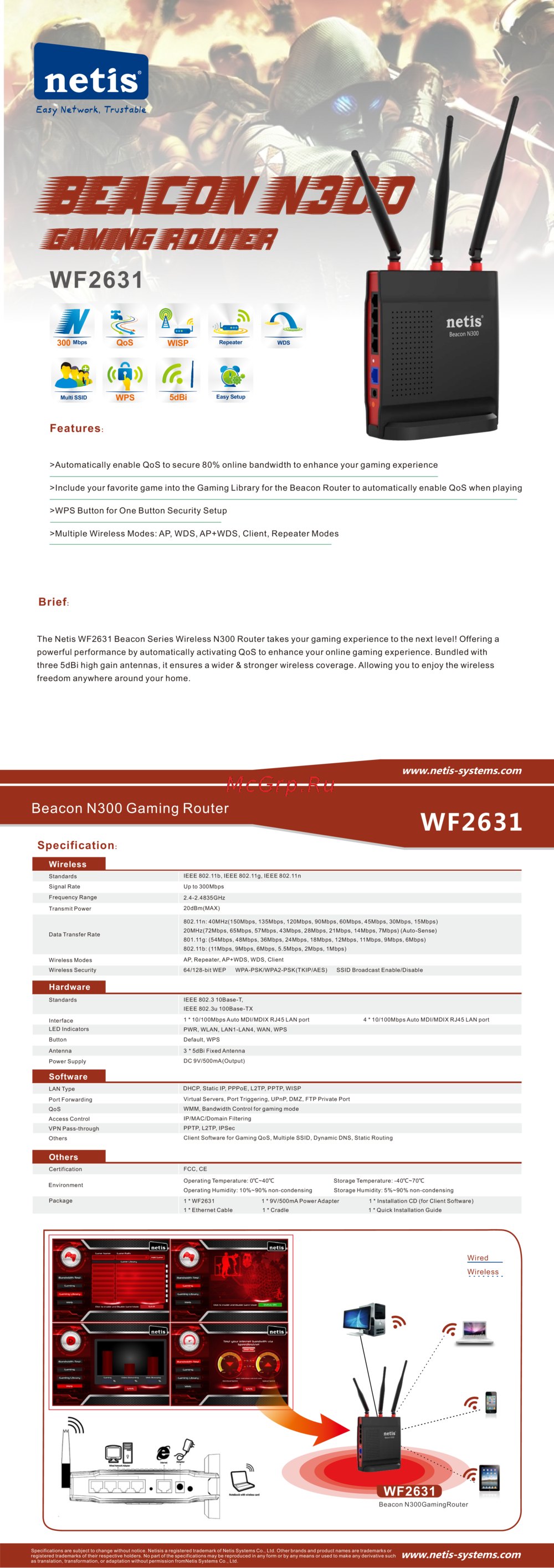 Netis WF2631Инструкция по эксплуатации
 -
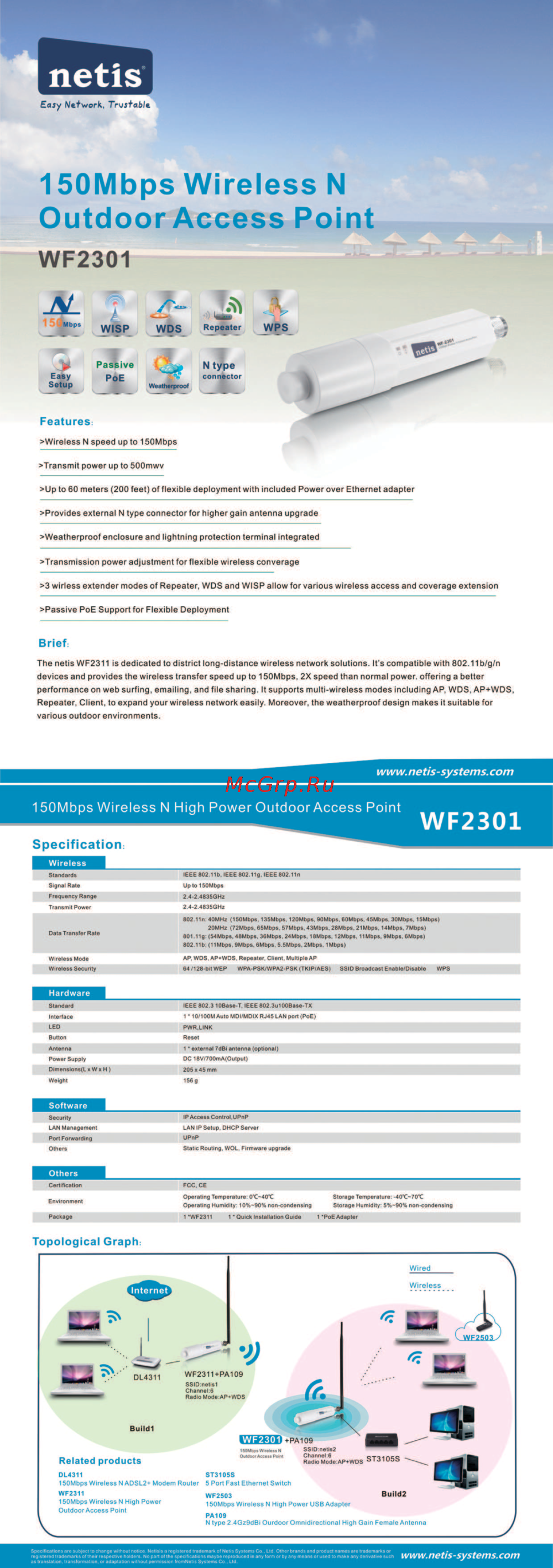 Netis WF-2301Технические характеристики
 -
 Netis WF-2301Инструкция по установке
 -
 Netis WF-2301Инструкция по эксплуатации
 -
 Netis WF2322Инструкция по эксплуатации
 -
 Netis WF2501Инструкция по установке
 -
 Netis WF2501Инструкция по эксплуатации