![Asus z9pe-d16 [116/184] You can add a new raid configuration or view an existing configuration using the view add configuration command](/icons/site-icon-64.png)
Asus z9pe-d16 [116/184] You can add a new raid configuration or view an existing configuration using the view add configuration command
Превью страниц
Страница 116 /
184
![Asus z9pe-d16 [116/184] You can add a new raid configuration or view an existing configuration using the view add configuration command](/views2/1159849/page116/bg74.png)
5-12 Chapter 5: RAID conguration
5.2.2 Adding or viewing a RAID conguration
You can add a new RAID conguration or view an existing conguration using the
View/Add Conguration
command.
Adding a new RAID conguration
To add a new RAID conguration:
1. From the
Management Menu
, select
Congure > View/Add Conguration
,
and then press <Enter>.
2. The
ARRAY SELECTION MENU
displays the available drives connected to
the SATA ports. Select the drive(s) you want to include in the RAID set, then
press <Space>. When selected, the drive indicator changes from
READY
to
ONLIN A[X]-[Y]
, where X is the array number, and Y is the drive number.
The information of the selected hard disk drive displays at the bottom of the
screen.
3. Follow step 3 to 12 of section
5.2.1 Creating a RAID set: Using Easy
Conguration
to add a new RAID set.
Management Menu
Congure
Initialize
Objects
Rebuild
Check Consistency
View/Add to The Existing Conguration
Conguration Menu
Easy Conguration
New Conguration
View/Add Conguration
Clear Conguration
Select Boot Drive
LSI Software RAID Conguration Utility Ver C.05 Sep 17, 2010
BIOS Version A.10.09231523R
Use Cursor Keys To Navigate Between Items And Press Enter To Select An Option
Management Menu
Congure
Initialize
Objects
Rebuild
Check Consistency
Port # 2 DISK 77247MB HDS728080PLA380 PF20A60A
View/Add Conguration - ARRAY SELECTION MENU
PORT #
ONLIN A00-00
ONLIN A00-01
READY
READY
0
1
LSI Software RAID Conguration Utility Ver C.05 Sep 17, 2010
BIOS Version A.10.09231523R
SPACE-Sel,ENTER-EndArray,F10-Congure,F2-Drive Info,F3-Virtual Drives,F4-HSP
2
3
Содержание
781- First edition v1 december 2011
- Chapter 2 hardware information
- Chapter 1 product introduction
- Contents
- Chapter 4 bios setup
- Contents
- Chapter 3 powering up
- Chapter 5 raid configuration
- Contents
- Chapter 6 driver installation
- Contents
- Appendix reference information
- Notices
- Federal communications commission statement
- Canadian department of communications statement
- Safety information
- Operation safety
- Electrical safety
- Where to find more information
- How this guide is organized
- About this guide
- Typography
- Conventions used in this guide
- Z9pe d16 specifications summary
- Z9pe d16 specifications summary
- Chapter summary
- Z9pe d16 motherboard
- Z9pe d16
- Welcome
- The motherboard delivers a host of new features and latest technologies making it another standout in the long line of asus quality motherboards
- Thank you for buying an asus
- Package contents
- Check your motherboard package for the following items
- Before you start installing the motherboard and hardware devices on it check the items in your package with the list below
- Turbo boost technology
- Latest processor technology
- Special features
- Serial number label
- Product highlights
- Optimized inte
- Upgrade kit table for intel scu
- I350 gigabit lan solution
- Serial ata ii technology
- Pcie 3
- Hyper threading
- Enhanced intel speedstep technology eist
- Ddr3 memory support
- Usb 2 technology
- Temperature fan and voltage monitoring
- Serial ata iii technology
- Pike proprietary i o kit expansion
- Innovative asus features
- Asus mio audio card
- Asus fan speed control technology
- Information
- Hardware
- Chapter summary
- The motherboard comes with a standby power led the green led lights up to indicate the system ac power cable plug or not this is a reminder that you should shut down the system and unplug the power cable before removing or plugging in any motherboard component the illustration below shows the location of the onboard led
- Standby power led sb_pwr1
- Before you proceed
- Screw holes
- Placement direction
- Motherboard overview
- Z9pe d16
- Motherboard layout
- Err_cpu2
- Err_cpu1
- Bmc_led
- Asus z9pe d16 2 5
- Layout contents
- Xeon e5 2600 family processor
- Installing the cpu
- Central processing unit cpu
- To install a cpu
- The motherboard comes with a surface mount lga2011 socket designed for the intel
- Locate the cpu socket on the motherboard
- Cpu_fan1 cpu_fan2
- Connect the cpu fan cable to the connector on the motherboard labeled
- Apply some thermal interface material to the exposed area of the cpu that the heatsink will be in contact with ensuring that it is spread in an even thin layer
- You may install 1gb 2gb 4gb 8gb 16gb and 32gb rdimms or
- The motherboard comes with eight per cpu double data rate 3 ddr3 dual inline memory modules dimm sockets
- The figure illustrates the location of the ddr3 dimm sockets
- System memory
- Overview
- Memory configurations
- Gb 16gb and 32gb lr dimms into the dimm sockets using the memory configurations in this section
- A ddr3 module has the same physical dimensions as a ddr2 dimm but is notched differently to prevent installation on a ddr2 dimm socket ddr3 modules are developed for better performance with less power consumption
- Installing a dimm on a single clip dimm socket
- Removing a dimm from a single clip dimm socket
- Installing an expansion card
- Expansion slots
- Configuring an expansion card
- The pike slot allows you to choose and change your preferred sas solution easily install an optional asus pike raid card based on your needs
- The onboard pcie 6 provides one x8 link to cpu2 the onboard pcie 1 slots provide one x8 gen3 link to cpu1 mio supported these slot supports vga cards and various server class high performance add on cards
- The onboard pcie 3 and 5 provide one x16 gen3 link to cpu2 the onboard pcie 4 provide one x16 gen3 link to cpu1 the onboard pcie 2 provide one x16 gen3 link to cpu1 auto switch to x8 link if pcie 1 is occupied these slots support vga cards and various server class high performance add on cards
- Standard interrupt assignments
- Pike slots
- Pci express x16 slot x8 link
- Pci express x16 slot x16 link
- Interrupt assignments
- 18 chapter 2 hardware information
- Follow the steps below to connect the asrk module to the connector on your motherboard
- Connecting the asrk module optional
- Connect the asrk module to the connector
- Locate the asrk connector on the motherboard
- Installing an asus pike raid card
- Installing asmb6 management board
- Jumpers
- Rear panel connectors
- Dm_lan1 port led indications
- Connectors
- Supported by the intel supported by the intel
- Lan port led indications
- Isas connectors 7 pin isas1 4 gray 7 pin isas5 8 black
- Internal connectors
- If you installed sas hard disk drives you can create a raid 0 raid 1 raid 10 or raid 5 asrk 2 5 6 9 supported only configuration
- Cables for sas hard disk drives that allows up to 3gb s of data transfer rate
- Asrk module these connectors are for the sas signal
- These connectors are for an eatx power supply plugs the power supply plugs are designed to fit these connectors in only one orientation find the proper orientation and push down firmly until the connectors completely fit
- Eatx power connectors 24 pin eatxpwr1 8 pin eatx12v1 eatx12v2 psusmb1
- These leads are for the locator led1 and led2 on the front panel connect the locator led cables to these 2 pin connector the leds will light up when the locator button is pressed
- This connector is for additional front panel features including front panel smb locator led and switch chassis intrusion and lan leds
- These leads connect the front panel smbus cable
- These leads are for the locator button on the front panel this button queries the state of the system locator
- These leads are for the intrusion detection feature for chassis with intrusion sensor or microswitch when you remove any chassis component the sensor triggers and sends a high level signal to these leads to record a chassis intrusion event the default setting is short caseopen and gnd pin by jumper cap to disable the function
- These leads are for gigabit lan activity leds on the front panel
- Auxiliary panel connector 20 2 pin aux_panel1
- 5 locator button swich 2 pin locatorbtn
- 4 locator led 2 pin locatorled1 and 2 pin locatorled2
- 34 chapter 2 hardware information
- 3 chassis intrusion 4 1 pin chassis
- 2 lan activity led 2 pin lan13_led lan24_led
- 1 front panel smb 6 1 pin fpsmb
- Powering up
- Chapter summary
- Starting up for the first time
- Using the os shut down function
- Using the dual function power switch
- Powering off the computer
- Bios setup
- Chapter summary
- Recovering the bios from a usb flash drive
- Managing and updating your bios
- Asus crashfree bios 3 utility
- Asus ez flash 2 utility
- Bupdater utility
- Updating the bios file
- The utility verifies the file then starts updating the bios file
- Do not shut down or reset the system while updating the bios to prevent system boot failure
- The utility returns to the dos prompt after the bios update process is completed reboot the system from the hard disk drive
- The bios update is finished please restart your system
- 6 chapter 4 bios setup
- Bios setup program
- Tool for configuring options for special functions
- To select an item on the menu bar press the right or left arrow key on the keyboard until the desired item is highlighted
- The menu bar on top of the screen has the following main items
- Server mgmt for changing the server mgmt settings
- Security for changing the security settings
- Monitor for displaying the system temperature power status and changing the fan settings
- Menu bar
- Main for changing the basic system configuration
- Exit for selecting the exit options
- Event logs for changing the event log settings
- Boot for changing the system boot configuration
- Bios menu screen
- Advanced for changing the advanced system settings
- 8 chapter 4 bios setup
- Configuration fields
- Submenu items
- Scroll bar
- Pop up window
- Navigation keys
- Menu items
- General help
- When you enter the bios setup program the main menu screen appears the main menu provides you an overview of the basic system information and allows you to set the system date time settings
- System time xx xx xx
- System date day xx xx xxxx
- Main menu
- Allows you to set the system time
- Allows you to set the system date
- 10 chapter 4 bios setup
- Cpu configuration
- Asus z9pe d16 4 11
- Advanced menu
- The advanced menu items allow you to change the settings for the cpu and other system devices
- Take caution when changing the settings of the advanced menu items incorrect field values can cause the system to malfunction
- This item allows you to turn on off prefetching of adjacent cache lines configuration options disabled enabled
- Socket 1 cpu information
- Setting this item to enabled allows legacy operating system to boot even without support for cpus with extended cpuid functions configuration options disabled enabled
- Server class custom
- Limit cpuid maximum disabled
- Hyper threading enabled
- Hardware prefetcher enabled
- Execute disable bit enabled
- Enter to view socket soecific cpu information
- Configuration options all 1 2 3 4 5 6 7
- Allows you to enable or disable the intel hyper threading technology function when disabled only one thread per activated core is enabled configuration options disabled enabled
- Adjacent cache line prefetch enabled
- Active processor cores all
- 12 chapter 4 bios setup
- Xp can prevent certain classes of malicious buffer overflow attacks when combined with a supporting os windows server 2003 sp1 windows xp sp2 suse linux 9 redhat enterprise 3 update 3 configuration options disabled enabled
- Use intel recommended prefetch settings configuration options enterprise high performance hpc custom
- This item allows you to turn on off the mid level cache l2 streamer prefetcher configuration options disabled enabled
- This item allows you to enabled power management features configuration options disabled energy efficient custom
- This item allows you to enabled disabled l1 data prefetcher configuration options disabled enabled
- This item allows you to enabled disabled intel speedstep configuration options disabled enabled
- This item allows you to change p state coordination type configuration options hw_all sw_all sw_any
- Power technology custom
- P state coordination hw_all
- Intel virtualization technology enabled
- Eist enabled
- Dcu streamer prefetcher enabled
- Dcu ip prefetcher enabled
- Cpu power management configuration
- Configuration options disabled enabled
- Asus z9pe d16 4 13
- When enabled this item a vmm can utilize the additional hardware capabilities provided by vanderpool technology configuration options disabled enabled
- Turbo mode enabled
- Short duation power limit 0
- Recommended short duration power1 1 5 long duraton
- Package c state limit c6
- Long duation power limit 0
- Factory long duratiion power limit 115 watts
- Factory long duratiion maintained 1000 ms
- Cpu c7 report disabled
- Cpu c6 report enabled
- Cpu c3 report disabled
- Qpi configuration
- Isoc enabled
- Configuration options disabled enabled
- Chipset configuration
- Asus z9pe d16 4 15
- This item allows you to select the qpi link speed as either the fast mode or slow mode configuration options slow fast
- This item allows for selecting the qpi link frequency configuration options auto 6 gt s 7 gt s fast mode only 8 gt s fast mode only
- Qpi link1 enabled
- Qpi link0s disabled
- Qpi link0p disabled
- Qpi link speed mode fast
- Qpi link frequency select auto
- Scroll down to display the following items
- Rank interleaving auto
- Memory mode independent
- Memory configuration
- Force ddr speed configuration options auto force ddr3 800 force ddr3 1066 force ddr3 1333 force ddr3 1600 force ddr3 1866
- Ddr speed auto
- Compatibility rid enabled
- Channel interleaving auto
- 16 chapter 4 bios setup
- Support for compatibility revision id crid functionality mentioned in sandybridge bios spec configuration options enabled disabled
- Select the mode for memory initializaton configuration options independent mirroring lock step sparing
- Select different rank interleaving setting configuration options auto 1 way 2 way 4 way 8 way
- Select different channel interleaving setting configuration options auto 1 way 2 way 3 way 4 way
- Thermal throtting cltt
- Patrol scrub disabled
- Memory hot sensor support enabled
- Enable high temp disabled
- Device tagging disabled
- Demand scrub enabled
- Data scrambling enabled
- Altitude 300 m
- Allow 2x refresh enabled
- Allows to enabled disabled direct cache access support configuration options disabled enabled
- Allows to decide priority between onboard and 1st offboard video device found configuration options onboard offboard
- 18 chapter 4 bios setup
- Vga priority offboard
- Targetvga
- Intel r i oat disabled
- Dimm information
- Dca support enabled
- Cpu iio bridge configuration
- Allows to enabled disabled intel i o accelaration technology configuration options disabled enabled
- Deep sx disabled
- Configuration options disabled enabled in s5 enabled in s4 and s5
- Configuration options disabled enabled
- Azalia hd audio enabled
- Audio configuration
- Asus z9pe d16 4 19
- Allows to enabled disabled onboard sata raid option rom if launch storage oprom is enabled configuration options disabled enabled
- Allows to enabled disabled high precision event timer
- Allows to enabled disabled azalia hd audio
- Support for pch compatibility configuration options disabled enabled
- Pch configuration
- Pch compatibility rid disabled
- Onboard sata raid oprom enabled
- High precision timer enabled
- High precision event timer configuration
- Intel r vt for directed i o configuration
- Intel r vt d disabled
- Serial ata controller 0 enhanced
- Sata mode ide mode
- Pch sata configuration
- If you want to use the serial ata hard disk drives as parallel ata physical storage devices keep the default setting ide mode
- If you want to create raid sets with lsi megaraid utility or intel
- If you want the serial ata hard disk drives to use the advanced host controller interface ahci set this item to ahci mode the ahci allows the onboard storage driver to enable advanced serial ata features that increases storage performance on random workloads by allowing the drive to internally optimize the order of commands
- Asus z9pe d16 4 21
- Allows you to set the sata configuration configuration options disabled ide mode ahci mode raid mode
- This item appears only when you set the sata mode item to ide mode set to enhanced to support two sata 6 gb s and two sata 3 gb s devices set to compatible when using windows 98 nt 2000 ms dos up to four sata devices are supported under these operating systems configuration options disabled enhanced compatible
- This item appears only when you set the sata mode item to ide mode set to enhanced to support two sata 3 gb s devices configuration options disabled enhanced
- Storage technology enterprise from the serial ata hard disk drives set this item to raid mode
- Serial ata controller 1 enhanced
- The pch scu sas configuration items appears only when you installed the asrk module optional on the motherboard this menu automatically detects and displays the device 1 8 intel
- The pch of the motherboard is hard sku b or d
- The pch of the motherboard is hard sku a with asrk 1 or asrk 5 enabled
- S m a r t status check enabled
- S m a r t self monitoring analysis and reporting technology is a monitor system when read write of your hard disk errors occur this feature allows the hard disk to report warning messages during the post configuration options enabled disabled
- Rate sata raid5 support requires additional bios setting with below two
- Pch scu sas configuration
- Kinds of h w configuration the user can set sata only raid5 as enabled to have raid 5 supported with sata hard drives but the sas hard drive cannot be supported when this function is enabled
- Here are the two kinds of h w configuration mentioned above
- 22 chapter 4 bios setup
- Enables or disables pci device to generate perr configuration options disabled enabled
- Asus z9pe d16 4 23
- Vga palette snoop disabled
- Value to be programmed into pci latency timer register configuration options 32 pci bus clocks 64 pci bus clocks 96 pci bus clocks 128 pci bus clocks 160 pci bus clocks 192 pci bus clocks 224 pci bus clocks 248 pci bus clocks
- Serr generation disabled
- Perr generation disabled
- Pci subsystem settings
- Pci rom priority efi compatible rom
- Pci latency timer 32 pci bus clocks
- Load rt32 image disabled
- In case of multiple option roms legacy and efi compatible specifies what pci option rom to lanuch configuration options legacy rom efi compatible rom
- Enables or disables vga pallette registers snooping configuration options disabled enabled
- Enables or disables pci device to load rt32 image configuration options disabled enabled
- Enables or disables pci device to generate serr configuration options disabled enabled
- Pci express link register settings
- Aspm support disabled
- Allows to set the aspm level configuration options disabled auot force l0s force l0s force all links to l0s state auto bios auto configure disabled disabled aspm
- 24 chapter 4 bios setup
- Pci express settings
- Pike option rom enabled
- Pcie6 option rom enabled
- Pcie5 option rom enabled
- Pcie4 option rom enabled
- Pcie3 option rom enabled
- Pcie2 option rom enabled
- Pcie1 option rom enabled
- Pcie slot option rom configuration
- Launch storage 0prom enabled
- Enables or disables boot option for legacy mass storage device with option rom
- Configuration options disabled enabled
- Asus z9pe d16 4 25
- Configuration options pxe iscsi
- Configuration options disabled enabled
- 26 chapter 4 bios setup
- The following item appears only when you set intel lan support to enabled
- Onboard lan configuration
- Lan3 option rom support enabled
- Lan2 option rom support enabled
- Lan1 option rom support enabled
- Intel lan3 enable enabled
- Intel lan2 enable enabled
- Intel lan1 enable enabled
- Intel lan rom type pxe
- Enables or disables intel lan3 function configuration options disabled enabled
- Enables or disables intel lan2 function configuration options disabled enabled
- Enables or disables intel lan1 function configuration options disabled enabled
- Enables or disables legacy usb device support configuration options enabled disabled auto
- Enables or disables intel lan4 function configuration options disabled enabled
- Configuration options disabled enabled
- Asus z9pe d16 4 27
- Usb configuration
- Legacy usb support enabled
- Lan4 option rom support enabled
- Intel txt lt sx configuration
- Intel lan4 enable enabled
- Ami virtual hdisk0 1 0 auto
- Ami virtual cdrom0 1 0 auto
- Usb transfer time out 20 sec
- Usb reset time out 20 sec
- Usb hardware delays and time outs
- Mass storage devices
- Ehci hand off disabled
- Ami virtual floppy0 1 0 auto
- Usb configuration the usb device will all disable in os configuration options disabled enabled
- Allows you to enable or disable the tpm support configuration options disabled enabled
- Allows to enable or disable rear usb 1 and 2 configuration options disabled enabled
- Allows to enable or disable onboard usb 3 4 5 6 10 configuration options disabled enabled
- Usb ports configuration
- Trusted computing
- Tpm support enabled
- Rear usb 1 and 2 enabled
- Onboard usb 3 4 5 6 10 enabled
- Ehci controller 1 2 enabled
- Asus z9pe d16 4 29
- Enable hibernation enabled
- Enable acpi auto configuration disabled
- Allows you to set the acpi sleep state configuration options suspend disabled s1 cpu stop clock s3 suspend to ram
- Allows you to enable or disable bios acpi auto configuration configuration options disabled enabled
- Allows to enable or disable lock legacy resources configuration options disabled enabled
- Acpi sleep state s1 cpu stop clock
- Acpi settings
- 30 chapter 4 bios setup
- The following item appears only when you set enabled acpi auto configuration to disabled
- Lock legacy resources disabled
- Enables or disables system ability to hibernate 0s s4 sleep state this option may be not effective with some os configuration options disabled enabled
- Whea support enabled
- Whea configuration
- Restore ac power loss last state
- Power on by rtc disabled
- Power on by pcie disabled
- Apm setting
- Serial port console redirection
- Enables or disables the console redirection feature configuration options disabled enabled
- Console redirection settings
- Com1 console redirection disabled
- Bits per second 57600 selects serial port transmission speed the speed must be matched on the other side long or noisy lines may require lower speeds configuration options 9600 19200 38400 57600 115200
- Ansi extended ascii char set
- 32 chapter 4 bios setup
- Vt100 extends vt100 to support color function keys et
- Vt100 ascii char set
- Vt utf8 uses utf8 encoding to map unicode chars onto 1 or more bytes
- This item becomes configurable only when you enable the console redirection item the settings specify how the host computer and the remote computer which the user is using will exchange data both computers should have the same or compatible settings
- The following item appears only when you set cinsloe redirection to enabled
- Terminal type vt100 allows you to set the terminal type
- Console redirection settings
- Com2 console redirection enabled
- Windows emergency management services ems
- Serial port for out of band management
- Console redirection settings
- Console redirection disabled
- Serial port 1 2 configuration
- Me subsystem
- Legacy devices configuration
- Asus z9pe d16 4 35
- Serial port enabled
- Runtime error logging support disabled
- Runtime error logging
- Pci error logging support disabled
- Device mode standard serial port mode
- The server mgmt menu displays the server mgmt status and allows you to change the settings
- The server mgmt menu appears only when you install asmb card on the motherboard
- Server mgmt menu
- O s wtd timer timeout 10 minutes
- O s wtd timer policy reset
- O s watchdog timer disabled
- If enabled starts a bios timer which can only be shut off by intel management software after the os loads helps determine that the os sucessfully loaded or follows the o s boot watchdog timer policy configuration options enabled disabled
- Asus z9pe d16 4 37
- Allows to configure the length of the o s boot watchdog timer not available if o s boot watchdog timer is disabled configuration options 5 minutes 10 minutes 15 minutes 20 minutes
- Allows to configure how the system should respond if the os boot watchdog timer expires not available if o s boot watchdog timer is disabled configuration options do nothing reset power down
- 38 chapter 4 bios setup
- When sel is full do nothing
- The following items appears only when you set sel components to enabled
- System event log
- Sel components disabled
- Erase sel no
- Custom efi logging options
- Allows you to enable or disable all features of system event logging during boot configuration options disabled enabled
- Allows to choose options for reactions to a full sel configuration options do nothing erase immediately
- Allows to choose options for erasing sel configuration options no yes on next reset yes on every reset
- All values changed here do not take effect until computer is restarted
- Station ip address 0 allows to input station ip address
- Select to configure lan channel parameters statically or dynamically by bios or bmc unspecified option will not modify any bmc network parameters during bios phase configuration options previous state static mode dhcp mode
- Gateway ip address 0 allows to input gateway ip address
- Configuration address source previous state
- Bmc network configuration
- Asus z9pe d16 4 39
- The following items appears only when you set configuration address source to static mode
- Subnet mask 0 allows to input subnet mask
- To change the smbios event log configuration
- The event logs allows you to change or view the event log settings
- Event logs menu
- Erasing settings erase event log no choose options for erasing smbios event log erasing is done prior to any logging activation during reset configuration options no yes next reset yes every reset
- Enabling disabling options smbios event log enabled change this to enable or disable all features of smbios event logging during boot configuration options disabled enabled
- Change smbios event log settings
- All values changed here do not take effect until computer is restarted
- 40 chapter 4 bios setup
- View system event log
- View smbios event log
- Allows you to select the power on state for the numlock configuration options off on
- Allows you to enable or disable the full screen logo display feature configuration options disabled enabled
- Allows option roms to trap interrupt 19 configuration options disabled enabled
- Upon request ga20 can be disabled using bios services
- 42 chapter 4 bios setup
- The boot menu items allow you to change the system boot options
- Setup prompt timeout xx
- Set this item to enabled to use the asus mylogo2 feature
- Option rom messages force bios
- Keys to adjust the number of seconds to wait for setup activation key
- Interrupt 19 capture enabled
- Full screen logo enabled
- Csm16 module version gatea20 active upon request
- Bootup numlock state on
- Boot menu
- Always do not allow disable ga20 this optionis useful when any rt code is executed above 1mb
- Allows you to set the display mode for options rom configuration options force bios keep current
- Uefi boot disabled
- Boot option priorities
- Boot device seeking endless pxe
- Vtt_cpu voltage vcore1 2 voltage vddq_ab_cpu1 voltage vddq_cd_cpu1 voltage vddq_ef_cpu2 voltage vddq_gh_cpu2 voltage 5vsb voltage 5v voltage 12v voltage 3 v voltage vbat voltage 3 vsb voltage
- The onboard hardware monitor automatically detects the voltage output through the onboard voltage regulators
- The onboard hardware monitor automatically detects and displays the speed of cpu fans front fans and rear fan in rotations per minute rpm if the fan is not connected to the motherboard the field shows n a
- The onboard hardware monitor automatically detects and displays the cpu and motherboard component temperatures select ignore if you do not wish to display the detected temperatures
- The monitor menu displays the system temperature power status and allows you to change the fan settings
- Scroll down to display the following items
- Monitor menu
- Cpu fan1 2 speed frnt fan1 4 speed rear fan1 2 speed xxxx rpm or ignore n a
- Cpu 1 2 tr1 1 2 temperature xxxºc xxxºf
- 44 chapter 4 bios setup
- Security menu
- Fan speed control generic mode
- Administrator password
- User password
- Tool menu
- Asus ez flash 2 utility
- This option allows you to restore load defaults values for all the setup options when you select this option a confirmation window appears select yes to load optimized defaults
- This option allows you to reset the setup program without saving your changes when you select this option a confirmation window appears select yes to discard changes and reset
- These items displays the available devices the device items that appears on the screen depends on the number of devices installed in the system click an item to start booting from the selected device
- The exit menu items allow you to save or discard your changes to the bios items
- Save changes reset
- Restore defaults
- From the legend bar to exit
- Exit menu
- Discard changes reset
- Discard changes exit
- Boot override
- Asus z9pe d16 4 47
- A confirmation window appears select yes to save changes and exit
- A confirmation window appears select yes to discard changes and exit
- Configuration
- Chapter summary
- Setting up raid
- Raid definitions
- Setting the raid item in bios
- Raid configuration utilities
- Installing hard disk drives
- Lsi software raid configuration utility
- Using easy configuration
- Creating a raid set
- To configure array setting
- The information of the selected hard disk drive displays at the bottom of the screen
- Port 2 disk 74 4gb hds728080pla380 05 1c05
- Onlin a00 01
- Onlin a00 00
- Lsi software raid configuration utility ver c 5 sep 17 2010
- Bios version a 0 9231523r
- Asus z9pe d16 5 7
- You need at least two identical hard disk drives when creating a raid 1 set
- You need at least four identical hard disk drives when creating a raid 10 set
- When selected the drive indicator changes from ready to onlin ax y where x is the array number and y is the drive number
- To select the configurable array
- Lsi software raid configuration utility ver c 5 sep 17 2010
- Ld raid size stripes stripsz status
- Bios version a 0 9231523r
- Again the virtual drive information appears including a virtual drive menu that allows you to change the virtual drive parameters
- 8 chapter 5 raid configuration
- 148 80gb 2 64 kb online
- Lsi software raid configuration utility ver c 5 sep 17 2010
- Ld raid size stripes stripsz status
- Enabling dwc can improve the performance but with the risk of data loss
- Bios version a 0 9231523r
- Asus z9pe d16 5 9
- 148 80gb 2 64 kb online
- When creating a when creating a raid 0 set proceed to step 12
- When creating a raid 1 or a raid 10 set select dwc from the virtual
- When finished setting the selected virtual drive configuration select accept
- Use cursor keys to navigate between items and press enter to select an option
- To finish raid configuration when prompted to save
- Lsi software raid configuration utility ver c 5 sep 17 2010
- Ld raid size stripes stripsz status
- Follow step 2 to 12 to configure additional virtual drives
- Bios version a 0 9231523r
- 148 80gb 2 64 kb online
- 10 chapter 5 raid configuration
- Ld raid size stripes stripsz status
- Follow step 2 to 9 of the previous section using easy configuration
- Follow step 10 to 14 of the previous section using easy configuration to create the raid set
- Asus z9pe d16 5 11
- 148 80gb 2 64 kb online
- When a raid set already exists using the new configuration command erases the existing raid configuration data if you do not want to delete the existing raid set use the view add configuration command to view or create another raid configuration
- Using new configuration
- To create a raid set using the new configuration option
- You can add a new raid configuration or view an existing configuration using the view add configuration command
- When selected the drive indicator changes from ready to onlin ax y where x is the array number and y is the drive number
- To add a new raid configuration
- The information of the selected hard disk drive displays at the bottom of the screen
- Follow step 3 to 12 of section 5 creating a raid set using easy configuration to add a new raid set
- Adding or viewing a raid configuration
- Adding a new raid configuration
- 12 chapter 5 raid configuration
- Using the initialize command
- Initializing the virtual drives
- 148 80gb 2 64 kb online
- 14 chapter 5 raid configuration
- 100 completed
- Virtual drive s configured
- Virtual drive 0
- Vd 0 initialization complete press esc
- Space de select f10 initialize
- Lsi software raid configuration utility ver c 5 sep 17 2010
- Ld raid size stripes stripsz status 0 10 154494mb 4 64 kb online
- Ld raid size stripes stripsz status
- Initializing a virtual drive erases all data on the drive
- Init of vd is in process
- Bios version a 0 9231523r
- Using the objects command
- To initialize the virtual drives using the objects command
- Lsi software raid configuration utility ver c 5 sep 17 2010
- Bios version a 0 9231523r
- Asus z9pe d16 5 15
- 16 chapter 5 raid configuration
- To start initialization
- Lsi software raid configuration utility ver c 5 sep 17 2010
- Initilize vd
- Init will destroy data on selected vd s
- Bios version a 0 9231523r
- You can manually rebuild failed hard disk drives using the rebuild command in the management menu
- To rebuild a failed hard disk drive
- Rebuilding failed drives
- Asus z9pe d16 5 17
- When rebuild is complete press any key to continue
- To rebuild the drive
- Lsi software raid configuration utility ver c 5 sep 17 2010
- Bios version a 0 9231523r
- 18 chapter 5 raid configuration
- Asus z9pe d16 5 19
- Adapter menu
- Using the check consistency command
- To check data consistency using the check consistency command
- The check consistency command is available only for virtual drives included in a raid 1 or raid 10 set
- Checking the drives for data consistency
- Using the objects command
- To delete a raid configuration
- The utility clears all the current array s the utility clears all the current array s
- Press any key to continue
- Lsi software raid configuration utility ver c 5 sep 17 2010
- Deleting a raid configuration
- Bios version a 0 9231523r
- 22 chapter 5 raid configuration
- Selecting the boot drive from a raid set
- Lsi software raid configuration utility ver c 5 sep 17 2010
- Bios version a 0 9231523r
- Asus z9pe d16 5 23
- You must have created a new raid configuration before you can select the boot drive from a raid set see section 5 creating a raid set using new configuration for details
- To select the boot drive from a raid set
- The virtual drive is selected as boot drive press any key to continue
- You may manually enable the raid controller s writecache option after creating a raid set to improve the data transmission performance
- When you enable writecache you may lose data when a power interruption occurs while transmitting or exchanging data among the drives
- When finished press any key to continue
- To turn on the option
- To enable writecache
- To display the adapter properties
- The writecache function is recommended for raid 1 and raid 10 sets
- Lsi software raid configuration utility ver c 5 sep 17 2010
- Enabling writecache
- Bios version a 0 9231523r
- 24 chapter 5 raid configuration
- Rapid storage technology
- Enterprise scu sata option rom utility
- Upgrade kit table for intel scu
- Turn on the system
- To enter the intel
- To display the utility main menu
- The utility supports maximum four hard disk drives for raid configuration
- The raid bios setup screens shown in this section are for reference only and may not exactly match the items on your screen
- The navigation keys at the bottom of the screen allow you to move through the menus and select the menu options
- Rapid storage technology enterprise scu option rom utility
- Install all the serial ata sas hard disk drives
- If you want to use sas hdd for raid create be sure you ve already correctly installed the optional intel asrk module on the motherboard
- 26 chapter 5 raid configuration
- To create a raid set
- The following screen appears
- Creating a raid set
- Asus z9pe d16 5 27
- After completing your selection
- To select the hard disk drives you want to include in the raid set the select disks screen appears
- Creating a recovery set
- To return to the delete volume menu
- To delete a raid set
- The following warning message appears
- The following screen appears
- Take caution when deleting a raid set you will lose all data on the hard disk drives when you delete a raid set
- Deleting a raid set
- 30 chapter 5 raid configuration
- To return to the utility main menu
- To reset the raid set drive s a confirmation message appears
- To reset a raid set hard disk drive
- The following screen appears
- Take caution before you reset a raid volume hard disk drive to non raid resetting a raid volume hard disk drive deletes all internal raid structure on the drive
- Resetting disks to non raid
- Asus z9pe d16 5 31
- To select
- To return to the utility main menu
- To rebuild the raid with other non raid disk
- To exit the utility
- To exit
- To enter the intel rapid storage technology option rom utility
- This option is only for the raid 1 set
- The following warning message appears
- Select a destination disk with the same size as the original hard disk
- Rebuilding the raid with other non raid disk
- Rebuilding the raid
- Rapid storage technology utility
- If any of the sata hard disk drives included in the raid 1 array failed the system displays the status of the raid volume as degraded during post you can rebuild the raid array with other installed non raid disks
- Exiting the intel
- 32 chapter 5 raid configuration
- Rebuilding the raid with a new hard disk
- Setting the boot array in the bios setup utility
- Rapid storage technology
- Enterprise utility windows
- Creating a raid set
- Change volume type
- Delete volume
- System preferences
- Preferences
- E mail preferences
- Installation
- Driver
- Chapter summary
- Raid driver installation
- Creating a raid driver disk
- C60x intel raid driver
- Follow screen instructions to create the driver disk
- Lsi 2008 sas2 driver
- Locate the raid driver and place a blank high density floppy disk to the floppy disk drive
- Server 2008 os installation
- Installing the raid controller driver
- During windows
- Red hat
- Enterprise linux os 5
- Red hat
- Enterprise linux os 6
- The drivers for the raid card are installed to the system the drivers for the raid card are installed to the system
- Insert the red ha
- Follow the onscreen instructions to finish the os installation
- Asus z9pe d16 6 11
- Suse linux 11 os
- Boot the system from the suse os installation cd
- 12 chapter 6 driver installation
- Use the arrow keys to select installation from the boot options menu
- To install the lsi megaraid controller driver when installing suse linux enterprise server os
- Sda usb floppy other device
- Asus z9pe d16 6 13
- Installation
- Chipset device software
- Network connections software
- Installation
- Vga driver installation
- Sata mode drivers
- C600 series chipset sas raid
- Microsoft net framework 3 sp1
- Rapid storage technology
- Enterprise 3 installation
- Installation
- I350 gigabit adapters driver
- The support dvd that came with the motherboard package contains the drivers management applications and utilities that you can install to avail all motherboard features
- The drivers menu shows the available device drivers if the system detects installed devices install the necessary drivers to activate the devices
- Running the support dvd
- Place the support dvd to the optical drive the dvd automatically displays the drivers menu if autorun is enabled in your computer
- Management applications and utilities installation
- Drivers menu
- Utilities menu
- Make disk menu
- Contact information
- Reference information
- Appendix summary
- A z9pe d16 block diagram
- Asustek computer inc china
- Asus contact information
- Asus computer international america
- Asus computer gmbh germany and austria
- Technical support
- Asustek computer inc taiwan
- Product name mother board
- Phone fax no 510 739 3777 510 608 4555
- Per fcc part 2 section 2 1077 a
- Model number z9pe d16 conforms to the following specifications
- Hereby declares that the product
- Fcc part 15 subpart e intentional radiators
- Fcc part 15 subpart c intentional radiators
- Fcc part 15 subpart b unintentional radiators
- Ec declaration of conformity
- Declaration of conformity
- Date oct 28 2011
- Ca 94539
- This device complies with part 15 of the fcc rules operation is subject to the following two conditions 1 this device may not cause harmful interference and 2 this device must accept any interference received including interference that may cause undesired operation
- Asus computer international
- Supplementary information
- Address 800 corporate way fremon
- Signature
- Responsible party name responsible party name
- Representative person s name representative person s name steve chang president
Похожие устройства
-
 Asus TUF GAMING B550-PROРуководство по быстрому запуску
 -
 Asus PRIME A520M-A IIКраткое руководство пользователя
 -
 Asus PRIME B250M-PLUSКраткое руководство
 -
 Asus TUF GAMING Z590-PLUSКраткое руководство
 -
 Asus ProArt B650-CREATORКраткий обзор функций
 -
 Asus TUF GAMING B650-PLUSБыстрый старт
 -
 Asus ROG STRIX X670E-I GAMING WIFIКраткое руководство пользователя
 -
Asus ROG FPS-IIРуководство по быстрому запуску
-
 Asus Pro WS W680M-ACE SEКраткая эксплуатационная инструкция
 -
 Asus PRIME B760M-A WIFI D4Инструкция в сокращённом виде
 -
 Asus PRIME H770-PLUSБыстрый старт
 -
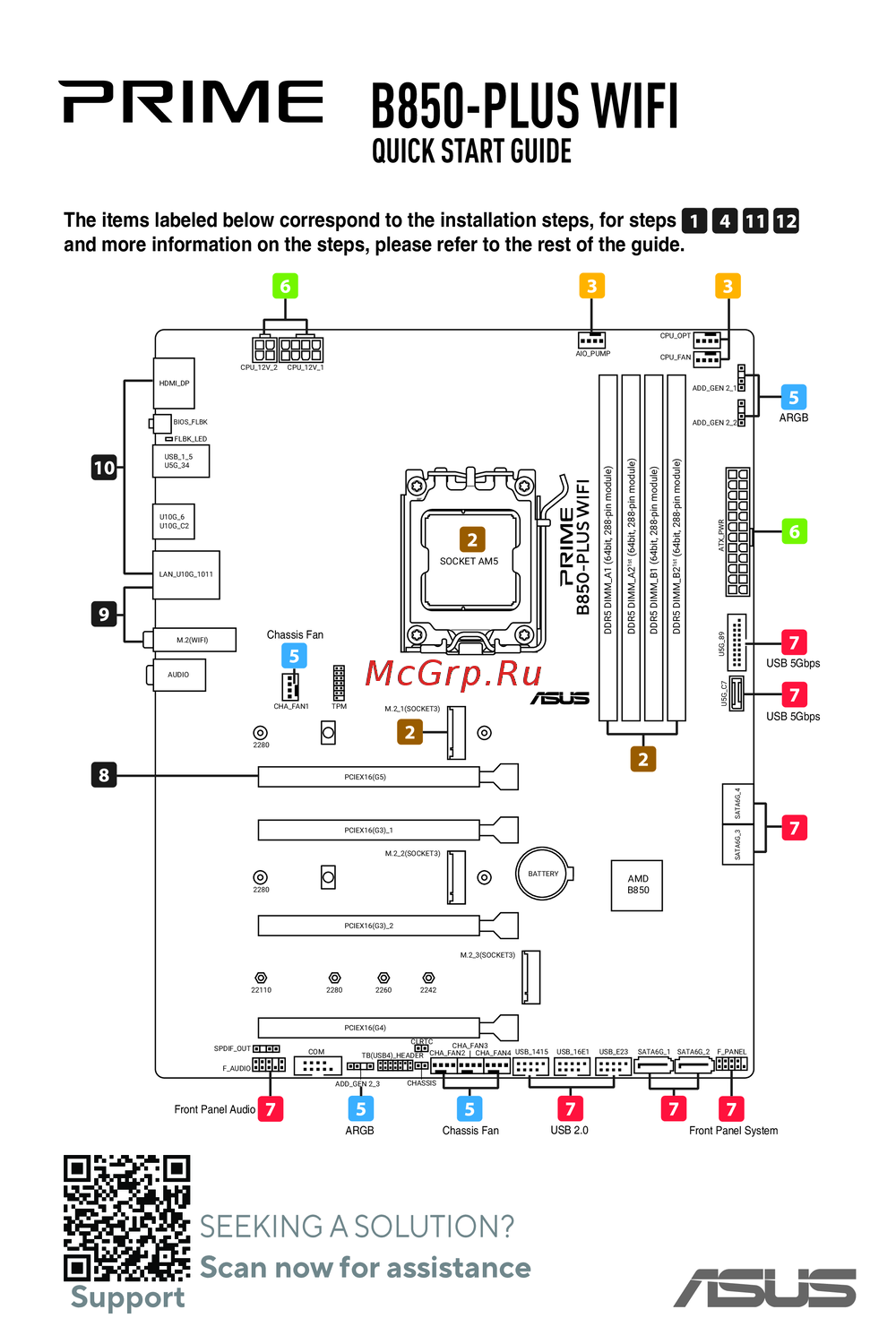 Asus B850-PLUS WIFIКраткое руководство